Guest menu
- Page URLs
- How modifiers render
- Price preview & the button
- Ordering & snapshots
- The cart & sending an order
- The status screen: what the guest sees
- Adding on & "My order"
- Cancelling & editing before confirmation
- "Call the waiter" & "Ask for the bill"
- Reloading & losing connection
- Table QR codes
Page URLs
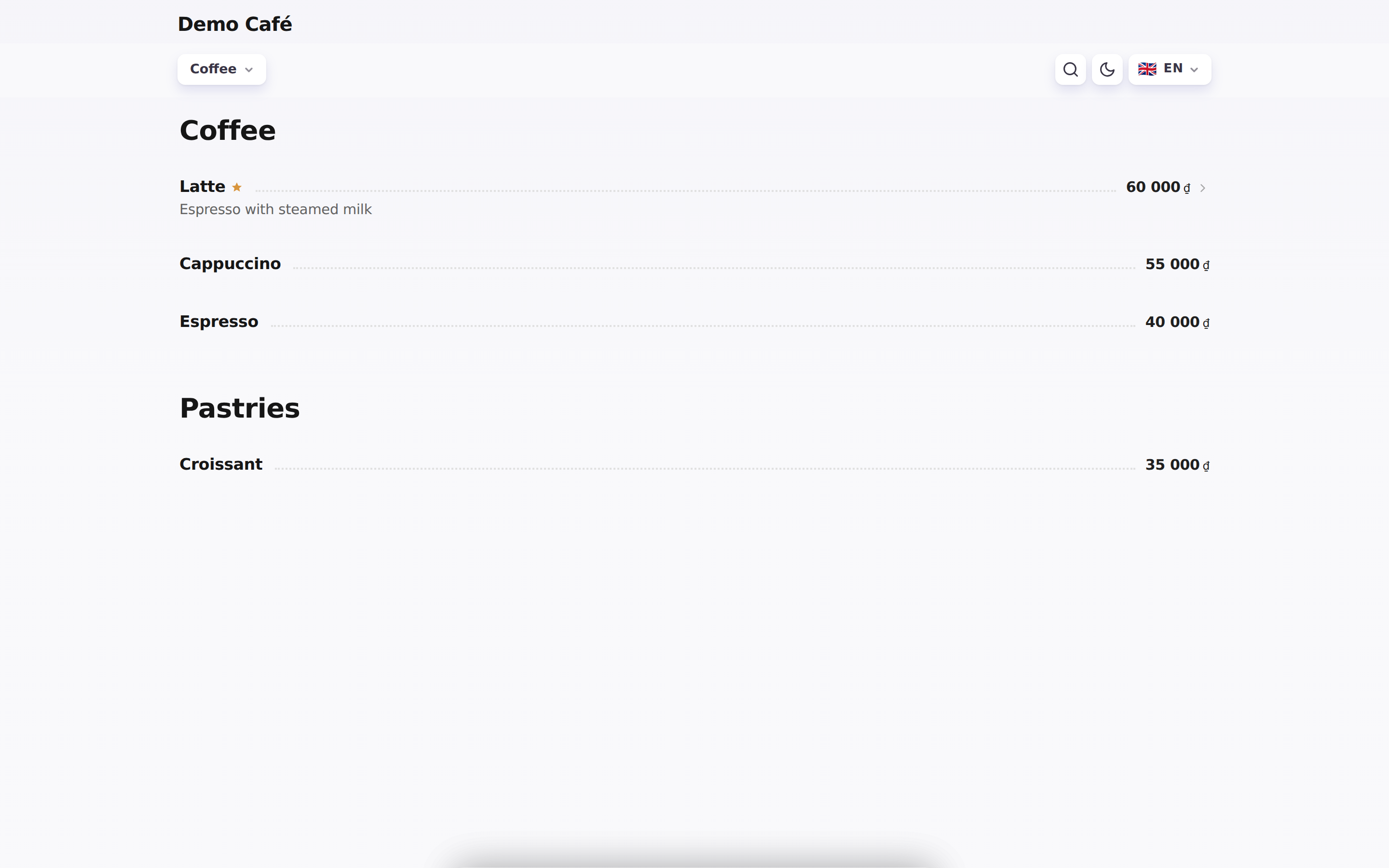
- Browse:
/{restaurant}(and/{restaurant}/{lang}), where the first segment is the restaurant's numeric id or uniqid. - Order from a table:
/{restaurant}/t/{table}/{lang?}— ordering is only available on this URL (a table identifier is required).
How modifiers render
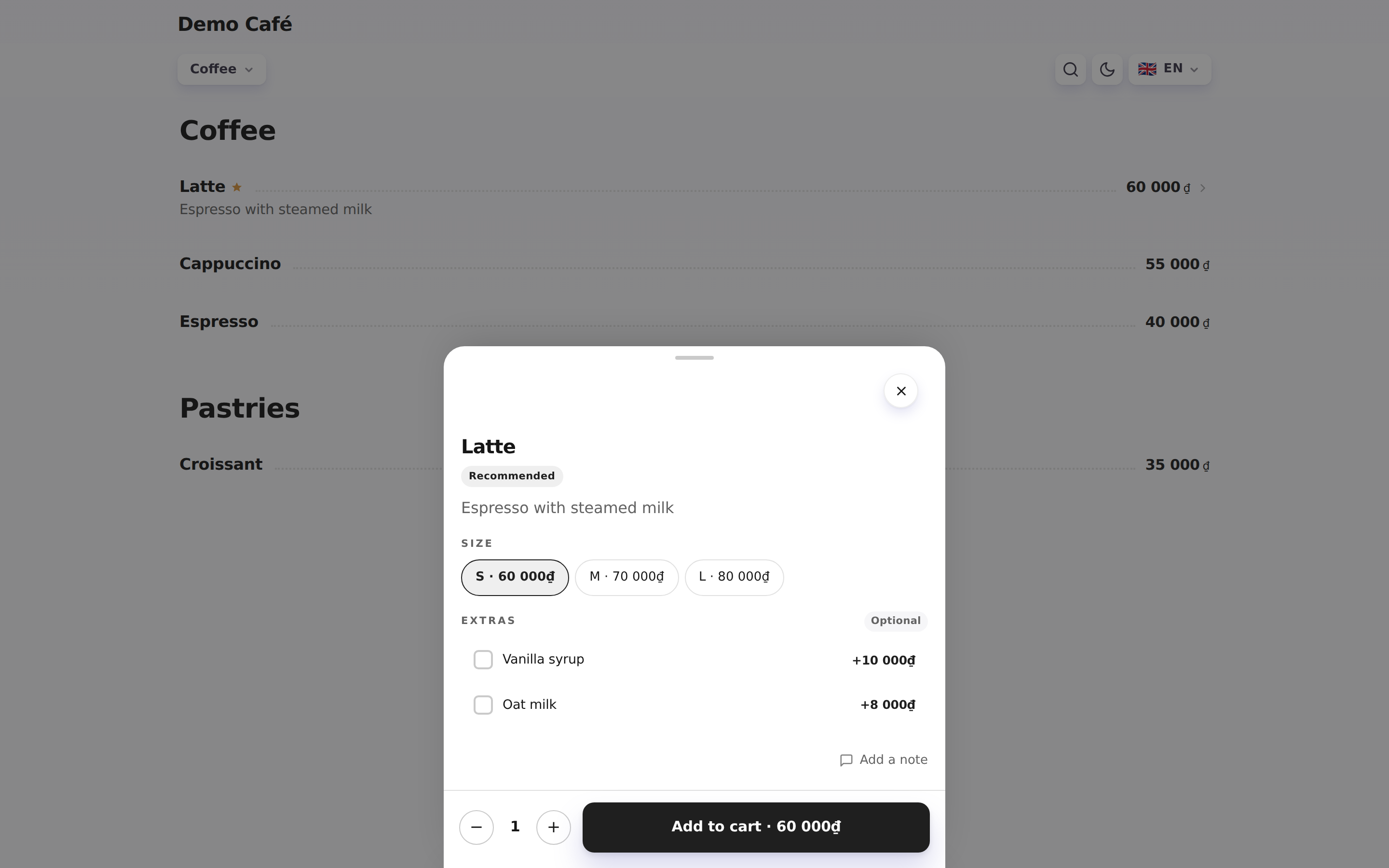
Tapping a card opens a sheet with the modifiers:
replacegroup (Size) — single-select chips; the "default" option is pre-selected.addgroup (Extras) — multi-select; each option shows+delta.
A leaf next to the dish name means the dish is marked vegetarian or vegan; the sheet spells out which one in words. A filter chip appears in the menu header and keeps only those dishes on screen; the pick is remembered on the device and survives a reload and a language switch.
Both surfaces follow one rule: they show up only when the mark actually separates something. With no matching dishes, or with the whole menu matching, neither the leaf nor the filter appears. The filter has no thresholds of its own — one vegan dish among sixty is precisely what nobody finds by scrolling.
The chip acts on whichever mark covers more dishes, usually "vegetarian". Vegan dishes are inside that selection and stay distinguishable by their own leaf and by the badge in the dish sheet.
Price preview & the button
The price on the button is recalculated with every tap: the dish's price — or the price of the chosen size — plus the selected add-ons. If you set a different surcharge per size, the guest sees the one that matches their choice.
The Add to cart button won't fire until the guest has picked what's required: a "Sauce" group asking for at least one option, for instance. There's nothing to pick for size — one option is always pre-selected. A dish on the stop list has no button at all: guests see it but can't order it.
Ordering & snapshots
On the table URL, add items to the cart and place the order.
{primary} The order total is always recalculated by the server from the current menu — a guest's phone can't propose its own price. If the chosen add-ons break the dish's rules, the order isn't accepted and the guest is told what to fix.
{success} Order history is immutable. At order time, snapshots of the name and price are stored. If the dish is later edited or deleted in the admin — the menu updates, but the order line keeps the old name and price.
The cart & sending an order
The guest builds a cart in their own language: they pick a dish, a size and add-ons, set the quantity and, if they like, write a note — for a single item ("no onion") and for the whole order. The cart lives on their phone and survives a page reload: items, add-ons and notes come back on their own.
Sending is only possible on the table URL (with a table number) and only when the full order-taking mode is on (modes).
If the venue asks for a name or a room number (the setting), a "Your details" block appears under the cart items. An optional field can be skipped. A required one holds the order back: the "Submit order" button fades, and tapping it highlights the empty field with the hint "Your name is needed to submit" (or the room number). The phone remembers what was typed for 30 days, so on the next order the fields are already filled in.
The status screen: what the guest sees
Right after sending, the status screen opens: a coloured header, the order number and a three-step rail Sent → Confirmed → Served, whose fill flows on to the next step as the order moves along.
The order number — "/docs/en/guest#12", say — is the same one staff see on the order card, the kitchen ticket and the receipt, so the guest and the waiter can match it at a glance. The number is the venue's own and starts from 1 every day (order numbers); an order the till took without internet goes by the till's number — "1-7". Next to it sits a table chip and, if the guest gave a room or a name, a "Room 214 · Anna" chip.
- Waiting for confirmation — staff can see the order, but haven't accepted it yet. A hint says the screen updates by itself, no need to reload. Until it is confirmed, the guest can cancel or edit the order (below).
- Order confirmed — if it's known who accepted it, the guest sees the staff member's name and that the order is being prepared. At the bottom: "Call the waiter" and "Add more".
- Served — "Enjoy your meal!". At the bottom: "Ask for the bill" and "Add more".
- Order declined / Order cancelled — a red header and no rail; details below.
The screen updates in real time: the guest doesn't have to tap anything to see that the order was accepted.
The phone can simply lie on the table. While an order waits for confirmation the page keeps the screen from going dark — for ten minutes at most. When the venue accepts or declines the order, a short bell sounds and an Android phone vibrates.
{info} The signal only reaches a page that is open on the screen. A guest who locked the phone or switched to another app learns about the confirmation on coming back to the page. A phone in silent mode does not ring — the page does not override it.
To hear the answer with the page closed as well, the guest taps Notify me when the venue answers — the button is on the order's screen while it waits for confirmation. The browser asks for permission to show notifications; once granted, "Order #12 accepted" or "declined" arrives on the phone even when the menu is closed. Tapping the notification opens the menu on that order.
{info} The button only shows where the browser can deliver a notification to a closed page: Chrome on Android and desktop browsers. It is absent on an iPhone, where notifications are only available to a site added to the Home Screen. While the guest is just reading the menu, the page asks for nothing.
When the venue declines or cancels an order, the guest sees:
- in the header — the order number, the table and "nothing was charged";
- the reason as a large "Reason from the venue" card, if staff gave one. The reason is translated automatically into the language the guest opened the menu in, with the original shown smaller underneath. The translation arrives within a few seconds: first the guest sees the reason as it was typed, then the text swaps by itself. If the guest reads the menu in the staff's language, there is nothing to translate; once the venue has used up its daily ceiling on automatic AI operations, the reason stays untranslated;
- the items under "Was in this order" — dimmed, with the prices struck through;
- the "Call the waiter" and "Order again" buttons. The latter puts the order's items back into the cart: if the order was declined over one dish on the stop list, the guest removes it and sends the rest. Dishes no longer on the menu don't come back.
If the guest cancelled the order themselves, the header says "You cancelled this order" and there is no reason card. If staff removed every item from the order one by one, the guest sees "Order cancelled" with a note that the venue removed every item — again with no reason card.
{info} The reason's language is the one the guest had the menu open in when the order was sent. Switching the language later doesn't change it — the translation still comes in the earlier one.
Adding on & "My order"
The Add more button on a confirmed or served order takes the guest back to the menu: the next send becomes a new order of the same visit. Orders are numbered in order and add up into a single table bill.
A floating My order pill with an order counter appears in the bottom right corner. Its colour follows the state: amber while an order waits for confirmation, green once it is accepted. When the cart already holds dishes, the pill sits above the cart bar. With one order it opens that order's status; with two or more it opens a list of cards ("Order 1", "Order 2"), their stages, their contents and the grand total at the bottom.
{info} "My order" is the history of this phone at this table: orders placed by table neighbours from their own devices don't show up there, and once staff close the bill the list disappears.
Cancelling & editing before confirmation
While the order isn't confirmed, the guest can cancel it or edit it — the line under the buttons says as much: available until the venue confirms. Once it's confirmed the buttons go away, leaving the note "Order accepted — ask staff for any changes".
"Edit order" works simply: the order is cancelled and its items go back into the cart — the guest then fixes things and sends again, as a new order.
The guest sees their own cancellation as "You cancelled this order" — with no reason card: a reason is only needed when the decision was the venue's (the status screen).
{warning} A cancelled order stays in the history marked "Cancelled" — that's normal. If the dish was pulled from the menu in the meantime, it won't come back into the cart, and prices are recalculated from the current menu.
{success} If the guest taps "Cancel order" at the exact moment the waiter accepts it, nothing breaks: the guest sees "The waiter already accepted this order" and the screen switches to the real status.
"Call the waiter" & "Ask for the bill"
A confirmed order has a Call the waiter button, while a served order and the bottom of the "My order" list have Ask for the bill. After a tap the guest sees a confirmation ("The waiter has been notified", "The staff has been notified — your bill is on its way") and the button is locked for a minute.
The minute also runs from the moment staff take the call: otherwise "On my way" would itself reopen the button — the floor marks the call, walks to the table, and the guest is already calling again. If the guest presses anyway (from another device, say), the server answers "Someone is already on their way — please wait a moment" and no call is raised.
On the staff side, a call card appears on both the Hall and the Orders screen — a separate one for "calling a waiter" and a separate one for "asking for the bill" — plus a push (first of all to the waiter assigned to the table). The kitchen never sees calls. When a staff member taps Accept call, the guest immediately sees "The waiter is on their way" or "Your bill is on its way".
{info} "Ask for the bill" is on the served order's screen and at the bottom of the "My order" list (which opens from the second order on). A guest with a single order who opens it through the "My order" pill sees the button on the status screen earlier too. The screen that opens right after sending doesn't have it until the order is served — that's expected, not a fault.
{warning} A call doesn't burn out on reload: the server remembers unaccepted calls, and the guest sees "Waiter called" again. So unaccepted cards on the floor have to be closed — otherwise the guest will think nobody heard them.
If staff edit the order (void an item, change a quantity, add something), the guest gets a short message and the screen updates the contents and the total by itself. A voided item doesn't disappear: it stays struck through, labelled "Not charged".
Reloading & losing connection
The guest can reload the page, minimise the browser or lock the phone — the orders won't go anywhere: the page pulls the history back in, shows the "My order" pill again and restores live status updates.
If the guest closed the tab and opened the menu again while an order is waiting for confirmation or being prepared, that order's screen opens by itself. Once the guest closes it, a reload won't bring it back — the pill stays the way in.
{info} The memory of the orders is tied to the device and the browser: from another phone or in private mode the guest won't see their orders. If the connection is really poor, tapping the "My order" pill forces a refresh.
Table QR codes
A guest reaches the menu through a QR code. There are two kinds:
- A table QR — leads to the ordering URL: the venue and the table are already set, and the order arrives with the table number. Printed from the Hall & tables section.
- The venue QR — a general code with no table attached, for the counter, the window display or social media. It lives in Settings and is shown on the success screen after the menu is created. It can't be used to order — the guest is asked to scan the QR code on the table instead.
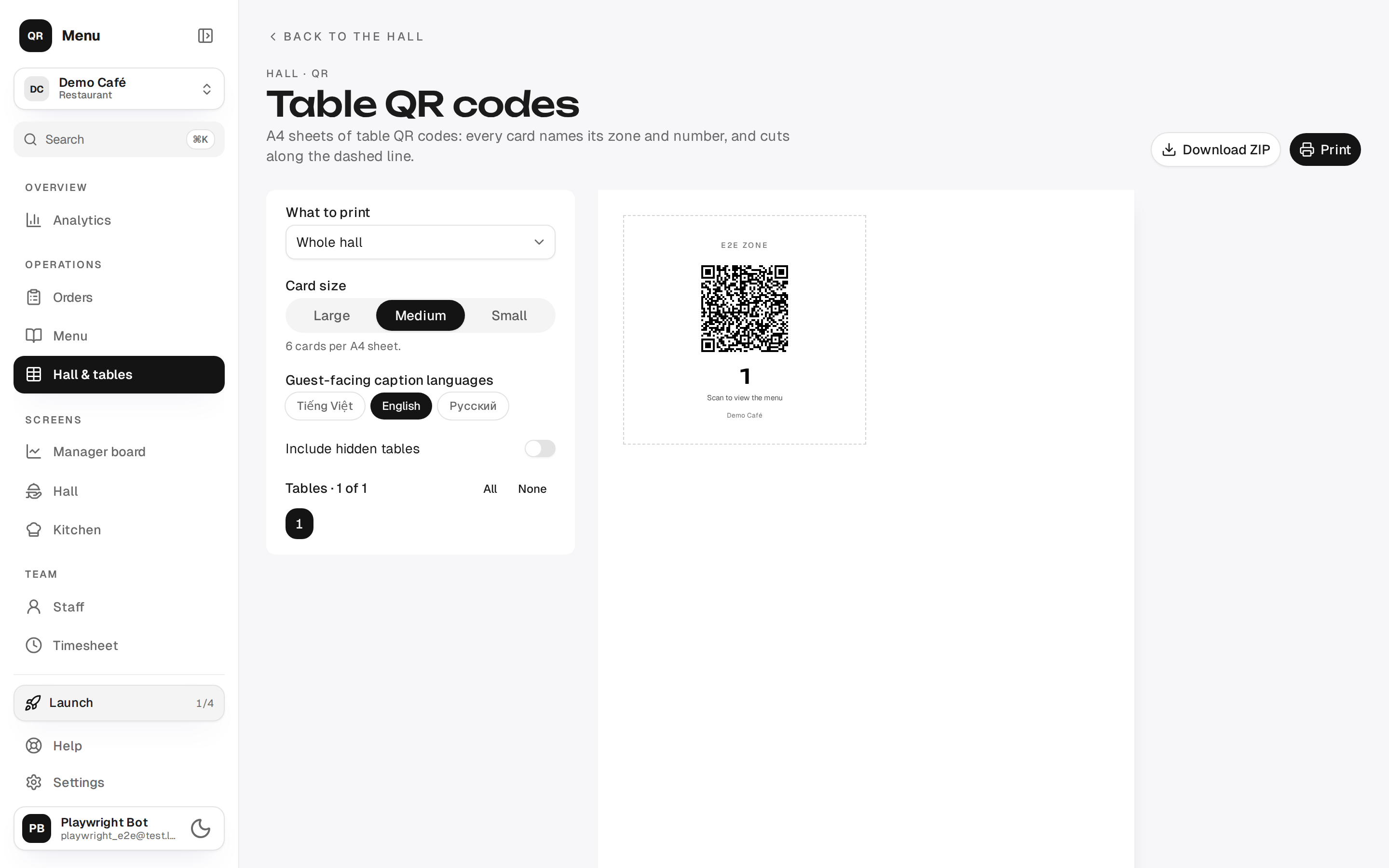
Printable sheets, card densities, the number and zone on a card, exporting an archive for the print shop and all the limits — on the Hall, zones & tables page.