Bills and receipts
- What the app does with a bill, and what it doesn't
- How a table bill works
- Where to open a bill
- Correcting a bill: remove a dish, discount one
- "Waiting to pay": the table asked for the bill
- Closing a bill
- Payment method
- After settling
- Splitting between guests
- Merging tables
- Printing a receipt
- Who can do what
What the app does with a bill, and what it doesn't
The app adds the bill up: it collects every order of the sitting, splits them between guests, prints the receipt and frees the table. It also records how you were paid (payment method) — but it moves no money.
What it doesn't have: taking payments, change, tips, promo codes, a discount on the whole bill, taxes and service charges, fiscal receipts and any link to a cash register. The guest settles at your till — and the footer of every receipt says plainly that it is not a fiscal receipt.
There is one discount, and it is deliberately narrow: on a single dish of an open bill (editing the bill). That keeps every discount attached to its line and visible on the receipt instead of dissolving into the total.
{primary} Keep this in mind at launch: "close the bill" here means "settled, table is free", not "the money went through".
How a table bill works
An order is one trip to the kitchen. A bill is the whole sitting at a table. It opens by itself with the first order, and every later order from that table joins the same one: a table always has exactly one open bill.
The total covers confirmed and completed orders. Voided lines don't count and don't reach the receipt (voiding).
{info} If a bill has been open since yesterday and is still not closed, a reminder with the date appears in the header — so forgotten tables don't pile up for weeks.
Three levels, each with its own status.
- Bill — open or closed. Closing it means "paid, the table is free".
- Order — new, in progress, served (or rejected and cancelled — those are not billed).
- Dish — waiting, cooking, ready, served.
The main rule: "Close bill" is about money, "Serve" is about the plate. Closing a bill leaves the dishes alone: an unfinished order stays on the kitchen screen and the Orders board, marked "Paid", until the dish goes out. Completing the order itself, on the other hand, marks all of its dishes served.
Shift cheat sheet.
- Waiter: confirm a guest's new order → carry out what is ready and tap "Serve" → the guest asks for the bill: open the table's bill, print the pre-bill (if the venue prints them), tap "Waiting to pay".
- Kitchen: take the ticket → mark the dishes ready. "Paid" only means the guest has already paid — the dish still has to be made.
- Till: in the Till view the tables waiting to pay are on top → check the amount and correct it if needed → take the payment on your own register → "Close bill" and pick the payment method → at the end of the shift check the "In money" total against the drawer and the bank, and fill in any "Not recorded" bills.
Where to open a bill
The Table bill button sits on every workplace of the Orders screen:
- the table card on the hall map, the order panel and the ticket card;
- the Till view, which gathers every table due to settle (Waiting to pay);
- an order's entry in the archive — a bill card with its number, status and amount, which is how a settled bill opens (after settling);
- the "Guest asks for the bill" call card, which lands on both the Hall and the Orders screen — straight to the right bill, to print the pre-bill (if the venue prints them), carry it over or settle it.
A guest on their own phone sees only their own orders, never the shared table bill.
Correcting a bill: remove a dish, discount one
While the bill is open it can be corrected right in the sheet — there is no separate "pre-bill document" to produce first, you simply put the bill in order before carrying it to the guest.
Every line has a corrections button (the dots on the right) with two actions:
- Discount the dish — by percentage (10/20/50/100 are one tap) or by amount, with an optional reason. Neither the menu price nor the order's price snapshot changes: the discount is recorded beside them and subtracted from the line, so the receipt shows "−50%" and the bill's total re-adds itself. Applying zero clears the discount.
- Remove from the bill — the same void as on the order card: the line stays in the history with its reason but leaves the total and the receipt.
Adding a dish to an open bill needs nothing special — place another order for the same table and it joins the same bill (how a table bill works).
{info} Both corrections are visible to the whole shift at once and both are written to the order's history: who, when and why. The dish's price snapshot stays as it was — which is exactly what makes the correction auditable afterwards.
"Waiting to pay": the table asked for the bill
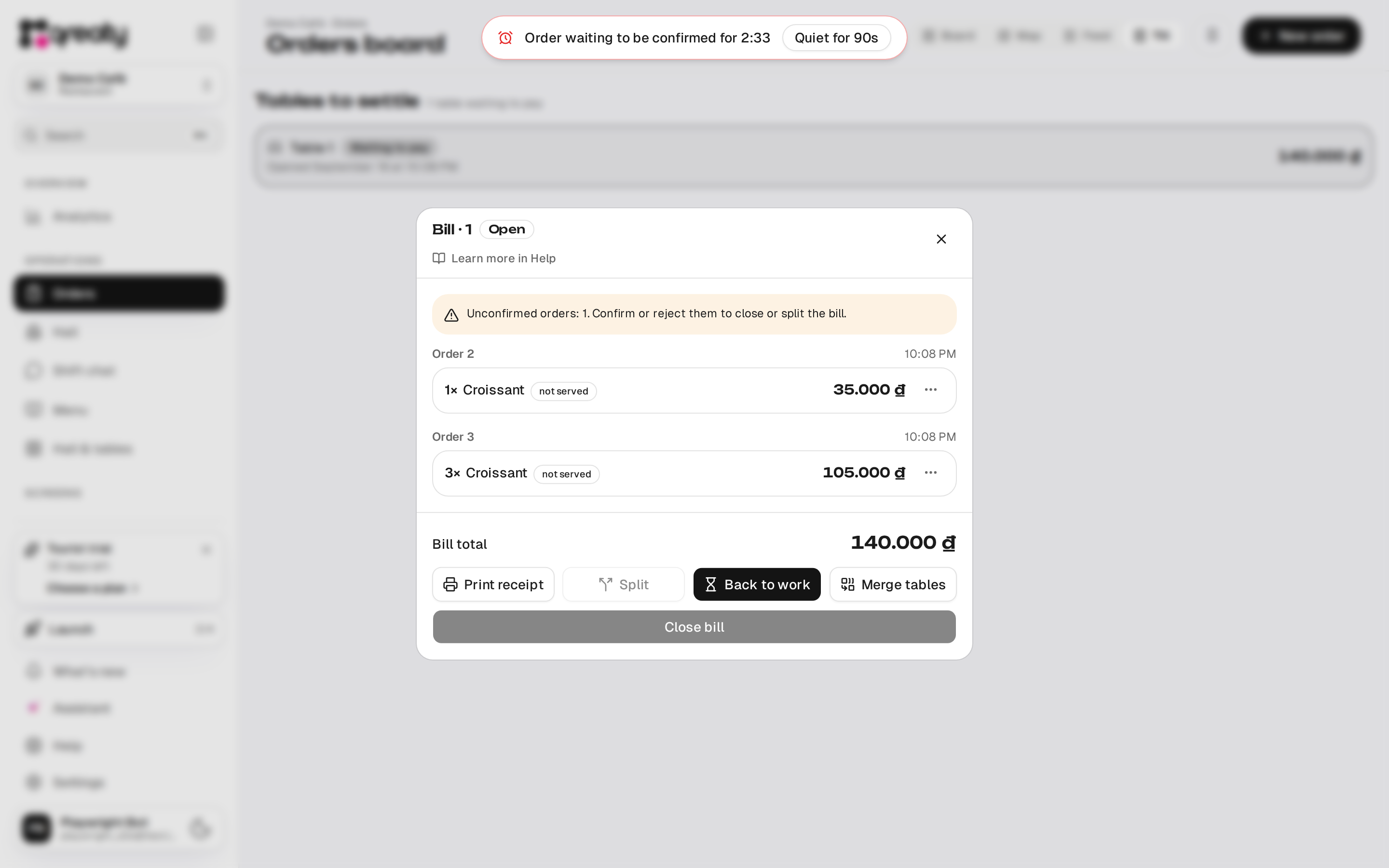
Between "the guest asked" and "the table is free" there is a gap the floor used to be blind to: nobody could tell whether someone had already carried the pre-bill over. The Waiting to pay button on the bill marks the table, and it rises to the top of the Till view on the Orders screen, where the cashier sees every table to settle.
It is not a status: the bill stays open and the table still takes orders — guests ask for the bill and then order one more coffee all the time. Back to work clears the mark.
The mark is set by whoever holds "Settle bills" — the till. A waiter doesn't need it: the guest's request reaches both screens as a "Guest asks for the bill" call card, and printing the pre-bill (where the venue prints one) needs no permission at all. In the Till view a table that asked for the bill sits at the top of the list.
The Till view also warns about bills open since yesterday or earlier: in this model a forgotten bill keeps its table busy until someone closes it.
Closing a bill
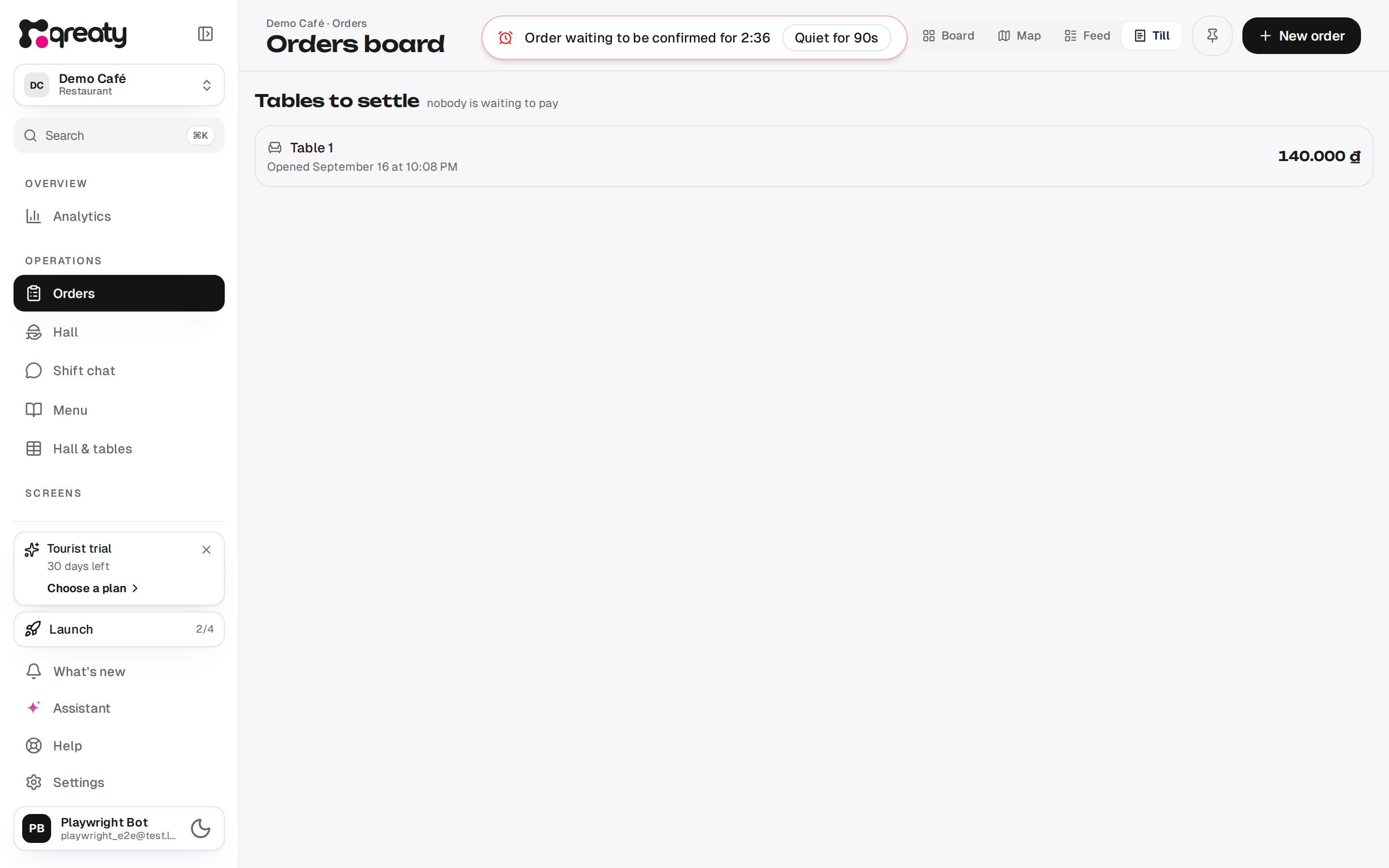
The Close bill button asks for confirmation and states the consequences honestly: the amount becomes final, the table is freed, the next order opens a fresh bill. Any orders still running are completed automatically — you don't have to "close" them separately.
What blocks the close and what doesn't:
- Unconfirmed guest orders block settling — confirm or reject them first, otherwise the guest is left with a request hanging.
- Unserved lines don't get in the way. The confirmation counts them on two lines: how many dishes the kitchen is still making, and how many are ready but not marked served. An unfinished order stays on the kitchen screen and the Orders board after settling, marked "Paid", until the dish goes out; serving is marked as usual. The table is freed right away all the same.
- An empty bill closes too. When every order on the table was rejected or cancelled there is nothing to settle, yet the bill still holds the table — the close only frees it and settles no money. If platform support deletes the table's last order (deleting exists only in their panel), the bill closes by itself.
Without internet. If the venue has orders without internet on, the till closes a table offline too — and settles exactly what you see on screen: the lines the bill shows, with the payment method and the sum you took. The table frees up at once, and the settlement goes to the server when the connection is back.
- The payment method is required: cash, card, transfer, wallet or voucher. Room charge, splitting and merging need a connection.
- Unconfirmed guest orders don't block it: they stay open on the table, and the till says how many.
- If the table holds something the till didn't see — an order from another till, or a guest order that arrived during the outage — it isn't closed with this settlement. When the connection is back, the till says "… is still open on the table", and the table's bill gets a note about the previous party's remainder: settle it separately before seating new guests.
- If another till closed the table meanwhile, what was already paid isn't paid twice, and money taken twice goes to the manager's reconciliation (if something changed).
{warning} Closing can't be undone: a bill cannot be reopened. The receipt can be printed later too: a settled bill opens from any of its orders and stays printable (after settling).
Payment method
When a bill is closed the till can record how the guest paid: cash, bank transfer (QR), card, e-wallet, room charge or voucher. It is a switch, like "Counts as" on a dish: it starts at "not recorded", and the bill closes whether anyone touches it or not.
Why it exists: at the end of a shift the Till view shows how much came in by each method, and analytics shows the split over a period. Otherwise there is nothing to reconcile the drawer, the bank account and the terminal against.
{primary} The app still moves no money. It records how you were paid; the payment itself is taken at your own till.
About the methods common in Vietnam:
- Transfer (QR) — "chuyển khoản" over VietQR: the guest scans a code with their banking app. The most common cashless method among local guests.
- E-wallet — MoMo, ZaloPay, VNPAY, ShopeePay. Kept apart from a transfer because the money lands in a merchant wallet rather than the bank account and is reconciled separately. With a single QR for everything, record Transfer.
- Room charge — for hotels: the bill goes to the guest's room and the front desk takes the money. It asks for the room number and suggests the one the guest typed when ordering. The receipt prints the room in large type and adds a line for the guest's signature. The list of such bills for a period, to reconcile with the front desk, is Analytics → Export → Room charges (more).
- Voucher — included breakfast, a complimentary meal, anything on the house. The bill may come to zero and still be counted.
A bill closed without a method lands in the "Not recorded" row. That is not an error: every bill closed before this existed looks the same. The method can be recorded after settling too (after settling).
When a bill is split, the method is chosen per guest — which is how "half by card, half in cash" is taken (splitting between guests).
After settling
A settled bill does not disappear. It opens from any of its orders — from the order card on the Orders screen and from the archive — and is shown read-only: every order, the final amount, who settled it and when, and a print button. The close, split and merge buttons are gone by then.
Reprinting works the same way: the receipt can be printed an hour later or the next day, with no need to hunt for the paper copy.
The payment method can be corrected after settling. If the till tapped the wrong one, or closed without picking any, the plaque carries a "Change payment" / "Record payment" button — which also clears it back to "not recorded". The change is written to the order's history: who did it and when. It is the only thing a settled bill lets you change, and it exists because closing is irreversible and a wrong mark would otherwise sit in the report for good.
{warning} Otherwise a settled bill cannot be changed: no adding a dish, no discount, no reopening. Everything else that needs fixing is fixed before settling.
Splitting between guests
The Split button turns the list into a builder: tapping a line sends it to the current guest, tapping an order heading sends that whole order. Guests are told apart by colour, each has their own total, and the remainder is shown at the bottom.
There can be up to six guests. Each one gets their own receipt; anything not assigned to anybody stays on the shared receipt.
Once the lines are dealt out, the sheet asks how each guest is paying — one switch per group and one for the remainder. That is how "half by card, half in cash" is taken: a bill carries a single method, and each part of a split carries its own (payment method).
{warning} A split is the settlement itself: the bill is closed whole and for good. "Pay half and leave the table open" is not possible, and you can only split by lines — there are no "equally" or "by amount" modes.
Like closing, a split settles every order on the bill. So the payment step shows the same warning: how many dishes the kitchen is still making, and how many are ready but not marked served. It blocks nothing.
Merging tables
When one party sat down at two tables but pays once: open the bill of the table that will pay and pick the second table. Its orders move here and that table frees up.
There are two ways to pick it — the list of open bills, or the floor plan: the map shows where the rest of the party is sitting, and the zone switcher says which room has anything to merge. Tables with no open bill are dimmed on the map.
The bill stays open — this is not a settlement, it's a merge. Only open bills of the same venue in the same currency can be merged. Unconfirmed orders do not block it: they simply travel along and wait to be confirmed on the shared bill (closing or splitting a bill still isn't possible while they hang there).
A bill opened on an earlier day is marked with its date and sorted last: that is usually a bill someone forgot to close rather than a live party, and absorbing it silently puts someone else's money on the payer's tab. The chosen table, its total and that date are shown once more at the bottom before you confirm.
{warning} There is no undo button: if you merged by mistake, the only way to sort the guests back out is to split at settling time.
Printing a receipt
Where the venue prints pre-bills, while the bill is open the button reads "Print pre-bill" — the guest's bill before settling. Once settled it becomes "Print receipt", and the receipt gains the payment line. A single order can be printed too: from its card, from the archive and right after a spoken order is entered. That paper covers only that order, not the whole table: if the table ordered more than once, print the guest's bill from the bill itself.
The pre-bill is a venue setting: the "Pre-bill" switch (Settings → Printing) is off by default. Switch it on if you bring guests a paper bill before they pay. While it is off, an open bill has no print button, and "Send to the till" is refused for it. "Print receipt" on a settled bill, a single order's receipt and the "Waiting to pay" mark never depend on it.
The dialog offers the paper: 58 mm, 80 mm or A4 — the thermal printer at the bar or an ordinary office printer. The choice is remembered per device, so a tablet and a phone can print differently.
When a Qreaty Print printer prints receipts there is no dialog: the receipt goes to the printer at once. If the agent runs on the same computer as the till, the till hands the receipt to it itself, in the printer's language (printing straight from the till).
The receipt shows: the venue, the bill number ("Bill #7" — bills, like orders, are numbered afresh every day by the venue) or the order number, the table, the guest's name and room if the venue asks for them, the lines with their modifiers and notes, quantities, amounts and the total. If the bill itself carries a room number, the bill receipt prints only that room, and just the guests' names (guest details). Voided lines don't reach the receipt — this is a guest receipt, not a shift log.
A settled bill also prints a "Paid by: …" line with the recorded method (payment method). A pre-bill does not: until somebody has paid, that line has no business being on paper. For a room charge the room is printed separately and large, with space for the guest's signature underneath — the front desk keeps that copy.
The pre-bill prints a "Guest signature" line at the bottom, so the guest can sign right at the table, before settling. The settled receipt has no such line.
{info} Printing goes through the browser's normal print window, so a receipt can also be saved as a PDF. The app has no direct link to a receipt printer driver.
Who can do what
- Seeing the bill and printing the pre-bill — any staff member of the venue (whether a pre-bill exists at all is a venue setting — printing a receipt). A waiter carries the printout to the guest without holding the right to settle.
- Adding dishes to the bill — the "Take orders · Manage" permission (a waiter has it).
- Removing a dish from the bill and discounting one — the "Void orders · Manage" permission: both corrections lower the total and go on the record.
- Closing, splitting, merging, flagging "Waiting to pay", recording and correcting the payment method, and reading the day's takings in the Till view — a separate "Settle bills · Manage" permission. The Owner, Manager and Cashier presets carry it; Waiter does not: the flag belongs to whoever settles, and the guest's request reaches both screens as a call card anyway.
A shared counter tablet runs on the Cashier role and closes bills as long as that role has "Settle bills" — the preset does. If the tablet shows no settle button, open Settings → Roles → Cashier and check that permission; it applies to staff members with the Cashier role too (the device's role).
The floor and the till are separated on purpose: the waiter assembles the bill and brings the guest a pre-bill (where the venue prints one), the till closes it (the Hall screen). If your waiters should settle too, grant their role "Settle bills" in the permission matrix (roles and screens).
{success} Every change to a bill is visible to colleagues at once. If the bill was edited while you were opening it, you'll get a warning and the current amounts — settling on stale data won't go through.