Hall, zones & tables
- Why you start here
- Quick start: a hall plan in a minute
- Zones
- Tables
- Many tables at once
- The hall plan
- Hidden tables
- Who serves the table
- What the table shows during service
- Printing table QR codes
Why you start here
A guest orders from a table, not "from a restaurant": the order arrives with a table number and goes to the waiter assigned to that table. Until you have tables there is nothing to print and nothing to take orders from — so the hall comes before ordering.
The section opens from the sidebar item Hall & tables or from settings (the "Hall and tables" card). It is available to staff allowed to manage the hall: a waiter or cashier will not see it.
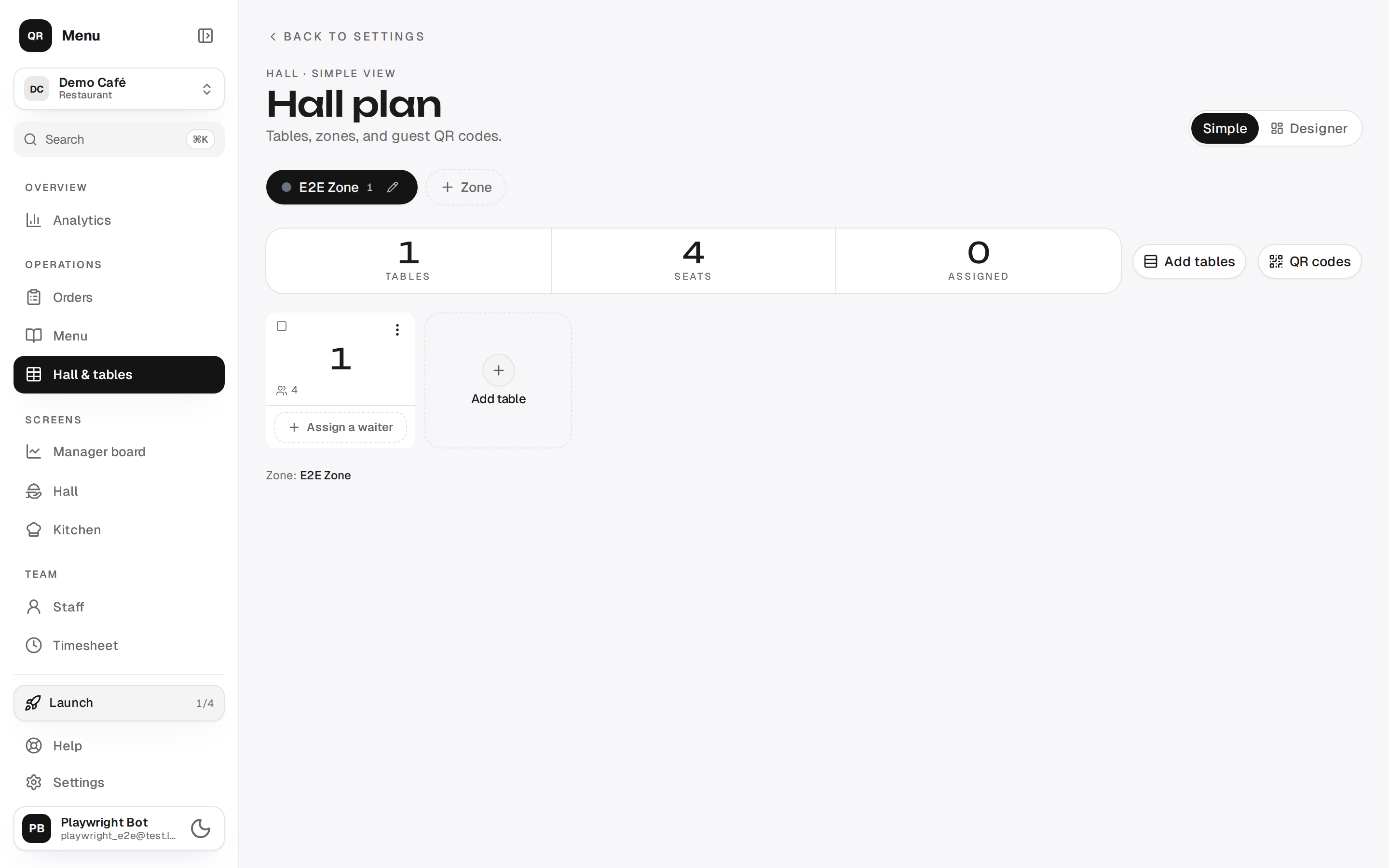
The section has two modes, the Simple / Designer switch in the top right corner. They share the same data — only the way it is shown differs.
Quick start: a hall plan in a minute
While there are no zones, the page offers Quick start — a three-step wizard: how many tables, how many seats per table, and a confirmation ("Will be created: 8 tables in 1 zone, 4 seats each"). The wizard creates the "Main" zone and numbers the tables in sequence from the first.
{primary} This is the best way to begin: arranging tables neatly and renaming zones can wait, while the QR codes get printed today.
Zones
A zone is a part of the venue with its own set of tables: "Main", "Terrace", "VIP", "Bar". Zones are shown as tabs above the table grid: a coloured dot, the name, and the table count.
- Create: the Zone button to the right of the tabs → name and accent colour → Create.
- Rename or recolour: the pencil on the active tab (or a double click on it).
- Delete: in the same dialog. You will be asked to confirm.
A table number is unique inside a zone, not across the venue: table 5 can exist both in the main hall and on the terrace. That is why every printed card carries the zone name at the top — otherwise a printed stack is impossible to lay back out across the hall. For the same reason, once the venue has tables in more than one zone, orders, guest calls, kitchen tickets and push notifications name a table together with its zone: "Table 5 · Terrace".
{warning} Deleting a zone deletes all of its tables, and that cannot be undone. The printed QR codes of those tables stop working.
A table or zone that already has bills cannot be deleted: its revenue would disappear from the reports. Archive it instead — Archive in the ⋮ menu on a table tile, or the Archive button in the zone dialog; the message refusing the delete offers the same Archive button.
- An archived table leaves the hall, the till, the waiter screen and the QR sheets, and its printed QR stops taking orders: a guest still sees the menu, but the cart says straight away that this table no longer takes orders, and the order can't be sent.
- The table's sales stay in the reports, and its number is freed — you can add a new table with the same number. Archived tables don't count towards your plan's table limit.
- A zone goes to the archive together with all its tables.
- A table with an open bill can't be archived: close the bill first.
- To bring a table or zone back, tap Undo in the message right after archiving; later, ask support. A zone comes back together with the tables that were archived with it.
Tables
The zone's tables are shown as tiles: the number (or name), the shape, and the seat count. Above the grid are three figures for the current zone: Tables, Seats, Assigned.
- Add: the dashed tile at the end of the grid. The next free number is filled in.
- Table fields: number, name (optional, e.g. "Bar 3"), seat count, shape (round, square, rectangle, bar counter) and zone.
- The "⋮" menu on a tile: edit, duplicate, copy the QR link, print QR, hide, delete.
- Order: tiles are draggable — by the handle with a mouse, by a long press on a phone.
{info} "Copy QR link" will not work while the venue has no menu — you will see the hint "Create a menu first".
Many tables at once
The Add tables button sets up a whole hall in one go. Two modes:
- Range — "How many" and "Start from". The second field fills itself in, but you can overwrite it: the second floor of a hotel starts at 201, for example. The optional Prefix ("Room", "Table", "Booth") goes into the name, not the number: you get "Room 101".
- Own list — values separated by commas or one per line. A plain number ("101") becomes the table's number; anything else ("A-1", "Suite 3") becomes its name, and the table takes the next free number.
At the bottom of the dialog is a live preview: exactly what will be created and how many. One press creates no more than 200 tables — generate a large venue floor by floor or zone by zone.
The hall plan
Designer is a canvas where the tables stand just as they do in the room. That layout is later what the waiter and the till see on the hall map. Besides tables there is decor: walls, a door, a window, a bar counter, a plant, a text label — it helps you recognise the room at a glance.
The properties of the selected table (number, name, seats, shape, zone, rotation, size) are edited in the panel on the right. Changes save themselves — the header shows Saved.
{info} The designer works only on a wide screen — a tablet or a laptop. On a phone it says so honestly and offers the simple mode, which gives up nothing: zones, tables, the generator, assignments and QR printing are all there too.
{success} The plan is only a layout. Tables work without it: QR codes, orders and assignments do not depend on whether the room is drawn.
Hidden tables
The Hide item in the tile menu takes a table out of service without deleting it: the tile fades, the table disappears from the waiter's and the till's screens, and its seats stop counting towards "Seats". This is for seasonal seating — a terrace in winter, a banquet room between events: the numbers and the printed codes are kept.
{warning} Hiding does not switch off a printed QR. If a guest scans the code of a hidden table, the menu opens and the order goes through — but the table is invisible to the waiter, and the order is easy to miss. If the table is out of service for good, archive it (zones) — then its code stops taking orders.
Who serves the table
Under every tile there is an assignment strip: either an Assign a waiter button, or the name of the assigned person and their load ("7 tables"). The meaning is simple: orders and notifications for that table are addressed to that person — and to them alone: colleagues don't get pushes about an assigned table's events (who gets a push).
- One table — press the strip and pick a person from the list (it also shows how many tables they already hold). The cross clears the assignment.
- A whole hall or zone — the Quick assign button: pick a person and an area. Handy when one person covers the shift.
- Shared work — the same dialog has the Whole team — no assignments option: assignments are cleared, everyone sees every table.
A separate setting, Waiters claim their own tables (Settings → Screens), lets a waiter take a free table for themselves straight from their own screen ("Take the table") and release it again. While it is off, the manager hands out the tables and the waiter sees the line "The manager hands out tables".
{warning} Quick assign has no undo button: it overwrites the assignments of the whole selected area at once. Switching on "waiters claim their own tables" does not clear assignments already made either — an assigned table cannot be taken until the assignment is cleared.
{info} A shared device (a till tablet) gets no tables assigned — it has no tables "of its own", so such accounts never appear in the list.
What the table shows during service
On the working screens a table has five states: Free, Requested (the guest has sent an order and it has not been confirmed yet), Cooking, Ready (the dishes are due out), Seated (everything served, the guests are sitting). If a table has several orders, the most urgent state is shown.
A table stays taken while its bill is open. The dishes may have gone out an hour ago — the table still reads "Seated" and its tile carries the bill's amount: the party is there and has not settled. It turns "Free" exactly when the bill is closed, split or merged into another table (the table bill). Nothing has to be reset by hand.
{info} This is where "forgotten bills" come from: a bill left open keeps its table taken tomorrow too. Every table due to settle is gathered in the "Till" view of the Orders screen.
A waiter call is a separate attention signal, not a sixth state.
Printing table QR codes
The QR codes button above the grid opens the sheet page: settings on the left, a preview of the A4 sheets on the right.
- What to print — the venue QR code, the whole hall, one zone, or the ticked tables.
- Card size — "Large" (1 card per sheet), "Medium" (6) or "Small" (12). Large ones suit a counter and hotel rooms, medium ones table stands, small ones are effectively stickers.
- Include hidden tables — hidden tables stay off the sheet by default.
- The table list to the right of the counter ("Tables · 8 of 24") lets you untick the extras — a convenient way to reprint a couple of worn cards.
The card carries "Menu" at the top, the code below it, the table number in a grey disc at the bottom left and the Qreaty logo at the bottom right. A table's name does not go on the card — only its number.
Cards sit edge to edge in a block centred on the sheet, and the margins carry short crop marks — one at each end of every cut. Cut along the marks: one cut frees a whole row or column. The grid is the same on every sheet, even a part-filled last one, so a stack of sheets can be cut on a guillotine in one pass.
If the venue has several zones, the zone name is printed next to the number: numbers are unique only within a zone, and without it two "9" tables from different rooms cannot be told apart on paper. A long name wraps onto a second line, and whatever still does not fit is cut off with an ellipsis. With a single zone the card carries no zone at all.
The Print button opens the browser's usual print window, and from there the sheet can also be saved as a PDF.
The Download ZIP button hands over the same ticked tables as files: vector codes for the print shop, images for simpler programs, an index table (zone, number, name, link, file names) and a short note. This is what a designer or a print shop asks for.
The vector codes come in two styles: plain black squares in the svg folder,
and the brand style of the sheet's cards in svg-brand. A designer may recolour
the plain code and set a logo in its middle. The brand one goes on whole: it
keeps less in reserve against damage, and a logo or text laid over it gets in
the way of reading it.
{warning} File names inside the archive do not match between downloads: after zones are renamed, an old name may already belong to a different table. Check against the index from the archive you actually have in hand.
{info} Download limits — up to 500 tables at a time and no more than three downloads a minute (all limits). If the venue has no menu yet, the page warns you: the codes will print, but they will open an empty page — they start working as soon as a menu exists.
The venue QR code
The first entry in "What to print" is "Venue QR code". This is the window code: the same card, without the number disc and without a zone — "Menu", the code and the logo. At the "Large" size it prints one code per A4 sheet, which is what goes on the door or in the window.
Instead of "Download ZIP" there are two buttons here: "Download SVG" — vector for the print shop, sharp on a sticker and on a poster alike — and "Download PNG", an image for simpler programs, drawn at print resolution rather than screen resolution.
A table QR and a venue QR are different codes. The venue code (Menu → Active menu QR → "Print sheet") leads to the menu without a table: you put it on the door, the window or social media, but it cannot be ordered from — the guest sees a request to scan the code on the table. A table code leads to the same menu, but the order already knows its table. Every table has its own permanent code: as many tables, so many codes.
{warning} The same code must never go on two tables — both orders will arrive as orders from one table.