Roles & screens
- The model
- Screens
- Roles & permissions
- Who sees what: navigation
- Devices: a tablet's shared login
- Custom roles
The model
Two ideas describe who works in the app and how:
- A role decides what a person can do — a permission set attached to their membership in this restaurant.
- A screen decides where they do it: Orders, Hall or Kitchen.
And two kinds of members:
| Kind | Who | Sign-in |
|---|---|---|
| A person | Owner, manager, waiter, cook | Personal account (email, social or invite link); works shifts |
| A device | Shared tablet: the till or the kitchen screen | A shared login pinned to one screen; permissions come from its screen's role: Cashier for Orders, Cook for Kitchen; works no shifts |
A screen isn't toggled per person: it opens when the role grants the matching permission. A device is connected for one screen, opens on it and runs on that screen's role.
Screens
| Screen | Purpose | Permission |
|---|---|---|
| Orders | Every order on shift: taking, confirmation, statuses, floor map, guest calls | Take orders |
| Hall | The "what to run" queue by table, floor map, serving dishes, guest calls | Take orders |
| Kitchen | The cooking queue: tickets and dish readiness | Dish readiness |
| Menu | Menu editor (or a read-only reference for staff) | Menu |
| Analytics | Money and service timings for the shift | Analytics (view) |
| Stock | Balances, receipts, write-offs and counts | Stock |
| Manager board, Timesheet | Shift and team | Staff & roles |
| Settings, Staff, Roles, Hall & tables | Administration | Matching permissions |
The Hall and Kitchen screens can be switched off for the whole venue (Settings → Screens) — say, a solo owner running everything from Orders. The Kitchen switch has three positions — Auto / On / Off: Auto decides by itself whether the Ready stage is needed, based on the team (details). The Orders screen can't be switched off: it's the base order board.
When the order mode is off (Settings → Order mode) the venue has no work screens at all: the navigation shows only the menu and administration, and a shared device can't be created. There is no separate "simple mode" of the interface any more — the order mode governs this.
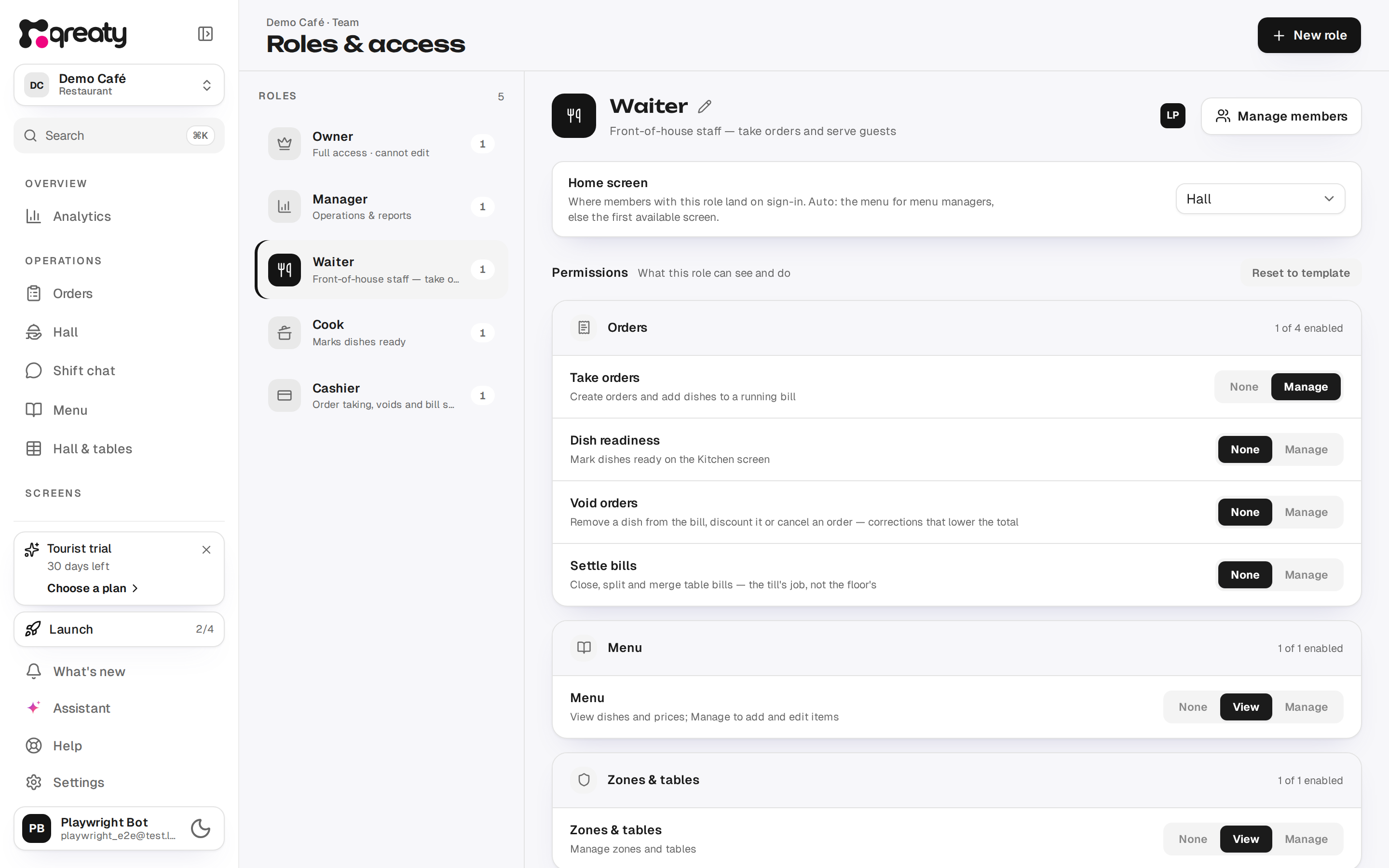
Every role carries a home screen — where a member with this role lands on sign-in (Roles & access → Home screen). "Auto" sends menu-managing roles to the editor and everyone else to the first available screen. A screen pinned in the browser's settings ("This device opens on…") outranks the role's home screen.
Roles & permissions
Permissions are three-level: none / view / manage (some are simple on/off). The built-in presets:
| Role | What it can do |
|---|---|
| Owner | Everything |
| Manager | Orders, voids, bill settlement, kitchen, menu, halls, clients, stock; analytics and food cost view |
| Waiter | Take orders; menu/halls/clients read-only |
| Cook | Dish readiness only; menu read-only |
| Cashier | Take orders, voids, bill settlement and stock; menu/halls/clients read-only |
Voids are separate from order-taking: a waiter without the void permission can't void a confirmed line or cancel an accepted order — they call a manager.
Bill settlement is separated the same way: a waiter assembles the bill and prints the guest a pre-bill (where the venue prints one), but only the till can close, split or merge bills (bills). Grant the waiter role that permission if the floor should settle too. A shared counter tablet runs on the Cashier role, which has that permission (devices).
Stock is a permission of its own too: View opens the balances and the items' ledgers, Manage adds receipts, opening, write-offs and stock counts. In the built-in roles the owner, the manager and the cashier have Manage, while the waiter and the cook have no stock permission (who can do what in stock).
Food cost (view) is a permission of its own as well: ingredient purchase prices, portion cost and food cost in the staff menu. Give it to whoever answers for food cost — the head chef or the production manager. In the built-in roles the owner and the manager have it; the cook, the waiter and the cashier don't. To let your chef see food cost, create a "Head chef" role or switch the permission on in the Cook role. A shared tablet never gets it. The cook sees the dishes' own prices without it — that is a venue setting (who sees the money).
The Cash drawer permission lets someone open the drawer on the till without a sale — to give change or put money in. In the built-in roles the owner, the manager and the cashier have it, so the shared till tablet gets it too; the waiter and the cook don't. Every opening is logged with the person's name or the device name (cash drawer). The drawer opening by itself on a cash payment does not need this permission.
Who sees what: navigation
A person works one order surface. Orders and Hall open on the same "Take orders" permission, so availability alone never says where someone works. The navigation lists a single work screen, picked like this:
- the screen pinned in this browser (Settings → "This device opens on…") — it outranks everything;
- otherwise the role's home screen (Roles & access → Home screen): Orders for a cashier and a manager, Hall for a waiter;
- when the role declares no home screen — the owner's case — both surfaces are listed, because there is no single right answer.
The rule is the same in the phone dock and in the desktop sidebar, with one caveat: the dock has room for exactly one order pill, so an owner gets Orders there and both surfaces in the sidebar.
- Menu opens the read-only dish reference for a waiter; the admin sections live under More on a phone and at the bottom of the sidebar on a computer.
- Kitchen is a full-screen mode with no dock; it's reachable from More → Screens.
- A shared device sees only its own screen, on a phone and on a computer alike. It carries no links to the other work screens or to Hall & tables, and it doesn't see More at all — a tablet can't wander into the admin.
When a venue runs in menu-only mode (order taking switched off), the navigation shrinks to Menu · More: there are no order surfaces in that mode.
{info} One screen is listed, but the other isn't locked: /waiter opens by URL for anyone holding the "Take orders" permission, and that screen can also be pinned to this browser. A push notification likewise lands its recipient on their home screen — a cashier on Orders, a waiter on Hall with the table in focus (push routing).
Devices: a tablet's shared login
Bringing a real person onto the team runs through an invite link — the full, step-by-step version lives in Inviting & managing staff. A device works differently: it's a shared login for a stationary tablet or computer. It is connected from the tablet itself: the tablet shows a QR code, you scan it with your phone (or type the code from its screen), pick a screen and a name ("Counter till", "Kitchen") — and the tablet signs itself in, with no login or password. Step by step: Kiosk setup.
Two screens to choose from:
- Orders — the counter tablet: order taking, settling and correcting the bill (the Cashier role);
- Kitchen — the kitchen display: the dish queue and readiness (the Cook role).
The Hall screen is not offered for a device: it is about "my tables", and a shared device owns none. The hall is a person's screen — a waiter with the Waiter role and their own login.
The screen stays with the device on the server: the tablet opens where it was assigned, whatever the browser remembers and whoever signed in on it before. You can only pick a screen the venue has switched on.
The device's role. A tablet's role is set by its screen, so there is nothing to pick: a device for Orders runs on the Cashier role, a kitchen display on the Cook role. What the till can do is set on the role itself: Settings → Roles → Cashier (system roles are changed by the owner). The device's card (Staff → Devices) shows the role as text next to the "Access" line, and the "Set up role rights" link opens that role in Roles. A role's rights are shared: changing Cashier also changes them for staff members with that role. That is by design — the till is the cashier's workplace.
A device isn't a person, so it works no shifts and owns no table. Settings, analytics, roles and staff are always closed to it, and it only views the menu and clients — whatever the role allows. Everything at the till — settling bills, voids and discounts — follows the role: the Cashier preset has them. Stock follows the role as well: a bar tablet on Cashier opens and writes off cans, and its rows in the stock ledger carry the device's name ("Open / write off"). In the Staff list, devices sit in their own tab and are counted apart from people.
When the till is trusted with more. If the till needs to do more — edit the menu, say — sign in on the counter tablet with the own account of a person whose role allows it, a manager's for example. That person's role then applies in full, and every action is recorded to them. Kiosk behaviour — the screen kept awake, the lock screen, protection from an accidental sign-out — belongs to shared devices only.
{warning} Voids and discounts made from a shared tablet are recorded to the tablet, not to a person: the history won't show who was standing at the till. For a till without voids, open Settings → Roles → Cashier and set "Void orders" to None. This applies to staff members with the Cashier role too: removing dishes from a bill and giving discounts then takes someone whose role allows it, on their own account.
You can't switch off a screen a device is working on: move or remove the devices on that screen first, or they'd have nowhere to open. Sign-in, PWA install and lockdown details live in Kiosk setup.
{primary} "Unpair device" (a password reset) signs the tablet out: the password changes, and the remembered sign-in and any live sessions stop working immediately — all of them, wherever that login was used. One device login is meant for one tablet, and if the same login was used elsewhere, unpairing ends those sessions too (Kiosk setup).
Custom roles
Beyond the presets you can create a custom role (Settings → Roles) with any permission matrix. A ceiling rule applies: you can't grant someone more than you hold yourself. System presets can only be edited by an owner.