Stock: balances, receipts, write-offs
- What stock gives you
- Getting started
- Stock units
- Bottles: whole or poured
- Categories
- Item code from your accounting software
- Receiving a delivery
- Opening a can, a bottle or a bag
- Used: prep and other
- Write-offs
- Stock count
- Sales deduct on their own
- The item's ledger
- "Low" and below zero
- A dish goes off sale by itself
- The "Open / write off" button at the bar
- Who can do what
- Common questions and mistakes
What stock gives you
Stock shows how much food and drink the venue has on the books: what came in, what went out and what is left. On a computer it is in the sidebar, on a phone under More. The screen is called Stock on hand.
The heart of stock is its link to recipes. A stock item ("Beef", "Tiger 330", "Lime") is linked to recipe ingredients, and every confirmed order deducts what went into its dishes by itself: two portions of pho at 120 g of beef each — minus 240 g. Everything else is recorded by hand — a delivery, a can opened for cocktails, breakage, a recount.
Every movement becomes a row in the item's ledger: who, when, how much and what the balance was after it. So "where did the cans go" always has an answer.
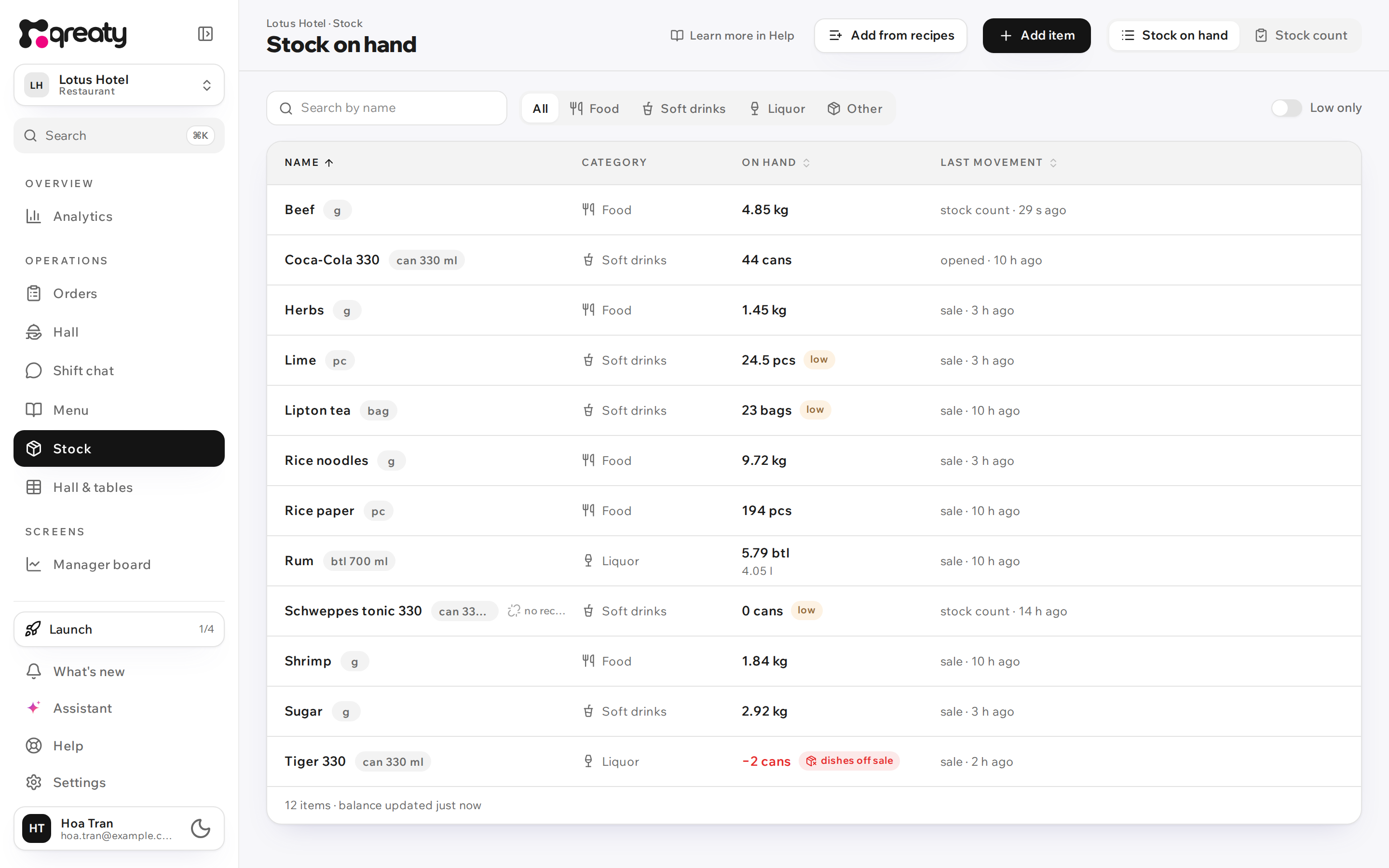
{info} Stock holds no money: no prices, no amounts. The purchase price is still set on the ingredient, and analytics computes the cost.
Getting started
You don't have to type the items in: it's faster to build them from your recipes.
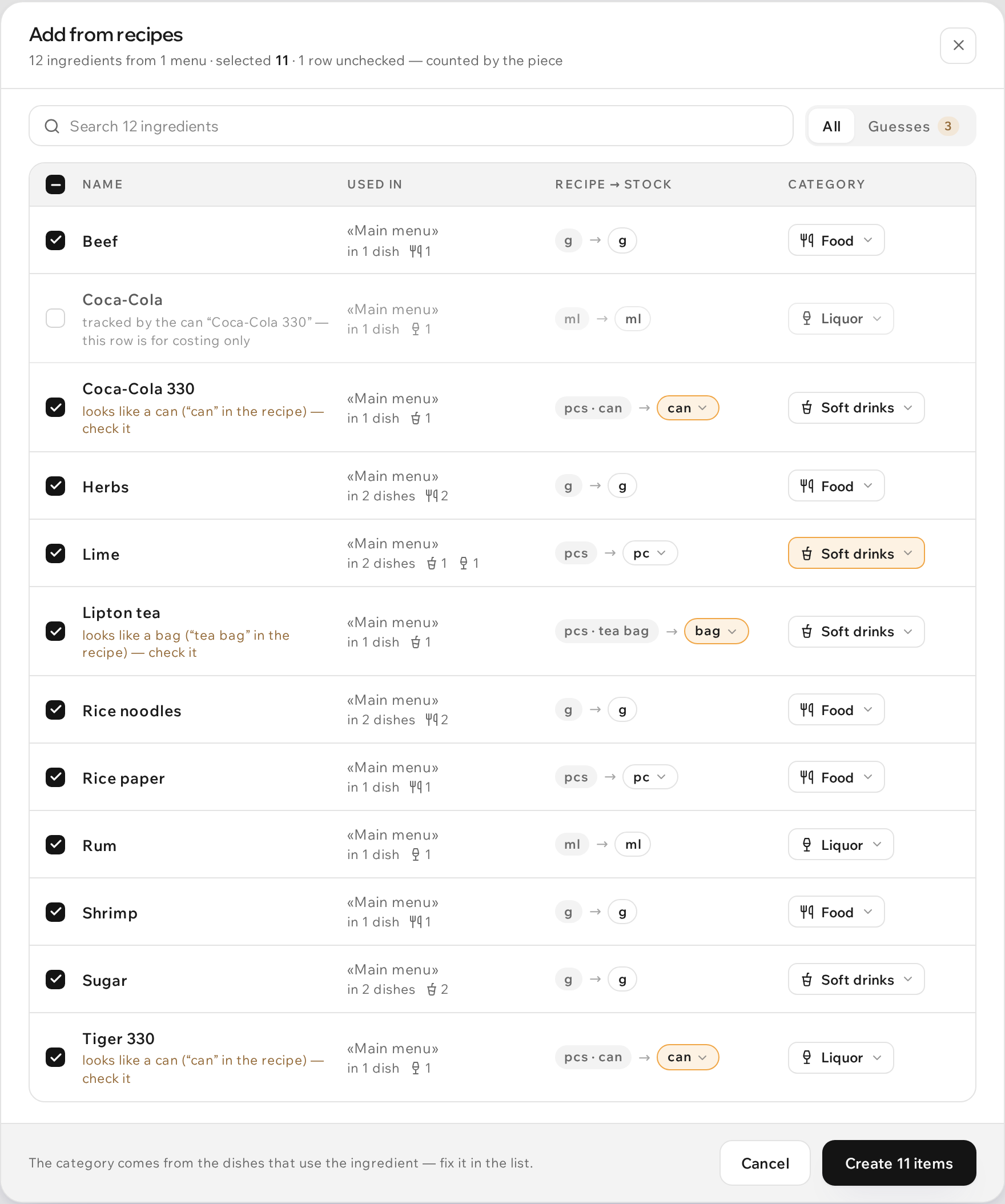
- Add from recipes. Next to the button there's a mark like "11 ingredients not tracked" — that many recipe ingredients aren't in stock yet. The dialog lists them all, from every menu, drafts included: where each one is used, its unit "Recipe → stock" and a category taken from the dishes. Guesses are highlighted — for example "looks like a can (“lon” in the recipe) — check it" — and are worth checking; you can fix the category right in the list. Press "Create 11 items" — the items appear and are linked to their ingredients at once.
- Add item — for what isn't in any recipe: tonic for the bar, napkins. Sales don't deduct such an item, and the list marks it "no recipes": its balance changes only through receipts, opening, write-offs and stock counts.
- Opening balances. A new item starts at zero. Count everything on the shelves and post a stock count for every item — that is your starting point.
Which ingredients deduct an item is shown in its card, in the Linked ingredients block; you can unlink them there too. In the menu editor's Ingredients tab such ingredients are marked "tracked". Linking goes by name: an ingredient you create in a recipe later under the same name links to the item by itself, if the unit fits.
If the names drifted apart ("Phomai burrata" in the recipe, "Phô mai burrata" in stock), link the ingredient by hand: Ingredients tab → the ingredient → Link to stock. The search starts from the ingredient's name and ignores tone marks and spaces. Items in another unit are listed but can't be picked — the row says which unit they're kept in.
{warning} Until an item is linked to at least one ingredient, sales don't touch it. If a balance "doesn't move" after orders, check for the "no recipes" mark first.
Stock units
An item has one unit, and everything is kept in it: the balance, the ledger, the deductions by recipe.
| Unit | For | How to enter |
|---|---|---|
| g, ml | meat, rice, sauces, syrups, spirits by the pour | Recipes deduct grams and millilitres, but receipts and balances read better in kg and l: the quantity field has a g/kg or ml/l switch on the right. A sack goes in as 25 kg, not 25,000 g. Spirits by the pour can be counted in bottles — see below. |
| pc | a lemon, an egg, a bun | Fractions are fine: 0.25 of a lemon. |
| can | beer, cola, tonic in cans | Leaves stock whole: by a sale with a "1 can" recipe or with the Open button. |
| bottle | beer, soda, wine by the bottle | Like a can: leaves stock whole — by a sale with a "1 bottle" recipe or with the Open button. |
| bag | tea bags, sachets | Like a can: opened whole. |
Can or bottle volume ("can 330 ml") is only a label. Nothing is converted with it: 50 ml of cola in a cocktail doesn't turn into a fraction of a can.
Nothing converts between units, so one product is one name and one unit. "Coca-Cola 330" in cans and "Coca-Cola" in millilitres are different things: stock counts the cans, while the millilitres in a cocktail's recipe are there for costing only. "Add from recipes" leaves such rows unticked and says: "tracked by the can “Coca-Cola 330” — this row is for costing only".
{info} The unit locks as soon as the item has a ledger or linked ingredients: grams can no longer become pieces, nor millilitres bottles — nothing converts. Moving between counted units is still allowed: beer kept as a "can" becomes a "bottle" under Edit — the quantity stays, and the linked ingredients take the new unit. A linked ingredient's unit can't be changed either. If you buy by the piece what a recipe deducts in grams (burrata, a pack of greens), don't unlink the ingredient: keep the item in grams and set its pack weight, as with bottles — deliveries and counts can then be typed in packs. An unlinked ingredient stops deducting: the dish's sales no longer reduce the balance.
Bottles: whole or poured
A bottle that is sold or opened whole — beer, soda, wine by the bottle — is kept in the bottle unit. It behaves like a can: "1 bottle" in the recipe or the Open button.
A bottle that is poured by the glass — rum, whisky, wine by the glass, syrups — is kept in ml, with its Bottle size set under Edit, say 700 ml. Recipes still deduct 50 ml at a time, while receipts, counts and the bar's sheet can be entered in bottles:
- three full bottles — "3";
- an open bottle a third full — "0.3", three full and one a third full — "3.3";
- the switch on the right of the field, "ml | l | btl", if litres are easier.
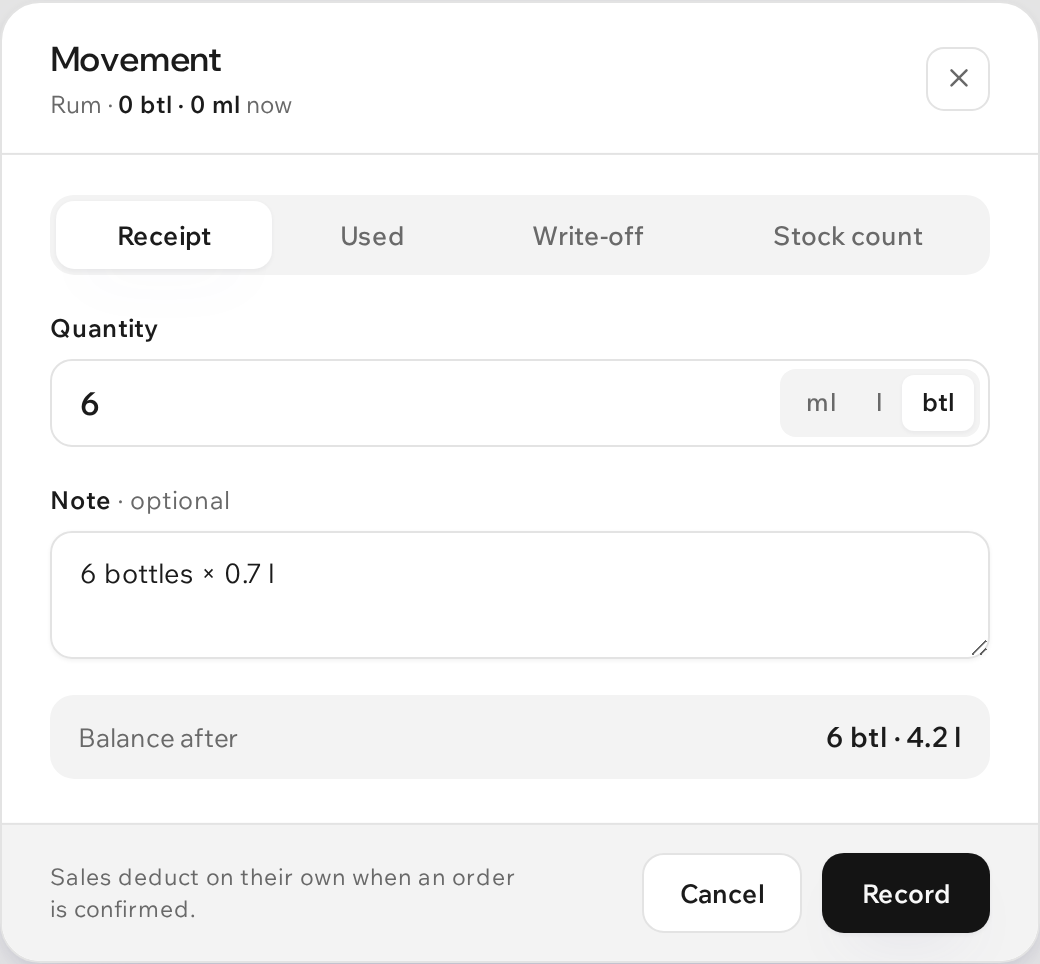
The balance reads in bottles and litres: "3.3 btl · 2.31 l". The ledger keeps its rows in millilitres and litres: a cocktail sale is "−50 ml", not a share of a bottle. For items in grams the same field is called Pack weight and works the same way — 25 kg sacks of flour are entered as "2" packs.
If an ingredient's price is per bottle ("700 ml for 450,000 ₫"), Add from recipes fills in the bottle size of the new item by itself.
Categories
Four categories — the same as for dishes: Food, Soft drinks, Liquor, Other. Above the list there's a filter: All or one category. You can change an item's category at any time through Edit.
The stock category is for whoever counts the shelves: count the bar apart from the kitchen, find everything alcoholic. It doesn't affect the cost in analytics: there the split goes by the dish type. A lime can sit under Food and still count toward the alcohol cost in a cocktail.
You can reorder the list: click the «Name», «On hand» or «Last movement» header, and click again to flip the direction. «On hand» starts with what you have least of, «Last movement» with the latest movements. On a phone, pick the order with the «Sort» button next to the search box. Balances in different units are compared by their number only, so «Low only» is the surer way to find what is running out.
Item code from your accounting software
If accounting keeps the stock too — in Smile, MISA, 1C — every product there has a code of its own: an item code, SKU or «mã hàng». Type it into the item's Item code field (Edit). The search above the list finds the item by any part of the code, and the list and the count show the code under the name, so you can check the accountant's sheet line by line.
The code is optional and kept exactly as typed, leading zeros included. One code belongs to one item of the venue, archived items too: the form won't save a second item with the same code and tells you which item already has it.
Receiving a delivery
A delivery has arrived — open the item and press Receive. Enter the quantity (for items in grams, in kg — the switch is on the right of the field; for an item with a bottle size, in bottles straight away: "12"); the Balance after line shows the result before you record it. The note is a handy place for the invoice or delivery note number: "Invoice #1842" — it goes into the ledger. Press Record.
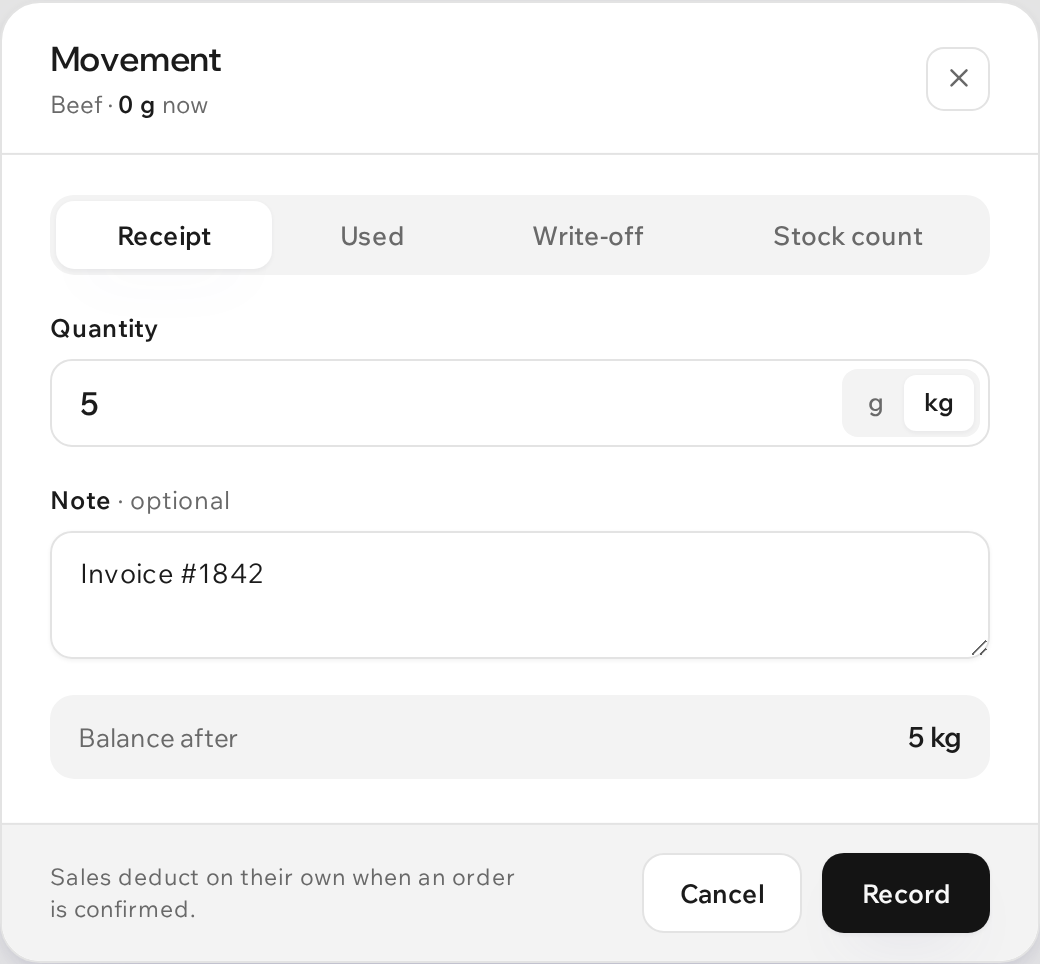
{info} A receipt takes no price. If the supplier raised the price, update it on the ingredient.
Opening a can, a bottle or a bag
A can of cola gets opened for cocktails, and an empty can doesn't go back on the shelf. So the can is deducted when it is opened: the Open button in the item's card or in the "Open / write off" sheet. In the ledger this is an Opened row — neither a sale nor a loss.
Cans and bags follow one rule: an item leaves stock either by a whole sale (beer sold by the can, "1 can" in the recipe) or by opening (cola poured into cocktails, millilitres in the recipe). Don't post the same can both ways — it would be deducted twice.
The Open button exists only for cans, bottles and bags. For beer, the "Open / write off" sheet shows the hint "opened without an order" under it: beer usually leaves by sale and is rarely opened.
Used: prep and other
Items in grams, millilitres and pieces have Used where cans have Open: the product went to work without an order. There are two reasons:
- Prep — selected by default: a marinade, a sauce, prep for breakfast.
- Other — everything else; add a note on what happened.
In the ledger these rows read "Used · prep" and "Used · other". It isn't a loss: the product was put to use, just not through a sale.
Write-offs
Write off is for losses. A reason is required:
- Spoiled
- Breakage — a dropped bottle, a smashed can
- Expired
- Staff meal
- Other — with a note: "Dropped a tray while unloading"
In the ledger this is a "Write-off · breakage" row and so on — apart from sales, so losses stay visible instead of dissolving into consumption.
A "spoiled" write-off also appears by itself — when a dish the kitchen has already started is voided from an order (below).
Stock count
A stock count (a recount, an audit) is the main tool of stock. Afterwards the balance becomes exactly what you counted, and the ledger gets a row with the difference. Even when there's no difference, the row is written: it confirms the count took place.
The whole stock in one pass
Switch the header of the Stock screen from Stock on hand to Stock count. The list itself switches to counting: every item gets a Counted field and a Difference column. The category, the search and Low only work as usual — pick Liquor to count just the bar. What you've typed isn't lost when the filter changes: count the kitchen, switch to the bar and record it all at once.
Walk the shelves and type how much is really there in the Counted column. Tab or Enter moves to the next row, and a fraction takes a comma or a dot: "4,9" and "4.9" are the same. Grams and millilitres are typed in kilograms and litres — press "kg" beside the field to switch that row to grams. Items with a bottle size are counted in bottles: two full and one half full is "2.5"; pressing "btl" switches the row to litres, and the next press to millilitres. The Difference column shows a shortfall in red and a surplus in green right away, the header shows how many rows are counted, and the bar at the bottom how many will be recorded.
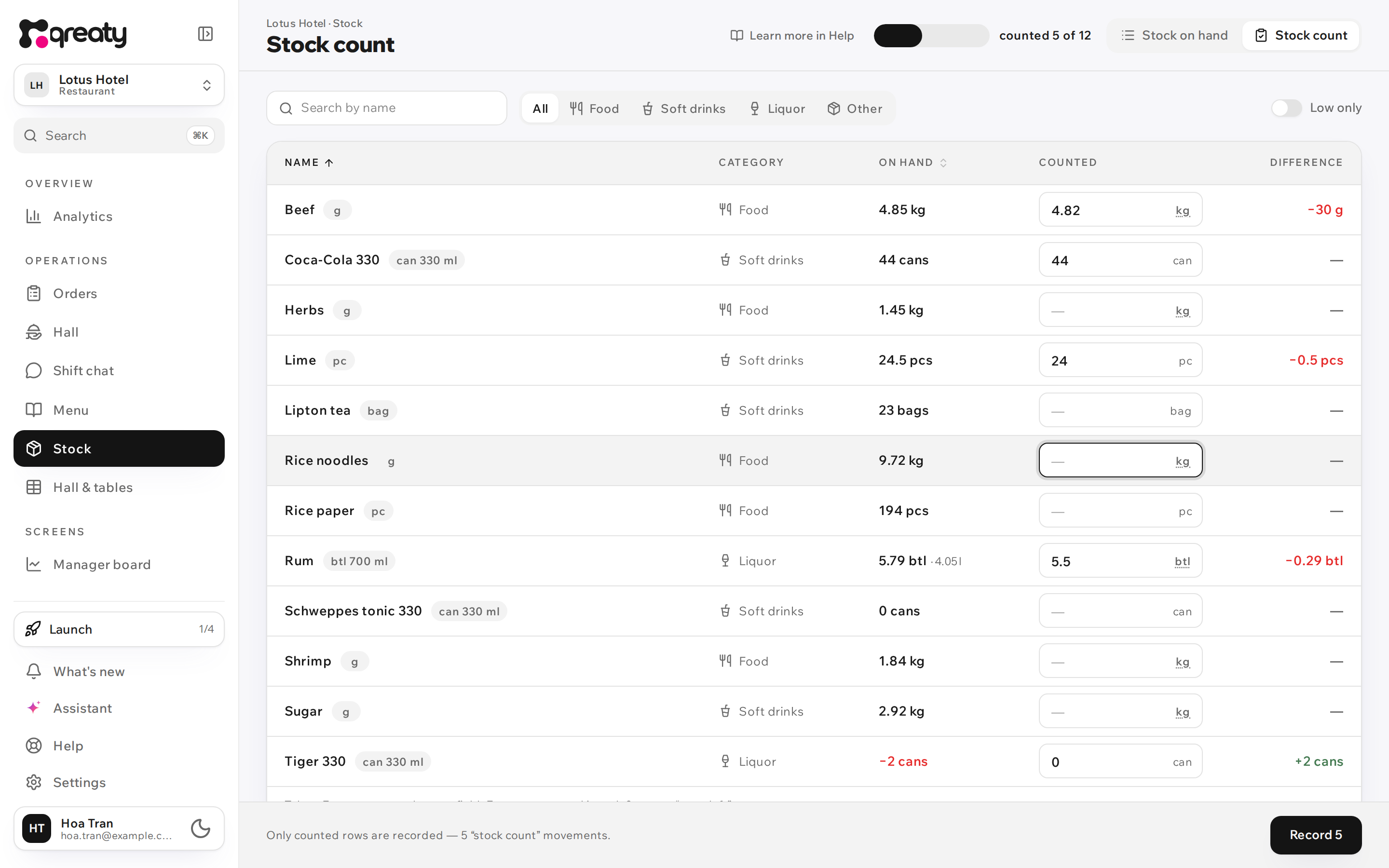
- An empty row — the item wasn't counted; its balance is left alone.
- Zero is a real number: "none left".
- Record N writes only the counted rows — one Stock count row in each item's ledger.
If a sale or a delivery happened while you counted, the balance has moved. Before recording, the stock checks with the server and highlights such rows: "the balance changed by −2 cans while you counted". Recount them if you need to and press Record again — what you typed is recorded.
If the connection drops, the rows that made it are marked "recorded", and the rest keep their error and a Retry button. Retrying is safe: even if the server already wrote the row, it won't appear twice. Switching back to Stock on hand or going to another screen with unrecorded numbers asks you to confirm first; once everything is recorded, the list returns to its usual view by itself.
One item
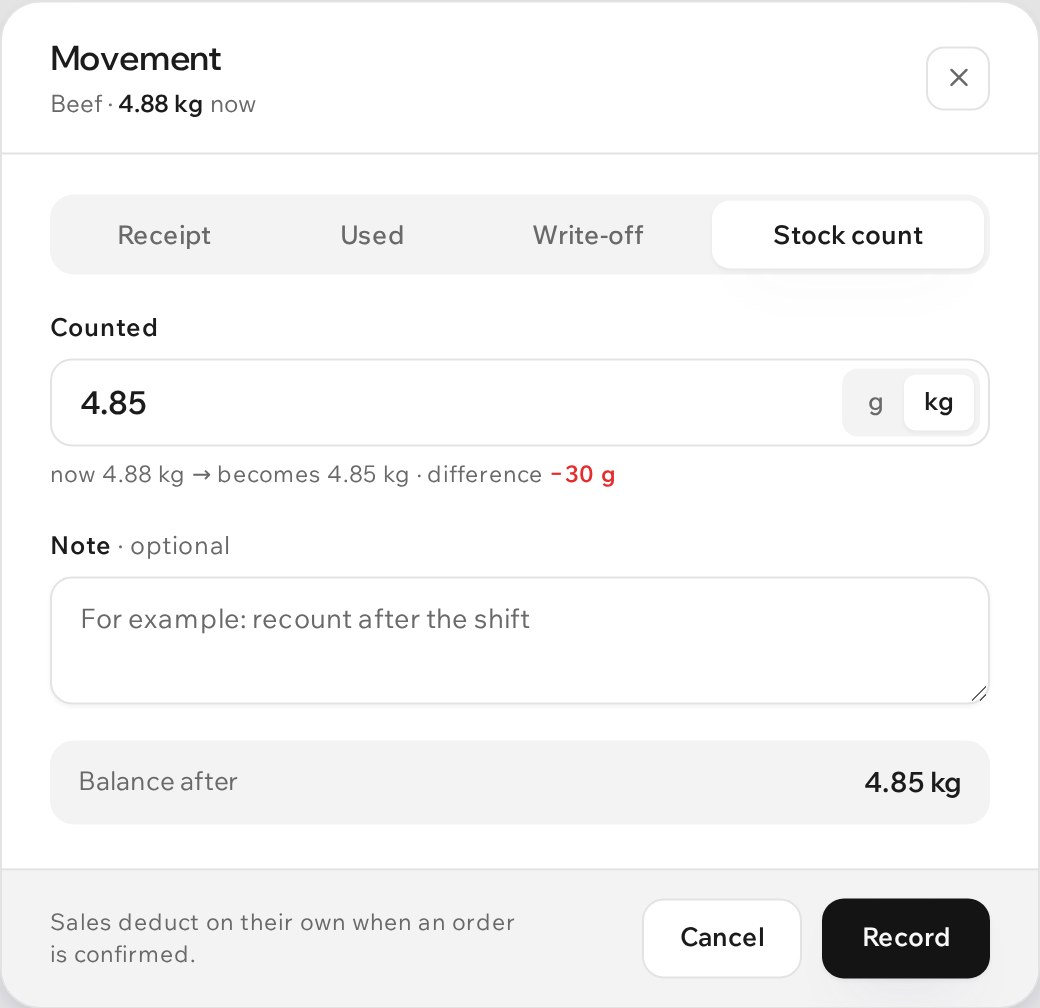
Open the item, press Stock count and enter in the Counted field how much is really on the shelf. The dialog shows "now 4.88 kg → becomes 4.85 kg · difference −30 g" — you see a shortfall before you record it, not at the end of the month.
How often to count is up to you. A sensible rhythm:
- the bar (liquor, cans) — after every shift: the liquor filter and Stock count;
- the kitchen — once a week;
- everything — once a month;
- before the first working day — a must: one count over the whole stock, that's how opening balances appear.
Sales deduct on their own
When an order is confirmed, stock deducts everything in its dishes' recipes: the quantity per portion × the number of portions. There's nothing to press — the item's ledger gets a "Sale · Phở bò ×2 · table 4" row with the name of whoever confirmed or entered the order.
- A guest's order is deducted once staff confirm it; an order entered by staff is deducted right away, including an "already served" one.
- Dishes added to an accepted order are deducted right away; added to one not confirmed yet — on confirmation.
- Variants and add-ons count the same way as in recipes: a variant replaces the dish's recipe, an add-on adds to it.
- The recipe in force at confirmation is used. Change a quantity later and past sales in the ledger stay as they were.
- A rejected new request doesn't touch stock: nothing was deducted yet. Closing or splitting a bill and discounts don't move anything either.
Voiding a dish. If the dish hasn't been served yet, the Void item dialog asks "Did the ingredients go back to stock?":
| Kitchen | Preselected | What happens |
|---|---|---|
| hasn't started the dish | "Yes" | The ingredients go back on the balance: a "Voided from order" row |
| cooking or ready | "No" | The ingredients are written off as spoiled: the ledger gets "Voided from order" followed by "Write-off · spoiled", noted "Voided from order: …" |
| the "Defective" reason | "No", no choice | A defective dish doesn't go back to stock — only a write-off |
You can change the answer: you know better whether the cook touched the dish. A served dish isn't returned to stock: its ingredients count as sold, and nothing appears in the ledger.
Cancelling an accepted order decides the same way, without asking: what the kitchen hadn't started comes back, what it had started is written off as spoiled, noted "Round cancelled: …" with the cancel reason.
{warning} Stock on its own doesn't stop sales. If the books say an item is out, the order still goes through and the balance goes below zero. To have a dish go off sale by itself when it runs out, turn on “Take dishes off sale when it runs out” on the item; everything else goes on the stop list by hand in the menu.
The item's ledger
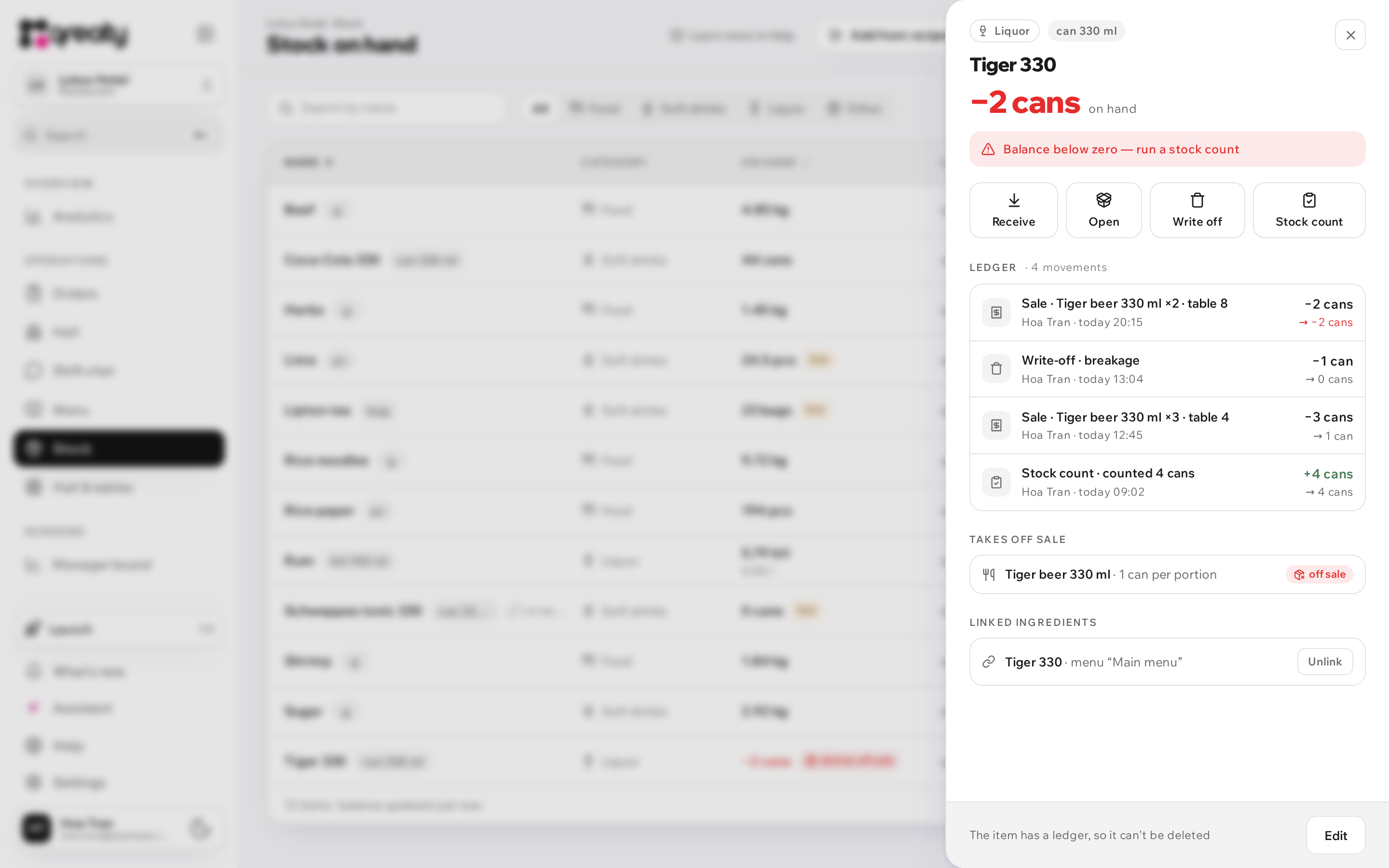
Tap an item — its card opens: the balance, the movement buttons, the linked ingredients and the Ledger. The newest rows are on top; the More button at the bottom loads older ones.
Each row shows:
- what happened — "Receipt", "Sale · Phở bò ×2 · table 4", "Voided from order", "Opened", "Write-off · breakage", "Stock count";
- the note or reason — on its own line, in quotes: "Invoice #1842", "Guest changed mind";
- who and when — the name of the staff member or the device ("Bar tablet"), "today 12:45"; a row with no author says "automatic";
- how much and the balance after this row — on the right.
In the item list the Last movement column sums up the same thing: "sale · 5 min ago", "opened · 12 min ago".
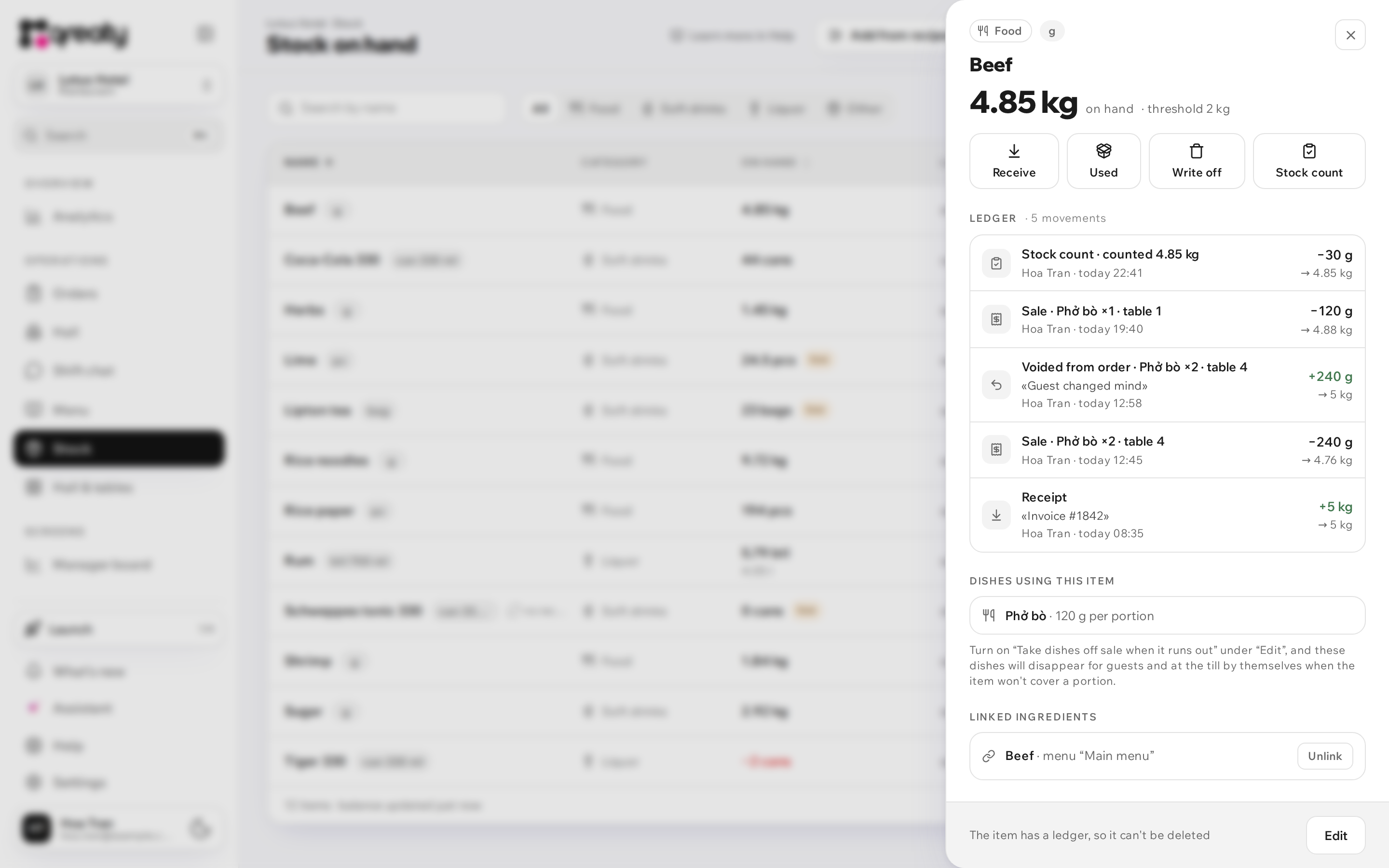
The ledger is never edited or deleted. Made a mistake — fix it with a new row. Say a receipt was entered in grams instead of kilograms: post a stock count to the real quantity and write in the note what happened. That way both the mistake and the fix stay visible.
For the same reason an item with a ledger can't be deleted — instead of the button, its card says "The item has a ledger, so it can't be deleted". An item with no movements can be deleted; the ingredients linked to it stop deducting.
"Low" and below zero
An item that is running out shows a low chip in the list. It lights up:
- at zero — always "low", even without a threshold;
- below zero — the balance is in red; there's no chip, the minus says more;
- at the threshold or below — if a threshold is set.
The threshold is set in the card: Edit → the "Low" threshold field, in the item's unit (for items in grams, with the g/kg switch: 2 kg, not 2000 g). The field is optional; once it's set, the card shows "threshold 2 kg" next to the balance.
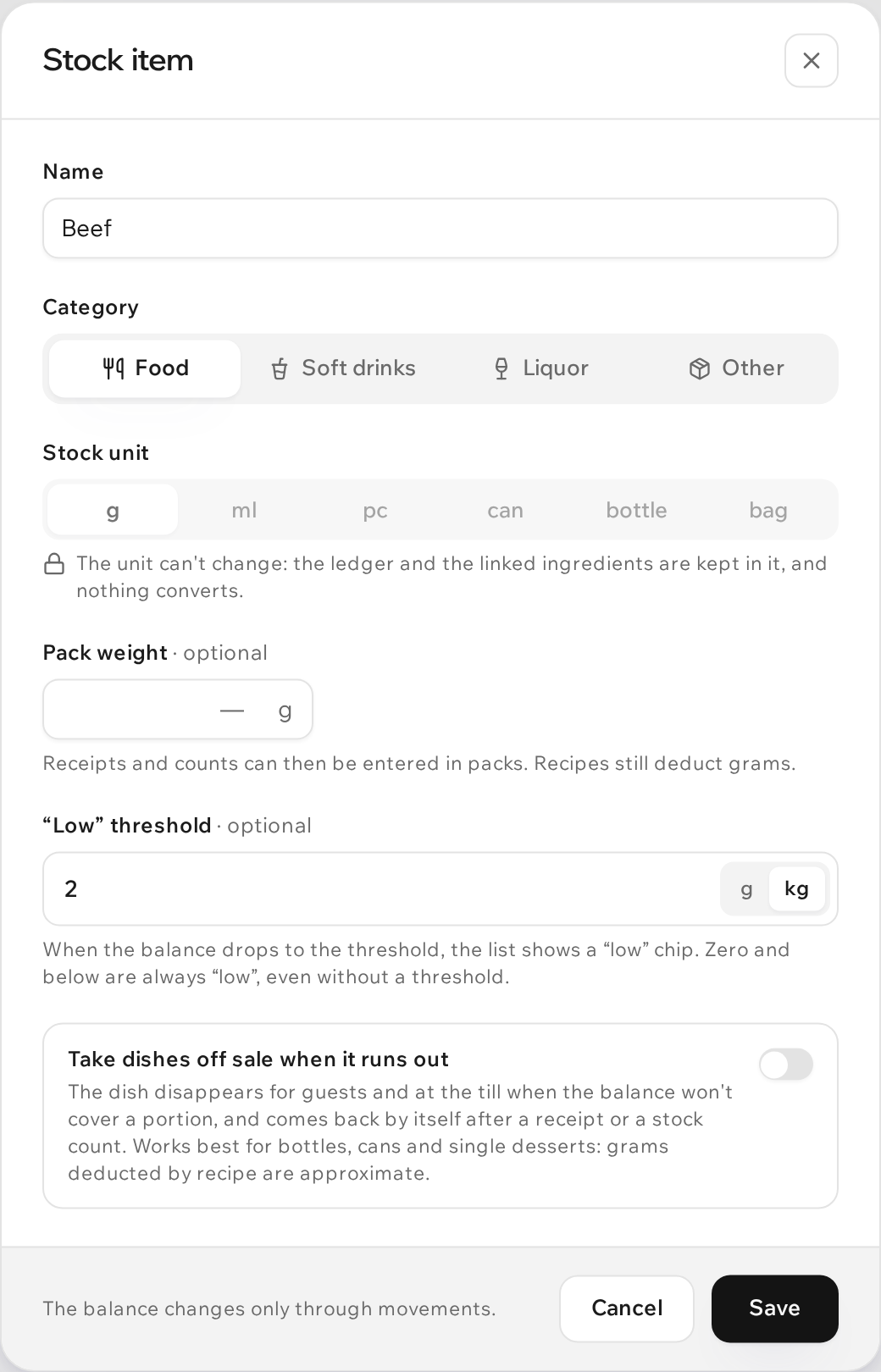
The Low only switch ("Low" on a phone) above the list keeps what is below zero, at zero, and at or under its threshold: a ready list of what to recount and what to buy.
Why a balance went below zero. More was sold than there was on the books: a receipt wasn't posted, the opening count wasn't done, the recipe quantity is smaller than reality — or the other way round, the last count was too high. The card asks for it itself: "Balance below zero — run a stock count". Count the shelf and post a stock count, then look through the ledger: a missing receipt usually shows at once.
{info} Guests see neither "low" nor a minus: the menu doesn't change because of them. Dishes go off sale by themselves only when the item has “Take dishes off sale when it runs out” on.
A dish goes off sale by itself
The beer ran out — and neither a guest nor a waiter can order it any more, and after the delivery it comes back to the menu by itself. For that, a stock item has “Take dishes off sale when it runs out” turned on: the item's card → Edit.
- A dish goes off sale when the balance won't cover one portion of its recipe. Beer with "1 bottle" per portion — when the bottles are gone; a steak at 250 g — when less than 250 g is left. The "low" threshold plays no part: it is about buying more.
- Guests still see the dish in the menu with a "Sold out" badge, the till shows it marked “Out of stock”, and it can't be added. If a guest already had it in the cart, checkout says "No longer available" and names the dish.
- The dish comes back by itself after a receipt, a stock count, or when an unserved line was taken off an order and the goods went back on the shelf.
- The stop list in the menu is a separate thing. A person sets it, and a receipt doesn't lift it. In the editor of a dish taken off sale by stock the control stays on "On sale", with a "Taken off sale by stock" note under it.
- The balance can still go below zero: if two orders sell the last bottle at the same moment, both go through.
The item's card has a “Takes off sale” block listing the dishes it would take off sale, how much one portion takes and which of them are off sale now; in the list such an item has an icon, and once dishes are off sale — a “dishes off sale” mark.
It works best for what is counted in pieces: bottles, cans, desserts. Grams deducted by recipe are approximate, and a dish could disappear while the product is still on the shelf — for grams, turn it on only if you count often.
{info} Only the dish's own recipe counts. If its variants ("Tiger" / "Heineken" as sizes) draw on different items, the dish itself never goes off sale.
The "Open / write off" button at the bar
A bartender has no time to leave the order board to open a can. For this the header of Orders has an Open / write off button with an open box. It shows up when:
- you have the Stock permission at Manage;
- the venue has at least one stock item;
- this is the venue's shared tablet, or a phone or tablet without the sidebar.
On a computer with the sidebar the board has no such button — the whole Stock section is at hand there. On a phone the same button also sits at the bottom of the Stock on hand screen.
The "Open / write off" sheet has "no prices or totals": a search, recent items on top, large rows made for fingers. Pick an item, then Open (for items in g, ml or pieces, Used) or Write off with a reason. Cans and bottles change with the "−" and "+" buttons, grams and millilitres are typed — for rum with a bottle size straight in bottles: half a bottle broken is "0.5". Before recording you see "balance becomes 43 cans", and the button repeats the action: "Confirm · 1 can opened". One can takes three taps: the item, Open, Confirm.
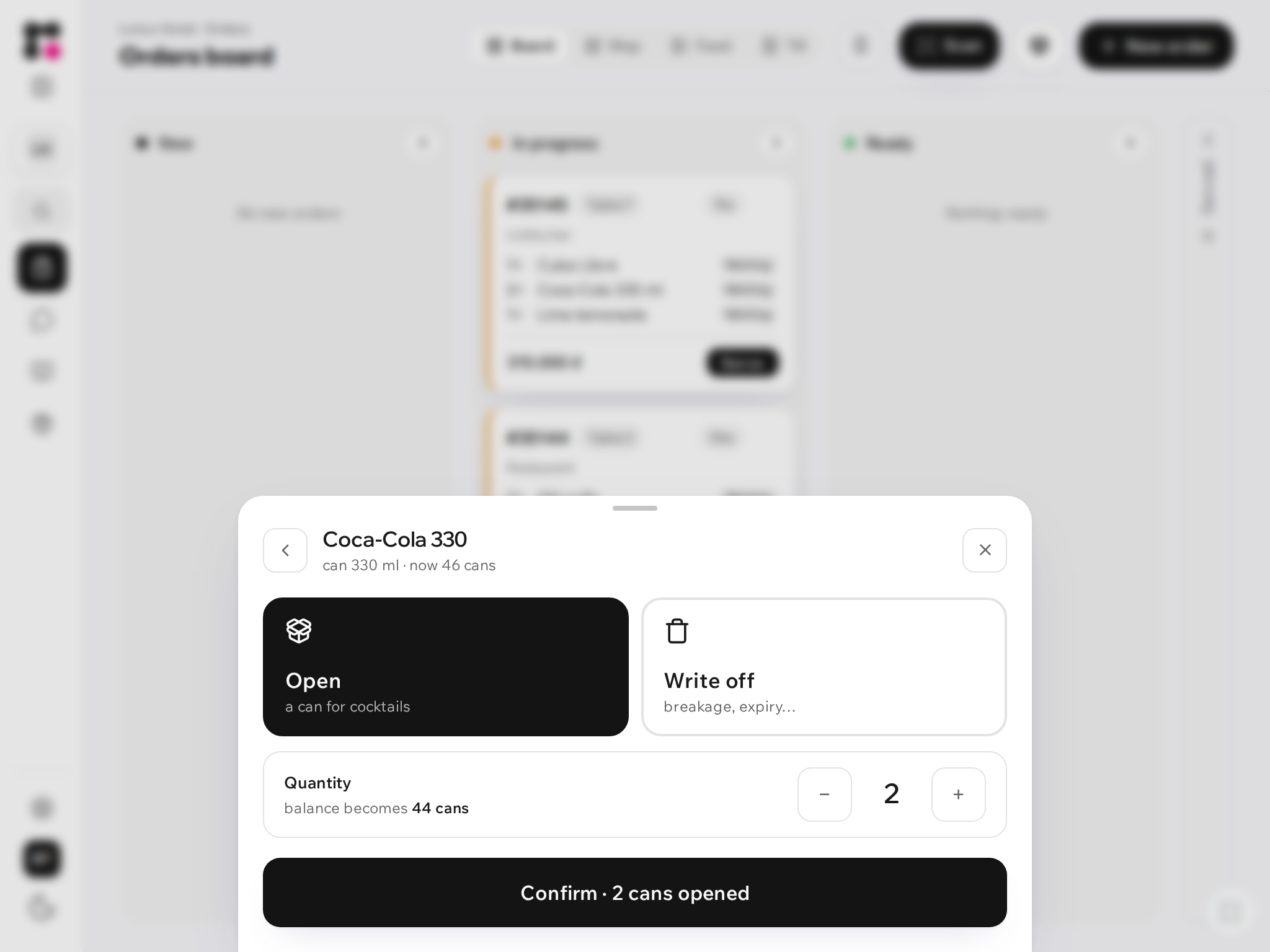
There's no money in the sheet, so it can safely be left to the bar's shared tablet. Rows recorded from the tablet carry its name in the ledger.
Who can do what
Access is a separate Stock permission in roles:
| Level | What it allows |
|---|---|
| None | No Stock section and no "Open / write off" button; no stock question when voiding a dish |
| View | Balances, cards and ledgers — without recording movements |
| Manage | Everything: items, "Add from recipes", receipts, opening, write-offs, stock counts, thresholds |
In the built-in roles, Owner, Manager and Cashier have Manage; Waiter and Cook have no stock permission.
A shared device works under its own role, and stock isn't cut back for it: a bar tablet on the Cashier role opens and writes off (devices). If you don't want that, set Stock to View or None for the Cashier role; this changes the rights of staff members with that role too.
{info} Whoever has no stock permission doesn't see the question when voiding a dish. The kitchen decides: what wasn't started comes back, what was started is written off, and "Defective" is always written off.
Common questions and mistakes
- Consumption in analytics doesn't match the ledger. They are different things. Consumption by recipe is computed from the dishes sold and the current recipes: change a quantity and past weeks are recomputed too. The ledger records what left at the moment of confirmation, and it holds what analytics can't see: opened cans, breakage, prep, stock-count shortfalls.
- Orders punched into KiotViet or CukCuk outside Qreaty don't deduct stock. Stock only sees orders that went through the app. If part of your sales bypasses it, the balances will drift — bring them back in line with stock counts.
- A deleted order doesn't return stock. Orders can't be deleted in the app (details); if one was deleted on request through support, its deductions stay in the ledger and the balance doesn't change.
- Each venue has its own stock. Items and balances aren't shared. Moving goods means a write-off with the reason "Other" and a note in one venue and a receipt in the other.
- Not counting everything before the first day. Then the balances start at zero and go below zero after the first sales. Count the shelves and post a stock count for every item — from that moment the books are honest.
- Sales don't deduct an item. Check for the "no recipes" mark: no ingredient is linked to the item. Link it in the Ingredients tab: the ingredient → Link to stock → the item. Not in the list? Check the unit: grams are never deducted from pieces.