Kiosk setup
- What a shared device is
- Adding a device
- Installing as an app (PWA)
- Which screen it opens on
- What kiosk mode changes
- Signing the device out
What a shared device is
A tablet at the counter, on the floor or in the kitchen runs on a shared
login, not a personal one. It's a single login per device, flagged as a
shared device (is_shared_device), pinned to one screen and with no access
to the admin.
A device isn't a person: it works no shifts and owns no table. Settings, analytics, roles and staff are always closed to it, whatever role it has, and it only views the menu and clients. Everything at the till — settling bills, voids and discounts — follows the device's role, and the screen sets it: an Orders tablet runs on the Cashier role, a kitchen one on the Cook role (the device's role). These boundaries hold on the server, not just hidden in the UI.
{warning} Voids and discounts made from a shared tablet are recorded to the tablet, not to a person. If only a staff member on their own account should void, set "Void orders" to None in Settings → Roles → Cashier — this changes the rights of staff members with the Cashier role too.
Adding a device
The tablet connects itself — nobody types a login or password on it. You need the tablet and your phone or computer, signed in to an account that may manage staff.
- Open the app on the tablet. On the sign-in screen tap "Pair with QR instead" — a QR code and a 6-character code appear.
- Scan the QR with your phone's camera. If you have nothing to scan with, open qreaty.com/pair on your phone and type the code from the tablet's screen.
- If you have several venues, pick the right one. Then pick the screen (Orders or Kitchen) and give the device a name ("Counter till", "Kitchen").
- Tap "Connect device". In a couple of seconds the tablet signs itself in and opens on the chosen screen — you can put the phone away.
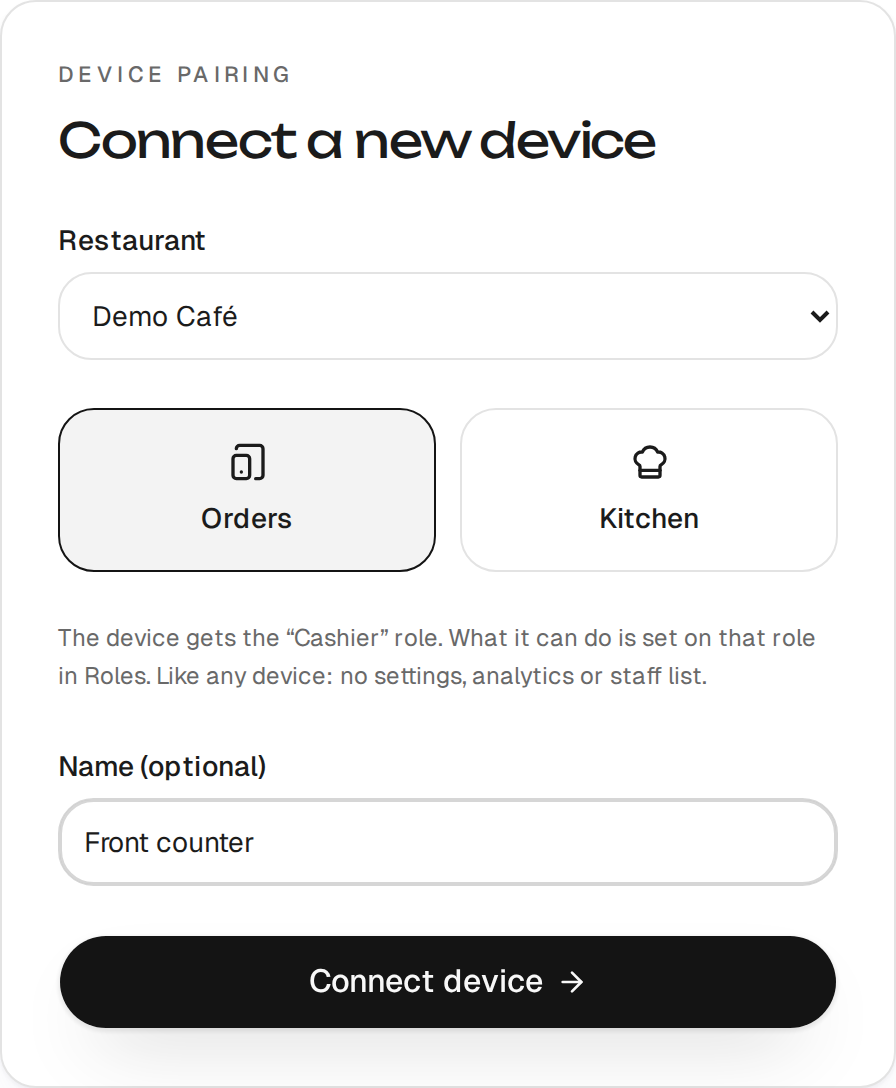
There is no role to pick — the screen sets it: an Orders tablet gets the Cashier role, a kitchen one the Cook role. The pairing screen says so: "The device gets the “Cashier” role. What it can do is set on that role in Roles." The till's rights are changed on the role itself, not on the tablet (the device's role). You can only pick a screen the venue has switched on.
The code on the tablet lasts 10 minutes; after that the tablet shows a new one by itself. The "Add device" button in Settings → Staff walks you through the same steps.
Reconnecting after "Session expired"
If the tablet's session expires mid-shift, it shows a "Session expired" screen. Tap "Show QR to reconnect" and go through the same steps. When the venue has a single device on that screen, your phone offers to reconnect that very device: its screen, role and name stay as they were. If it offers the wrong device, tap "Not this one" and connect the tablet as a new one. Reconnecting ends every earlier sign-in of that device.
If the till holds unsent actions at that moment (it worked without internet), there is no such screen: the till keeps working, and a "Session expired" bar appears at the top with "Reconnect by QR" — a manager scans the code, and the unsent actions go by themselves.
Fallback: signing in with a login and password
If pairing by QR doesn't work, a device that is already added can be signed in by hand:
- In Settings → Staff → Devices, open the device's card and tap "Unpair device".
- A dialog shows a Login and a Temporary password — copy them now (the password won't be shown again).
- On the tablet's pairing screen tap "Sign in manually instead" and sign in with that login and password.
The role and the screen don't change. A new device can't be added this way — it connects only by QR or code.
Installing as an app (PWA)
Open qreaty.com/install on the tablet — the device pairing screen links to it too («Install Qreaty as an app»). In Chrome and Edge the app installs with one button; on an iPad the page shows the «Share → Add to Home Screen» path. The kiosk then launches full-screen, with no address bar — closer to a dedicated POS terminal.
The installed app and a browser tab on the same tablet are one and the same sign-in: they share cookies. Nothing has to be signed in again after installing, and the device needs no second login.
{warning} Keep the app open in a single window. Two open windows on one tablet double the sound alerts: the new-order signal plays twice.
Which screen it opens on
A device's screen is chosen when it's created and stored on the server. The tablet opens where it was assigned, whatever the browser remembers and whoever signed in on it before — replace the tablet or sign in after someone else, and the device still opens on its own screen.
A personal login that one person uses across screens (the till, a waiter's tablet) picks its starting screen in Settings → the "Device" card (the "Opens on…" field). A shared device has nothing to pick: its screen is already pinned on the server.
If the owner switches off the screen a device works on, the device lands on a "screen switched off" placeholder that says where to switch it back on — rather than a dead end. The "Sign in with another account" link on that placeholder ends the device session and opens the login form, so the tablet can be moved to another account right there. That's also why a screen with devices on it can't be switched off until those devices are moved or removed.
What kiosk mode changes
For a shared device the app:
- removes all admin navigation (Settings, Roles, Overview/Analytics) and the ordinary sign-out: a stray tap can't log the tablet out — that takes a separate step with the device password (signing out);
- keeps the screen awake (Wake Lock) — the tablet won't doze off mid-shift;
- shows a fullscreen toggle next to the Lock control;
- opens the device on its screen, pinned on the server;
- on a mid-shift session expiry, shows a "Session expired — call a manager" screen instead of the login form. The manager signs in from their own account.
Signing the device out
A tablet can leave its account from the tablet itself — no need to reach for the admin on another machine. "Sign out of the device account" lives:
- in the account menu — on a computer;
- on the lock screen — on a tablet or a phone.
The app then asks for the device password — the one the tablet signed in with. That's the guard against a stray tap: a guest or a new waiter can't sign the station out, while a manager who knows the password frees the tablet in seconds. Once confirmed, the session ends and the login form opens.
If the device holds unsent actions (it worked without internet), it can't sign out until they reach the server (the till won't let me sign out).
{info} This is not the same as "Unpair device" in Settings → Staff. Signing out on the tablet ends only that tablet's session and leaves the password alone; unpairing changes the password and ends every sign-in under that login (staff).
{primary} One device login is meant for one tablet — that's a house rule, not a technical limit: the number of simultaneous sign-ins under it isn't capped. The app and a browser tab on the same tablet count as one sign-in, but if the same login was used somewhere else — a second tablet, a personal phone, an iPhone with the icon on its home screen — "Unpair device" (Settings → Staff) ends all of them at once: the password changes, and the remembered sign-in and any live sessions stop working immediately.