Hall: the waiter screen
- What this screen is
- The "what to run" queue
- The table card
- The serving checklist
- The hall map
- Your tables, other people's and nobody's
- Guest calls
- The bill
- History: my orders and shifts
- Ordering from a phone: instant sending and «Not sent»
What this screen is
Hall is the waiter's working screen: what to bring, to whom and where. It answers one question — "what should I be doing right now". The screen is open to a role with the Take orders permission; it can be switched off for the whole venue if the owner works alone (Settings → Screens).
The screen has two tabs: Queue (the list of things to do) and Hall map (the plan with table states).
{info} A shared device is not given the "Hall" screen: it is about "my tables", and a counter tablet has no tables of its own (devices).
{info} Hall is listed in the navigation for whoever works it — a waiter, by default. A cashier or a manager gets Orders there instead, but the screen isn't locked: /waiter opens by URL for anyone holding the "Take orders" permission, and it can be pinned to this browser in Settings → "This device opens on…" (navigation).
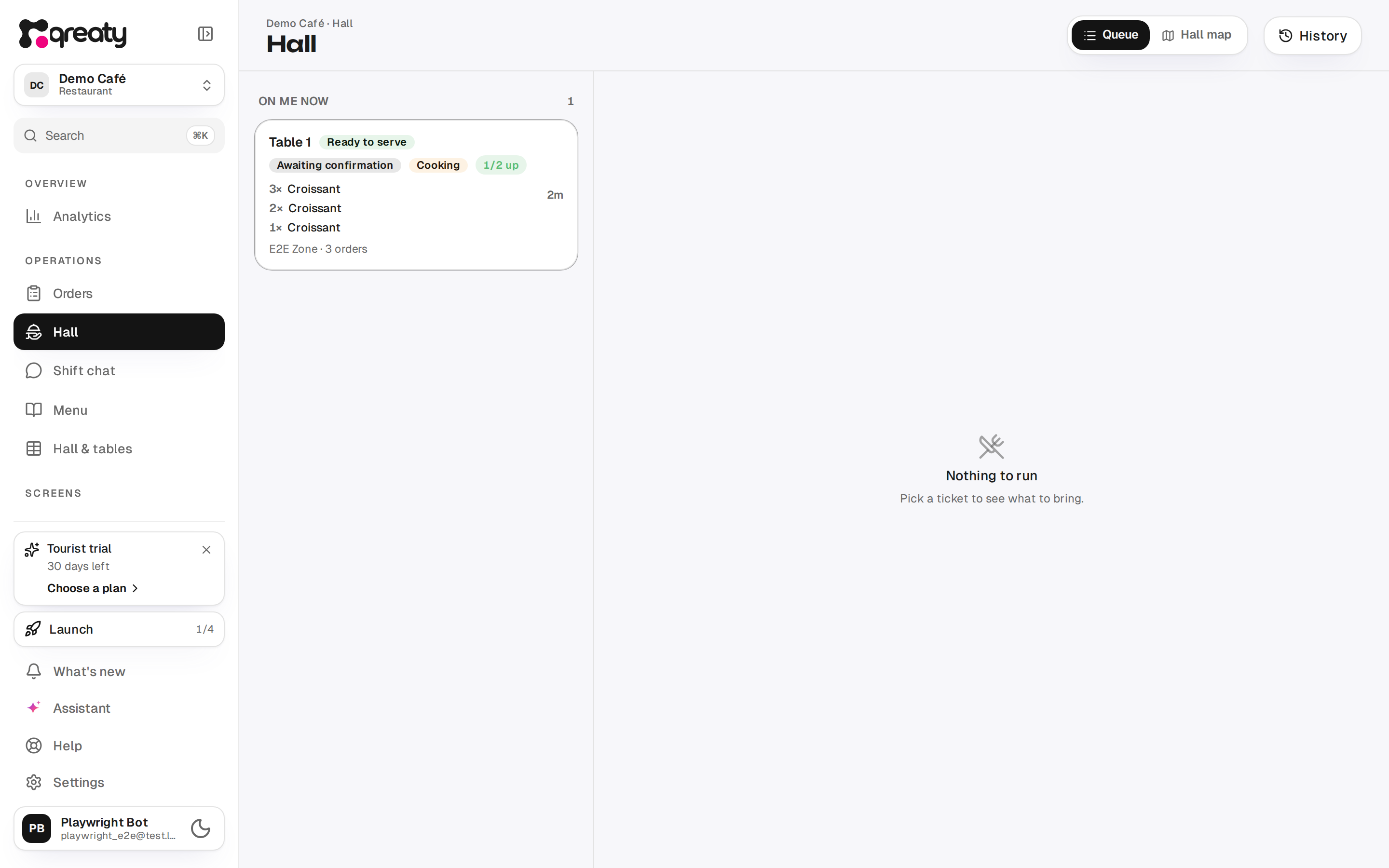
The "what to run" queue
The queue is laid out in three groups:
- On me now — my tables and nobody's tables where dishes are ready or new orders are waiting for confirmation. This is the main working group.
- Ready · other tables — a colleague has food ready: you can help out so the dish doesn't go cold. New and cooking orders on other people's tables don't land here — that is the colleague's job.
- Cooking · my tables — nothing to bring yet, everything is with the kitchen.
The table's row also shows the order itself: up to three lines ("2× Pho Bo"), the rest as an "N more items" tail. If the guest gave a room or a name (guest details), it shows next to the table. While the table waits on an action — confirming an order or running ready food — its card pulses gently and the "Now" tile is filled solid.
A table leaves the queue by itself once nothing is left on it — nothing ready, nothing new, nothing cooking.
{info} On the phone the same three groups carry shorter labels: "Now", "Help out", "On the fire".
If the table's bill is already closed but a dish has not gone out yet, the table stays in the feed marked "Paid" — serving is marked as usual.
The table card
Tapping a row opens the table: what was ordered, what is ready, what has already been served. From here the waiter confirms a new order and marks the serving — line by line or all at once. Tapping an order card (or the pencil in its corner) opens editing: add dishes, change quantities, void a line.
The serving checklist
If a dish has a serving set attached, the card gets a Bring to the table block: a steak knife, a sauce boat, a warmed plate. The items are grouped by dish and ticked off with a tap.
{info} The ticks are a reminder for one trip: they are not saved and are not reported anywhere. The text of a set is single-language — it is not translated, it is shown exactly as written.
The hall map
The second tab is the hall plan drawn in the plan editor: tables with their states (Free, Requested, Cooking, Ready, Seated), zones and the "My tables / Everyone" switch. A table demanding action — a guest call, an unconfirmed order, ready food — wears a pulsing badge with a wait timer; once the wait has dragged on, the whole table pulses.
Your tables, other people's and nobody's
- Yours — assigned to you, and its events are addressed to you personally: the new-order push goes to you alone while you are on shift; "ready to run" and guest calls — to you alone always (who gets a push).
- Someone else's — "Served by name". You cannot take it over, and pushes about its events go to the assigned waiter, not you. In the feed such a table appears only when food is ready — to help carry it out; in "My tables" mode it is dimmed on the map.
- Nobody's — shared: it shows up in "On me now" for everyone, and its events go to everyone working right now.
An assignment lives until it is removed: ending a shift or leaving the app does not reset it. A table is freed with the "Release the table" button (when self-claiming is on) or by the manager in the hall's assignments.
If the owner has switched on Waiters claim their own tables, a nobody's table gets a Take the table button, and your own empty table can be handed back with "Release the table". While the setting is off, the manager hands out the tables (who serves the table).
Guest calls
When a guest taps "Call the waiter" or "Ask for the bill" on their phone, a call card appears at the top — above the queue and the map, because this is a person waiting. A waiter call and a bill request are separate cards and do not replace each other.
The On my way button accepts the call: the card disappears on every device, and the guest sees that a waiter is coming (how it looks to the guest). A bill request also carries Open the bill — the table's bill opens right here, ready to print (if the venue prints pre-bills) and carry over.
While a call waits, the glow under the card breathes and changes colour: green for the first minutes, then amber, then red at three. At three minutes a persistent alert starts — not for the call itself, but for nobody having taken it; the crossed-out bell quiets it for 90 seconds while the card and its timer stay (persistent alerts).
The same card reaches the Orders screen — a venue whose waiters work without the app takes calls straight from the counter tablet (calls on Orders). On the "Mine" view the queue shows calls from your own tables only; "Everyone" shows the whole floor.
{warning} An accepted call cannot be taken back: whoever tapped "On my way" first is the one on record. And the other way round — an unaccepted card stays up until someone closes it, and all that time the guest thinks nobody heard them.
The bill
The waiter does not close the bill: a table with everything served shows the hint that the bill is closed at the till. Settling, splitting and printing the receipt live on the "Orders" screen (the table bill) — that way the money stays in one place.
History: my orders and shifts
The History button opens two tabs: Orders — only your own (the ones you placed or confirmed), over 7 or 30 days; Shifts — your own check-ins and check-outs.
{info} This is not analytics: there is no venue revenue here, no comparison with colleagues and no exports — which is why a waiter can open the section without the "Analytics" permission.
Ordering from a phone: instant sending and «Not sent»
A new order from a personal phone goes out instantly: after «Send» the cart closes, the order shows up in the feed and on the table at once marked «sending…», and it is sent in the background. Usually the mark disappears within a fraction of a second.
If the server has not accepted the order within 10 seconds, or the phone has no connection, the order lights up with a red «Not sent», the phone sounds an alert, and a panel with the order appears at the bottom of the screen:
- Retry — send it again now. While there is a connection the phone keeps retrying by itself anyway, but the mark stays until the server confirms the order;
- QR for the till — show the cart to the cashier as a QR, the till scans it. Once the till has taken the order, tap «The till has it — cancel sending», otherwise the order goes out twice. The phone draws the QR itself, no internet needed. Only a very large order does not fit into one QR without a connection — then cancel it and send it in two parts, one QR each;
- Cancel — the order is not sent. If it reached the server after all, the phone tells you so — then cancel the order itself in the feed.
An order older than two minutes no longer goes out by itself — for example after the phone sat in a pocket without a connection. The kitchen gets no surprise late order: it waits until you tap «Send now» or «Cancel». If more than 3 minutes have passed since the order, its kitchen ticket does not print by itself — the till sees it under «Needs attention».
If the server refuses the order after the cart closed (a dish was taken off sale, the table is closed or archived), the phone sounds an alert and the panel shows «Not accepted» with the reason. «Fix» opens the same cart — remove the dish or pick another table and send again.
While the phone holds «Not sent» orders, you cannot sign out or switch accounts: send or cancel them on the panel.
{info} The till and hall devices in offline mode work differently: their orders are kept in a queue until the connection is back.