Order intake modes
- Three modes
- Off: menu only
- Lightweight: QR to waiter
- Full: guests order themselves
- Switching modes
- Items without an exact price
- Accepting orders on-site only
- Ordering by opening hours
Three modes
The venue decides how far to let the guest go. The mode is a single switch, and you can change it at any moment without setting anything up again:
| Mode | Guest | Staff |
|---|---|---|
| Off | Reads the menu in their own language | No order screens |
| Lightweight (QR to waiter) | Builds a cart and shows a QR to the waiter | Scans the QR, sees the order in their own language, confirms |
| Full | Sends the order from the table themselves | Runs the order across the screens: intake → kitchen → serving |
{primary} It's a ladder: start with the menu, switch on Lightweight if you already run a till, and Full when you're ready to run orders in the app end to end.
Off: menu only
Guests see the menu (with all its translations) but can't send an order. Staff navigation shrinks to Menu · More — there are no order surfaces in this mode. A good starting point: a beautiful multilingual menu first, order taking later.
Lightweight: QR to waiter
A mode for venues that already have a till or a POS — the app removes the language barrier without touching your accounting:
- The guest builds a cart in their own language and taps "Show order" — a QR code of the order appears on their phone.
- A staff member taps Scan on the Orders screen and points the camera at the guest's phone.
- The order unfolds in the staff language: items, modifiers, quantities. The staff member picks a table and confirms.
Until a staff member accepts the order, nothing is created in the system — the guest is just carrying their cart around inside a QR code. An accepted order is born already confirmed and follows the usual flow (kitchen, serving) — or simply gets rung up on your own till, whichever suits you.
Full: guests order themselves
On the ordering URL (/{restaurant}/t/{table}) the guest sends the order
straight from the table. It appears as "New" on the Orders screen, staff confirm
it — then kitchen and serving (see Taking orders).
The guest watches the order status on their page in real time.
Switching modes
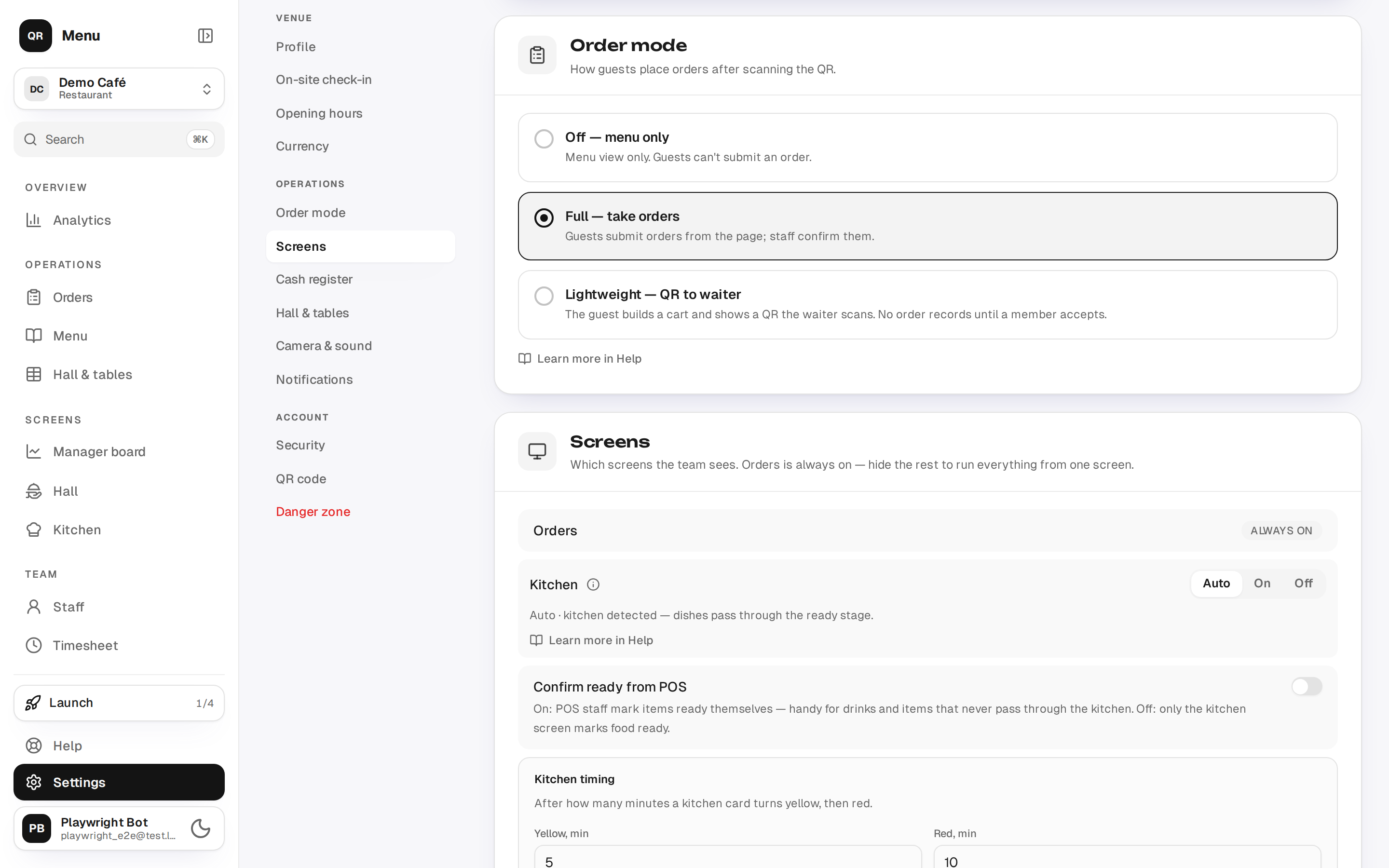
Settings → Order mode — three cards: "Off — menu only", "Lightweight — QR to waiter", "Full — take orders". The choice is saved with the settings save button and takes effect immediately.
Items without an exact price
If the menu has visible items with a price range ("50–70k"), a "from" price or "price on request" (usually after an AI scan of a paper menu), switching orders on brings up a warning: guests see such items but can't order them — the server has nothing to compute.
The dialog offers: Show items (jump to the editor and set exact prices), Keep ordering off, or Enable anyway — items without a price then stay display-only. An exact price or size variants lift the restriction.
Accepting orders on-site only
In full mode a venue can accept orders only from within its own radius. It is configured where the map pin lives: settings → "On-site check-in" → "Orders from guests".
Three options:
- Don't check — orders are accepted from anywhere. Every venue starts here.
- Record — orders are always accepted; the guest is never asked for a location.
- Accept on-site only — the guest confirms their location at checkout, and an order is refused when they are clearly outside the circle.
{info} The menu stays open either way. The radius only decides whether an order can be placed from here. Closing the shop window would cost the venue the guest who merely wanted to see what is served — and protect nothing, since the order was already unplaceable.
A separate switch — "Refuse orders without a location" — is stricter: a guest who declines location access cannot order at all. Turn it on knowingly: on a laptop, or on an iPhone without precise location, there is often no access to give, and those guests leave without saying so.
About the radius. Leave room — the terrace, the car park, the floor above. 150–500 m is a sensible start. Too tight a circle refuses honest guests: indoors a browser locates by Wi-Fi with an error of tens of metres.
{warning} Until the venue pin is set there is nothing to check against — orders behave as usual and the settings card shows a warning.
An order refused on location is never created, and staff never see it.
The guest is told twice. In the cart — before the browser's own prompt — a line explains why the location is being asked for: this venue takes orders placed at the table. And a refusal is not a bare error: it says what happened, what to do about it (come closer, or ask a member of staff; allow location for the site), and offers a Try again button with the cart intact.
Ordering by opening hours
A venue can take orders only while it is open, and stop taking them early so the kitchen can finish. It is configured under Opening hours, directly below the week grid.
Two controls:
- Only take orders during opening hours. While it is off, orders come in at any time, exactly as before.
- Stop taking orders before closing — how many minutes ahead of closing the kitchen stops accepting new ones. 0 means right up to the door; 30 is a typical choice.
{info} While no schedule is filled in, orders are always accepted. A blank form is not "closed" — otherwise switching this on would silently stop ordering for every venue that never got round to its hours.
Staff are not held to it. A waiter can enter an order at any time: they are a person who has already decided the order can be taken. The limit is for a guest ordering by themselves through the QR.
The guest sees two different things, deliberately:
| What happened | What we show |
|---|---|
| The venue is closed | "Orders are not being taken right now — opens at 10:00" |
| Open, but ordering has stopped | "The kitchen stopped taking orders at 21:30" |
Both come with the advice to ask a member of staff, who can still take the order. The menu stays open throughout: the guest reads it freely; only placing an order is closed (why).
If ordering is about to close, the guest is told before they build a cart — the cart carries a line reading "Orders are taken until 21:30".
{warning} Time is read on the venue's own timezone (where it is set), not on the guest's phone. A wrong timezone means ordering closes at the wrong moment.
Overnight shifts are handled: a venue open "18:00–02:00" still counts as open at one in the morning.
Seasonal surcharge or discount
For a holiday or an opening week you can temporarily raise or lower every menu price by one percentage — without rewriting the cards. Set it in the Orders section: a switch, a signed percentage and an occasion.
- A positive percentage is a surcharge (
+10for a holiday). - A negative one is a discount (
-20for an opening week). - Off means ordinary prices.
The guest sees exactly what a printed notice in the menu folder says:
| Where | What we show |
|---|---|
| Above the menu | "A 10% surcharge applies to all menu prices" and your occasion |
| In the cart | dishes at menu price, a separate "Surcharge 10%" row, the total with it |
| After ordering and on the receipt | the same breakdown |
Card prices do not change. That is deliberate: the guest has to meet the percentage before choosing a dish, not discover a grown total in the cart. The notice is therefore mandatory and appears on its own.
{info} The occasion ("Lễ Quốc Khánh 02/09") is shown to the guest as written, in whatever language you wrote it. The heading and the rate are translated automatically.
The rule is switched on and off by hand — there is no schedule. Venues turn these on for a weekend and off again, and a rule that expires by itself is a rule nobody checked.
The rate is frozen onto the order when it is placed. Flip the rule mid-evening and orders already taken keep their rate; lines added to such an order follow it too, so a single order never mixes two rates.
{warning} If your POS already adds this surcharge, switch it off there. Orders reach the POS with the surcharge already inside the prices — otherwise the guest pays it twice.
The surcharge counts as part of the dish price in revenue and reports. It will not appear as its own line on the POS receipt: the POS accepts only a price per item.