Admin panel overview
- What this is
- Two surfaces: admin & guest menu
- The menu management flow
- Quick start
- Documentation language
What this is
Qreaty is a digital-menu platform for restaurants. A guest scans a QR code and opens the menu in the browser; staff manage the content through the admin panel (the "Qreaty Admin" React app). This documentation covers the full menu management flow in the admin and how each change is reflected on the guest page.
Two surfaces
{primary} Every change in the admin is reflected on the public guest menu. This guide shows both sides.
- Admin — the menu editor: sections, dishes, prices, modifiers, translations.
- Guest menu — the server-rendered public page at
/{restaurant}(and/{restaurant}/t/{table}for ordering) that a guest sees.
The menu management flow
Managing a menu goes top-down:
- A menu is created for a restaurant. There can be several, but guests are served one — the active menu.
- Sections (categories) group the dishes.
- Dishes are added to sections: name, description, price, photo, visibility flags.
- Modifiers (sizes, add-ons) are created in a shared library and attached to dishes.
- Overrides change a modifier group's behaviour for a specific dish.
- Serving sets — waiter checklists attached to dishes.
- Translations — languages for tourist guests.
- Guest menu — the preview; how a guest orders is decided by the order intake mode (off / QR to waiter / full).
Once the menu is ready, the road widens:
- Hall, zones & tables — without tables there are no QR codes and no "order from the table".
- Taking orders — how an order travels from the guest to the table, and what it adds up to on the table bill.
- Roles & screens and staff — who sees and does what.
- Venue settings — profile, hours, currency and everything else in one place.
Each step is described in the matching section on the left. The road from sign-up to a finished menu (including the AI scan of a paper menu) is covered in "From sign-up to a menu".
Quick start
{info} To open the editor, pick a restaurant and go to the Menu section.
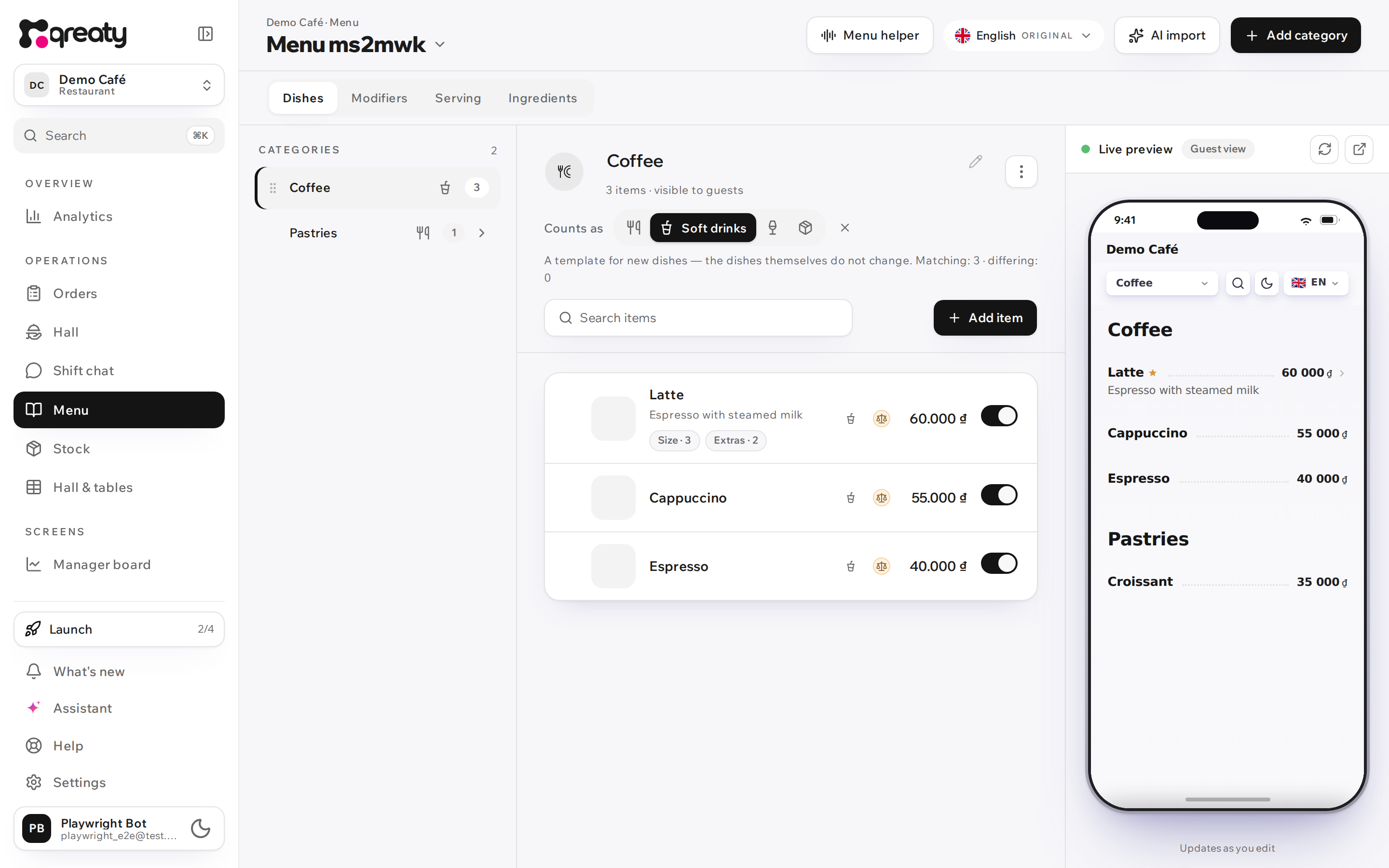
- Open the menu editor — you'll see the Dishes, Modifiers, Serving and Ingredients tabs.
- Click Add category, type a name, save.
- Expand the category and click Add item — fill in the name and price.
- On the Modifiers tab create a group (e.g. "Size") from a preset.
- In the dish editor attach the group and, if needed, set overrides.
- Open the preview (the eye icon) — check how the menu looks to a guest.
Documentation language
{success} The version switcher in the top-right acts as a language switcher: Русский (
ru), English (en), Tiếng Việt (vi).