Analytics and reports
- Where to find it and who may see it
- Six tabs
- Period
- Comparing with the past
- Filters: outlet, dish kind, channel
- The headline numbers
- What each word means
- Sales by day and by hour
- Outlets
- Channels: the guest, via a waiter, staff
- Food, drinks, alcohol
- Settlement methods and the till
- Top 5 dishes
- All dishes
- Service timing
- Cost, margin, food cost
- Consumption by recipe
- Orders over a period
- Export to Excel
- Monthly F&B report
- Room charges
- Manager board
- Why the numbers don't change after the fact
- Why the numbers differ from the old screen
Where to find it and who may see it
Analytics sits in the sidebar on a computer and under More on a phone. It needs the Analytics · View permission: the ready-made roles give it to the owner and the manager, but not to the waiter, the cook or the cashier. The same permission opens the order archive, the Orders tab and the Excel export.
At the top of the screen are "{venue} · Reports" and the Analytics title. On a computer the right side holds the period, the comparison, All outlets, Filters, Export and "?" — this help. On a phone the period sits under the title next to a filter button that holds everything else.
{info} On a shared venue device (a till tablet) analytics is hidden entirely, even if the role would allow it: the counter is no place for revenue reports.
When QR ordering is off, a strip above the tabs says "QR ordering is off" and offers Turn on ordering: the reports for past periods are all there, there simply won't be any new orders.
Six tabs
The reports are laid out over six tabs, each answering its own question:
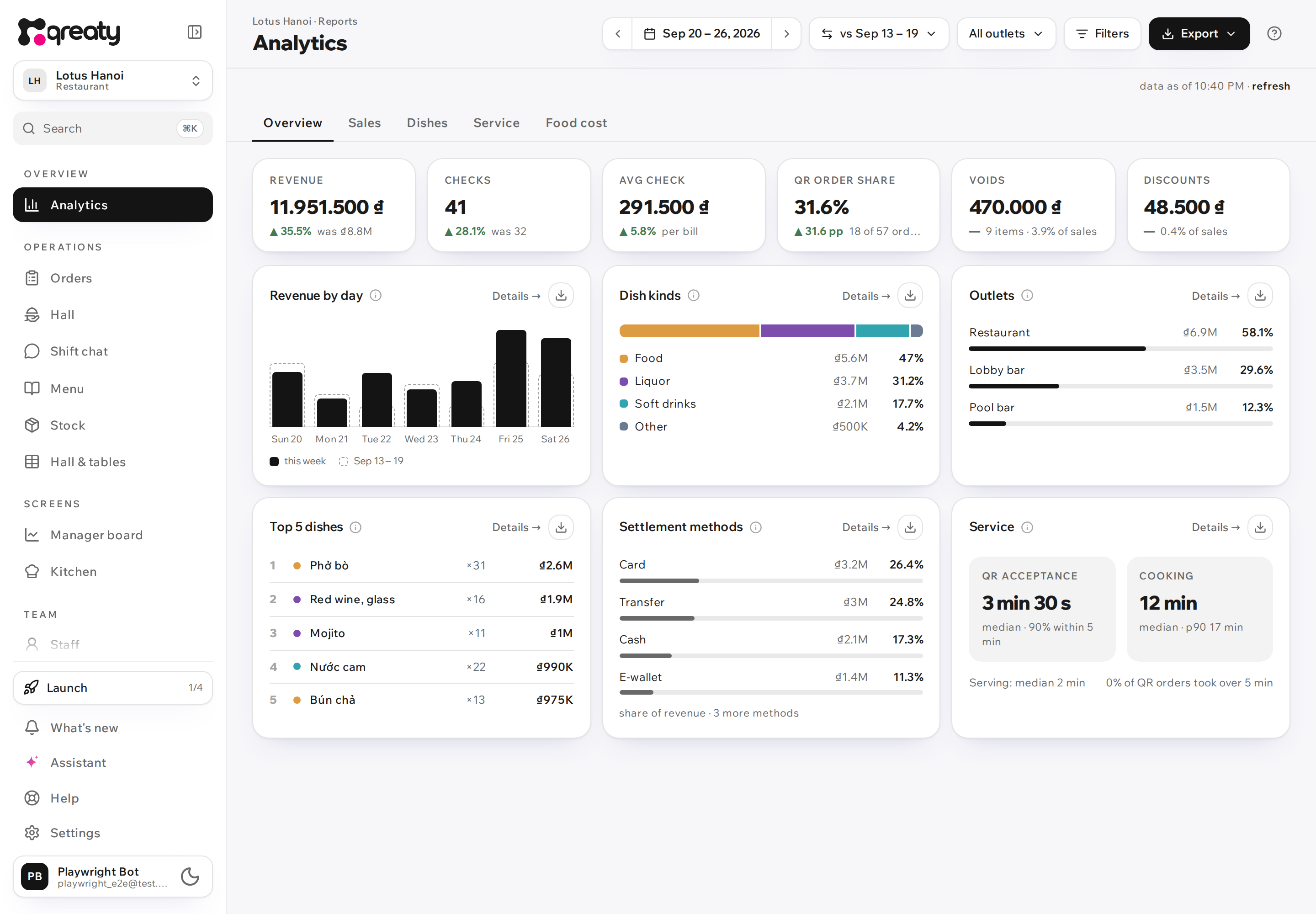
- Overview — how things are going: six headline figures and short cards (revenue by day, dish kinds, outlets, top 5 dishes, settlement methods, service). Every card has Details →, which opens the tab with the full picture.
- Sales — how much was sold and when: totals, by day, by hour, weekday × hour, by outlet, by dish kind, by menu section, settlement methods, closed bills and till, cancellations.
- Dishes — every dish sold in one table: quantity, revenue, discounts, cost, voids.
- Service — how long guests wait: QR order acceptance, cooking, serving, and the same by outlet.
- Food cost — food cost, margin and the raw goods used by recipe.
- Orders — every order of the period behind the figures: number, table, who took it, items and total (more). On a phone the tab strip scrolls sideways — Orders is the last one.
The tab, period, comparison and filters are written into the page address. Save the link as a bookmark or send it to your manager — they will open the same report, provided their role has the analytics permission.
Period
The period is picked with the date button in the header. Quick picks are Today, Yesterday, 7 days, 30 days, This month and Last month; Custom takes two dates in the calendar and Apply. Analytics opens on This month without a comparison — the month's own figures only; to compare it with the past, use the Comparison button (below). Today is the first of the quick picks.
The ‹ › arrows beside the dates move the whole period: 7 days back by a week, a month by a month. This month shows the whole month, with the days ahead still at zero.
A day is cut at midnight on the venue's clock — the calendar's footer says "Venue time: …". Future dates can't be picked, and a custom period can't be longer than a year (all report limits).
The chart step picks itself: a single day goes by the hour, up to two months by the day, up to half a year by the week, anything longer by the month. Empty hours and days show as zeros so the dips stay visible.
Comparing with the past
The comparison tells you whether things got better or worse: the tiles gain a change and the past value ("was ₫171.2M"), the by-day chart gains an outline of the past period, and the Totals card of the Sales tab shows the comparison period's revenue, checks and average check. Analytics opens without a comparison — only the chosen period's figures — and you turn it on with the Comparison button next to the period; on a phone it is under Filters. The choice is written into the page address, so a link opens with the same comparison. Each option shows the dates it compares with, so you see them before you pick:
- The previous period — the same length of time right before the chosen one. Its name follows the period: Yesterday for "Today", Previous day for any other day, Previous 7 days or Previous 30 days, and Previous month for a whole month — by the calendar: September against August, even though they have different numbers of days.
- A week back — the same days one week earlier: a Friday against last Friday. It is called Same day a week earlier for one day, A week earlier for 7 days and Same days a week earlier for 2–6 days. Only for periods of up to 7 days: for longer ones the option is greyed out and says so underneath.
- No comparison — tiles without a change, the chart without an outline, and in Totals a Turn comparison on button in place of the past figures. This is how analytics opens.
A whole calendar month — from the 1st to its last day — is compared with the whole previous month, however it was picked: This month, Last month or the same dates in the calendar. October against September, March against February, January against December of the year before. The current month is compared up to the same moment: on 28 September at 14:20 "This month" goes against 1–28 August until 14:20 (why — below). Any other dates of your own are compared with as many days right before them: 10 days against the 10 before, a month short of one day against the same stretch before it.
Turn comparison on in Totals picks the option for you: a single day is compared with the same day a week back (a Saturday is only fairly compared with a Saturday), everything else with the previous period. A comparison you turned on stays on when you change the period; "a week back" on a period longer than 7 days switches to the previous period.
Where the comparison's dates are shown:
- on the Comparison button — "vs Jul 30 – Aug 28", in full in its tooltip;
- on a phone — under the period's dates; with the comparison off it says "no comparison" there;
- on the tiles — in the past value's tooltip;
- in the Totals card — as the line "Comparison period: Jul 30 – Aug 28" above the past figures;
- in the charts' legend — "Jul 30 – Aug 28 (outline)".
While the period is still running, the past one is cut at the same hour: today until 14:20 against the same day a week back until 14:20. The comparison's dates then say "until 14:20", and the Revenue tile says day not over yet or period not over yet — otherwise an unfinished day would always lose to a finished one.
{info} The headline figures, the by-day chart and the service medians are compared. The tables — outlets, dishes, settlement methods — show only the chosen period; open the past one with the ‹ arrow by the dates, and the outlets next to the previous month are in the monthly F&B report. Rising voids and discounts are flagged as a bad sign, not a good one.
Filters: outlet, dish kind, channel
Filters narrow the whole report. On a computer All outlets sits in the header (when there is more than one outlet), and the Filters button holds Dish kind (Food, Soft drinks, Liquor, Other, Not classified) and Order channel (QR self-order, QR via waiter, Staff). Choices within one filter add up ("Terrace or Bar"); different filters narrow each other.
Under the header on the right there is always "data as of 14:20" with refresh, and active filters show there as chips: the cross removes one, Reset removes them all. The same report is recounted at most once a minute, and refresh counts it right now. A report that includes today refreshes itself every 5 minutes while the page is open.
Not every card can honour every filter — such a card says “ignores the “…” filter”:
- By outlet and By dish kind always show every outlet and every kind, or there'd be nothing to compare. Clicking a row sets the filter.
- Closed bills and till ignores the channel and the dish kind: a bill is paid as a whole, and one bill can hold the guest's orders and the waiter's, food and alcohol.
- QR order acceptance ignores the dish kind: an order is accepted as a whole.
With a dish-kind filter on, checks, visits and orders are the ones holding dishes of that kind, and revenue counts only those dishes.
On a phone it all sits in one sheet — the funnel button to the right of the dates (the number on it says how many filters are on). Inside: Period, Comparison, Outlets, Dish kind, Order channel. Show applies the choice; Reset goes back to This month with no filters and no comparison.
The headline numbers
Six tiles at the top of the Overview tab:
- Revenue — the sum of accepted orders in the period, including bills that are still open. Not "cash in the till", but the volume ordered.
- Checks — how many table bills the period had.
- Avg check — revenue divided by checks, that is per bill, not per guest: the app doesn't know how many people sat at the table.
- QR order share — the part of the orders guests sent themselves from their own phone.
- Voids — the amount of lines taken off orders that were already accepted, and how many there were; the percentage is of sales at menu prices.
- Discounts — the sum of dish discounts; the percentage is of sales at menu prices. Once recipes cover at least half of revenue, Food cost takes this place.
The full totals are in the Totals card of the Sales tab: At menu prices, Venue adjustment, Discounts, Revenue (of which on closed bills and on open bills), Checks, Visits, Orders, Avg check, Avg order. What each word means is in the next section. To the right of the totals (under them on a phone) stand the comparison period's Revenue, Checks and Avg check: what they were and how far they have moved — in percent and in money or count.
The Cancellations card sits on the same tab: Not accepted — the order was rejected or the guest withdrew it before acceptance; Cancelled after acceptance — with the amount. The "of which by voiding" line covers orders whose every line was voided: that amount is already counted in voids and isn't added a second time.
{info} Voided lines, rejected and cancelled orders never reach revenue. Voids and cancellations are different things: the first is about single dishes, the second about a whole order.
What each word means
| Word | What it is |
|---|---|
| Revenue | Accepted orders of the period, by the time they were placed, discounts applied, voided lines left out. Open bills count. Revenue = at menu prices + venue adjustment − discounts. |
| At menu prices | What the lines sold would cost at the menu's prices — without the seasonal surcharge or discount and without dish discounts. |
| Venue adjustment | The seasonal surcharge or discount on every menu price: plus is a surcharge, minus a discount. |
| Discounts | Discounts on single dishes given on the bill. |
| Check | A table bill: every order of one sitting until settling. A bill split in two is two checks. |
| Visit | One sitting at a table. A split bill stays one visit, which is why there can be fewer visits than checks. |
| Order | One trip to the kitchen: everything the guest or the waiter sent at once. Splitting a bill doesn't turn one order into two. |
| Avg check | Revenue ÷ checks — per bill, not per guest. |
| Avg order | Revenue ÷ orders. |
| Void | A line taken off an accepted order, with a reason; counted by when it was voided. Editing an order before it is accepted is not a void. |
| Cancellation | An order rejected or cancelled as a whole; counted by when it was cancelled. |
| Outlet | The zone of the room where the order was placed (more). |
| Channel | Who put the order in: the guest, the guest via a waiter, or staff (more). |
{warning} Checks don't add up. A bill counts in every row where it has an order: a bill that runs past midnight counts in both days, a merged bill from tables of two outlets counts in both outlets. So checks summed over days or outlets can come to more than the total. Revenue and orders always add up.
Sales by day and by hour
Three cards of the Sales tab answer "when do we sell":
- By day (for a single day — Through the day, for a long period — By week or By month). The What to show switch: Revenue, Checks, Avg check. Revenue also has a Breakdown: Total, By kind, By outlet — each bar splits into colours. The outline is the same stretch in the comparison period. Hover or tap a bar and the tooltip gives the exact figures.
- By hour — revenue by the hour of the order, 00 to 23, over the whole period. How to count: Sum or Daily average — the sum divided by the days that had sales (days off don't drag the average down). Above the chart, Peaks names the busiest hours.
- Weekday × hour — a 7 × 24 grid: the darker the cell, the more was sold at that hour on that weekday. The tooltip gives the sum, the orders and the average for such a day. It shows when to add a second waiter and when to close.
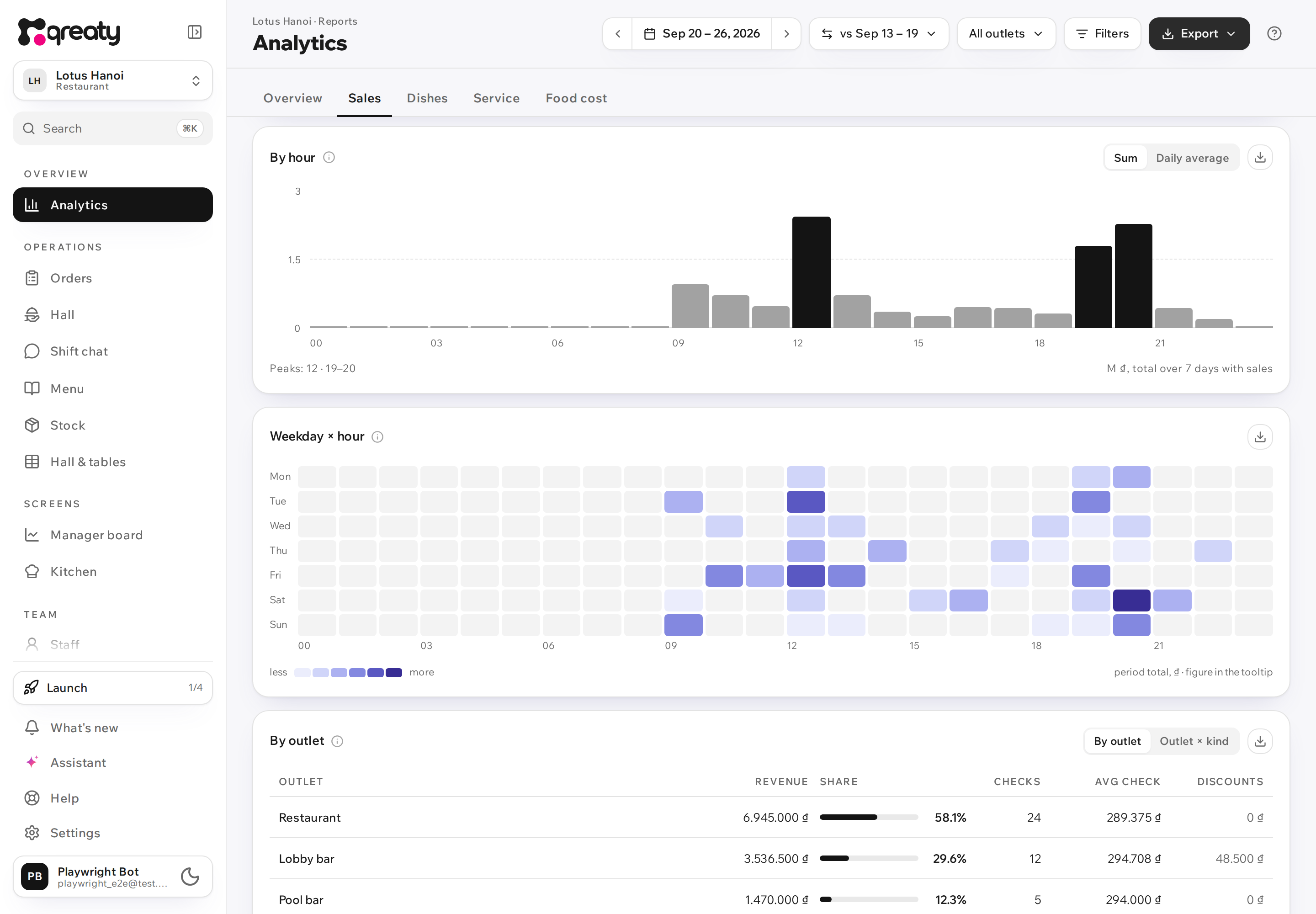
{info} The hour and the day come from the time of the order, on the venue's clock. A bill opened at 23:40 and topped up at 00:15 gives revenue to both days, and a check to each of them.
Outlets
An outlet is the zone of the room where the order was placed: the restaurant, the lobby bar, the pool, room service. There is no separate outlet setting — your zones are the outlets.
The outlet is written into the order when it is placed, so:
- moving a table to another zone doesn't rewrite past sales;
- merging bills doesn't move revenue: the bar's orders stay the bar's even if they were paid at a restaurant table;
- a zone or table sent to the archive stays in the reports with its sales, marked "archived".
The By outlet card on the Sales tab gives each outlet's revenue, share, discounts, checks and avg check. Outlets in service always show, even without sales (at the bottom, with zeros); switched-off and archived ones show only if they had sales. Table view: By outlet or Outlet × kind — each outlet's revenue by dish kind (how much food the pool bar sold). Clicking a row keeps only that outlet in the report; clicking again brings back all of them.
The Service tab has Service by outlet — the acceptance, cooking and serving medians of each outlet.
Channels: the guest, via a waiter, staff
The channel says who put the order in:
- QR self-order — the guest sent the order from their own phone (full mode);
- QR via waiter — the guest built the basket and a waiter took it in by the QR on the guest's phone (lightweight mode);
- Staff — a waiter or the till entered the order.
The QR order share tile on the overview is the share of QR self-orders. The Order channel filter keeps only the chosen channels in the report — to see, say, the avg check of guests ordering themselves against the waiters' orders.
{info} One bill can hold orders of different channels: the guest ordered, then a waiter added dessert. That is why the channel filter works on orders, and the "Closed bills and till" card ignores it (why).
Food, drinks, alcohol
The By dish kind card on the Sales tab (Dish kinds on the overview) splits revenue into Food, Soft drinks, Liquor, Other and Not classified — as a bar and as rows with revenue, share and quantity. A dish's kind is set in the menu editor. Clicking a row keeps only that kind in the report.
Below is Under USALI (hotel standard): Food = food + soft drinks, Beverage = liquor, Other = other. Hotel accounting books soft drinks as food, and "Not classified" goes into no USALI line. What the bar made in the everyday sense is the Soft drinks and Liquor rows added up, or the Dish kind filter with both kinds.
The By menu section card shows the same revenue by section: "Beer", "Wine", "Soups". It helps where kinds are too coarse: liquor is one kind, but the bar wants beer apart from wine. The biggest sections show first, the rest under Show all.
{info} The "Not classified" row and the "… not classified — set the dishes' kind in the menu" strip appear only when such sales exist. Classify in the menu opens the editor: set the kind and the revenue moves into its own group, past periods included.
{warning} The rule here differs from money: the split reads the dish's current kind and section. Fix a mistake in the menu and past reports are fixed too. That is deliberate — the dish never changed, your knowledge of it did. For a deleted dish, the kind and section recorded at the moment of sale are used.
Settlement methods and the till
The Sales tab has two cards about money, because they answer two different questions.
Sales by settlement method — what the bills behind the period's revenue were closed with: cash, transfer, card, e-wallet, room charge, voucher (payment method), plus Open (not closed yet) and Not recorded — the bill was closed without picking a method. It is counted by the time of the order, like revenue, so the rows add up to the period's revenue. The overview shows the first four rows.
Closed bills and till — how many bills were closed in the period and for how much, by the time of settling. Of which in money (till) is cash, transfer, card and e-wallet only: room charges and vouchers never reach the till. This is the figure to reconcile the till at the end of a shift.
Revenue and closed bills for the same day differ, and that is not an error. Revenue counts orders by when they were placed and includes open bills; closed bills count by the moment of settling. A table that ordered at 23:00 yesterday and paid today lands in yesterday's revenue and today's till.
The "Closed bills and till" card ignores the channel and dish-kind filters: a bill is paid as a whole, and it can hold the guest's orders and the waiter's, food and alcohol. The outlet filter does work — by the zone where the bill was opened.
The Not recorded row appears only when such bills exist. The method can be recorded afterwards (after settling).
The bills closed on each day of a month, by payment method, are the "Closed bills by day" sheet of the monthly F&B report; the room-charged bills themselves, to reconcile with the front desk, are Room charges.
{info} This is the till's note for reconciliation, not money moving: the app takes no payments.
Top 5 dishes
The Top 5 dishes card on the overview lists the five dishes with the most revenue in the period: quantity, revenue and the share of all dishes' revenue. Details → opens the Dishes tab with every dish (below).
All dishes
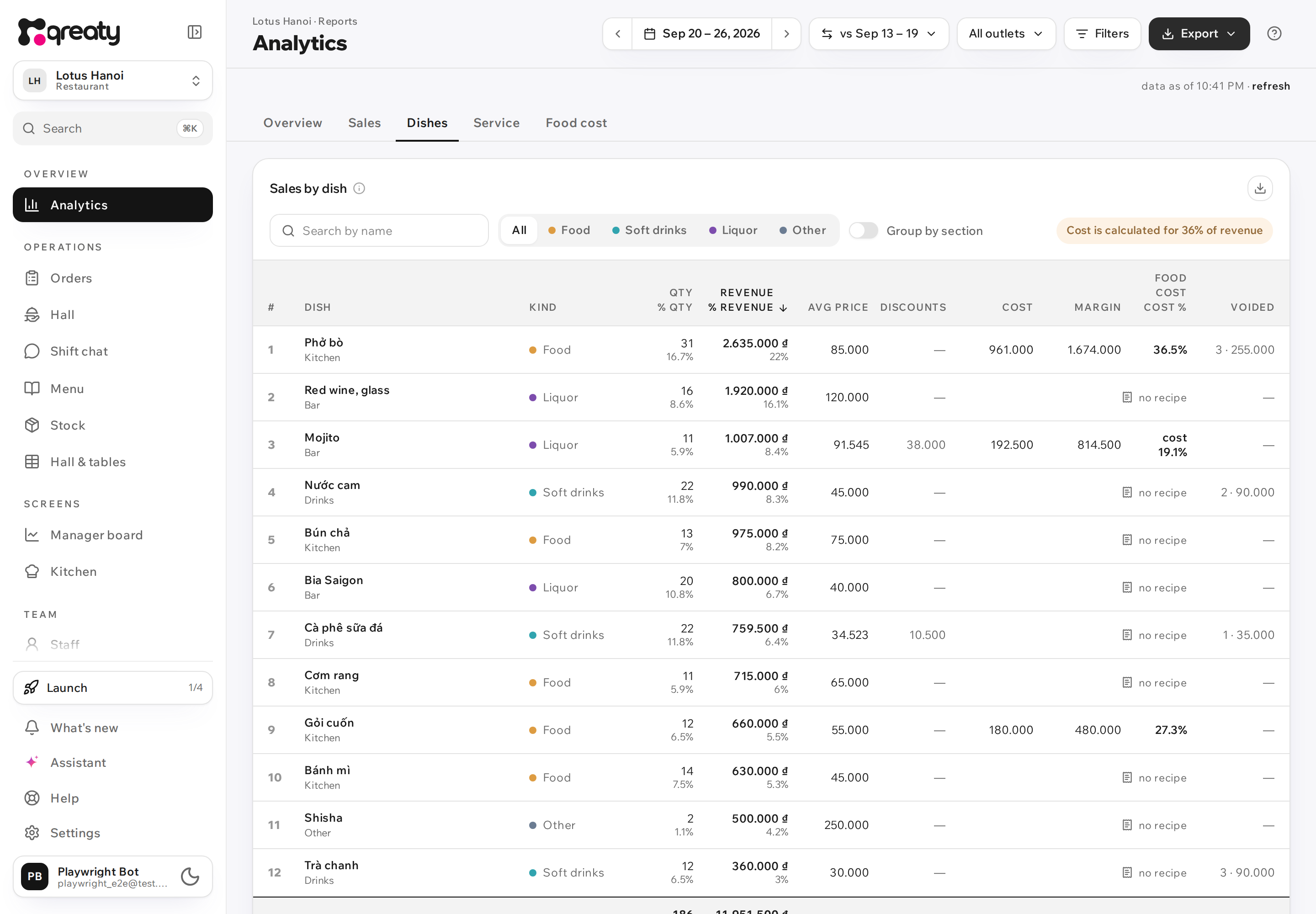
The Dishes tab puts every dish sold or voided in the period into one table, Sales by dish: Dish, Kind, Qty, % qty, Revenue, % revenue, Avg price, Discounts, Cost, Margin, Food cost, Voided.
- Above the table: Search by name, Dish kind (All or one kind), Group by section; clicking a column header sorts by it.
- Cost, Margin and Food cost show for dishes with a recipe filled in; the rest say "no recipe". When recipes don't cover all of revenue, the table says "Cost is calculated for …% of revenue".
- For food and soft drinks this is the food cost; for liquor it is the drink's cost (labelled "cost %"). When the venue sets targets, dishes above target are highlighted ("above target"): food and soft drinks by the food cost target, liquor by its own alcohol cost target. With no target a dish is compared with nothing.
- Voided is how many portions of the dish were voided in the period, by the time of voiding; they are not in revenue.
- A deleted dish stays in the table, marked "removed from the menu". A renamed one stays a single row under its current name.
- The total at the bottom equals the period's revenue under the same filters.
On a phone the rows turn into cards: cost and voids move to a second line instead of being hidden.
Service timing
The Service tab shows where the guest's time goes:
- QR order acceptance — from the guest's order at the table until a waiter accepts it. Only orders the guest placed by QR themselves: a waiter's order is accepted the moment it is created, so there is nothing to time. Over 5 min is the share of orders that waited longer than five minutes.
- Cooking — from accepting the order (or adding the dish, if it was ordered later) until the kitchen marks it ready.
- Serving — from "ready" to "served". Orders closed without a "served" mark are left out.
Each card has the Median (half the orders were faster), 90% within (nine out of ten fit into this time), Timed (the share that has both marks) and a bar chart of the spread. With a comparison on, it reads "faster by …" or "slower by …" against the past period. Service by outlet follows below.
{primary} Trust the median: one forgotten ticket drags the average up, while the median shows a typical evening. If the kitchen doesn't mark dishes ready, there is nothing to time for cooking and serving — the card says so.
Cost, margin, food cost
The Food cost tab comes alive once dishes have recipes. The Cost and margin card has the total for the whole F&B, food and drinks together, at the top: F&B cost, Gross margin and Cost % of revenue.
Below, the same total is split the way the hotel standard USALI does it (see above):
- Food and soft drinks — the food cost: dishes and non-alcoholic drinks. The venue's target sits next to it, and a food cost above the target is highlighted.
- Alcohol — the beverage cost. Its own target sits next to it — the "Alcohol cost target": a bar has its own norm, and holding it to the kitchen's target would be wrong. Until it is set, alcohol is compared with nothing.
- Other — what is neither food nor drink: shisha, souvenirs.
A row appears only when it has sales of dishes with a recipe. Unclassified dishes count in the total at the top but in no row.
Both targets are set in the menu editor: the Ingredients tab, the Cost settings block. They are the same for the whole venue, however many menus it runs.
Under the numbers the coverage is stated honestly: "computed from dishes that have a recipe — 64% of the period's revenue". If some ingredients have no purchase price, a separate line says so too. On the overview the same food cost takes the sixth tile once coverage reaches half of revenue.
{info} The margin here is gross: revenue minus raw goods. Rent, wages and utilities are not in it.
{warning} This block changes after the fact: it is computed against the current recipes and purchase prices. Change a weight or a supplier's price and past periods are recomputed too. If you need a snapshot for the month, export it to Excel.
Consumption by recipe
How much raw product went into the dishes sold over the period: the ingredient, the amount used in purchase units, the cost and how many dishes it took part in (the In dishes column). Sorted by money — what eats the budget is on top. If the menu sets a seasoning surcharge, it gets its own line above the total.
This is a starting point for purchasing: "4.8 kg of rice last week".
{info} This is computed from the dishes sold and the current recipes, not taken from the stock ledger. Breakage, opened cans and stock-count shortfalls are not in it — they show in the item's ledger under Stock, which is why the two figures differ (why).
Orders over a period
The Orders tab lists every order of the period behind the report's figures: the number, time, table, waiter, items, status, total and bill. Newest first, 25 to a page, split by day; Prev and Next turn the pages.
The list takes the period, the outlets and the order channel from the page. The dish kind does not apply to it — an order is not split into food and drinks — so the card says "ignores the “Dish kind” filter". The tab has filters of its own:
- search — by order number, table or dish: "12" and "/docs/en/analytics#12" both find order
12, and "1-7" an order the till numbered without internet
- Status: all — or only served, rejected, cancelled and so on;
- Waiter: all — who took the order; the list shows for those who may see the staff.
Clicking a row opens the order card on the right — the same as in the archive on the till: the history, the items, the bill and the Print order receipt button.
Order numbers are the venue's own and start from 1 every day: the day's first order is #1, the next #2, and so on until midnight on the venue's clock. That is why the date always sits beside the number, and a search for "12" over a week finds order #12 of every day — tell the right one by its date and table. Bills are numbered the same way: "Bill #7" is the day's seventh bill. The guest sees the same number on their status screen, and it is printed on the ticket and the receipt.
Export CSV on the card downloads the list as filtered — search, status and waiter included. The file has a row per order: the order number (first column, Order #), date, time, table, guest, room, waiter, items, status, total, the bill number (Bill #), bill status and payment method. The same list without the tab's own filters is under Export → Orders (export).
Export to Excel
Any card or tab can be exported to Excel (.xlsx), with the same figures as on screen:
- one card — the Export to Excel button in its corner. The Service tab's cards export together, from the button on Service by outlet: the workbook holds all three stages and the outlets;
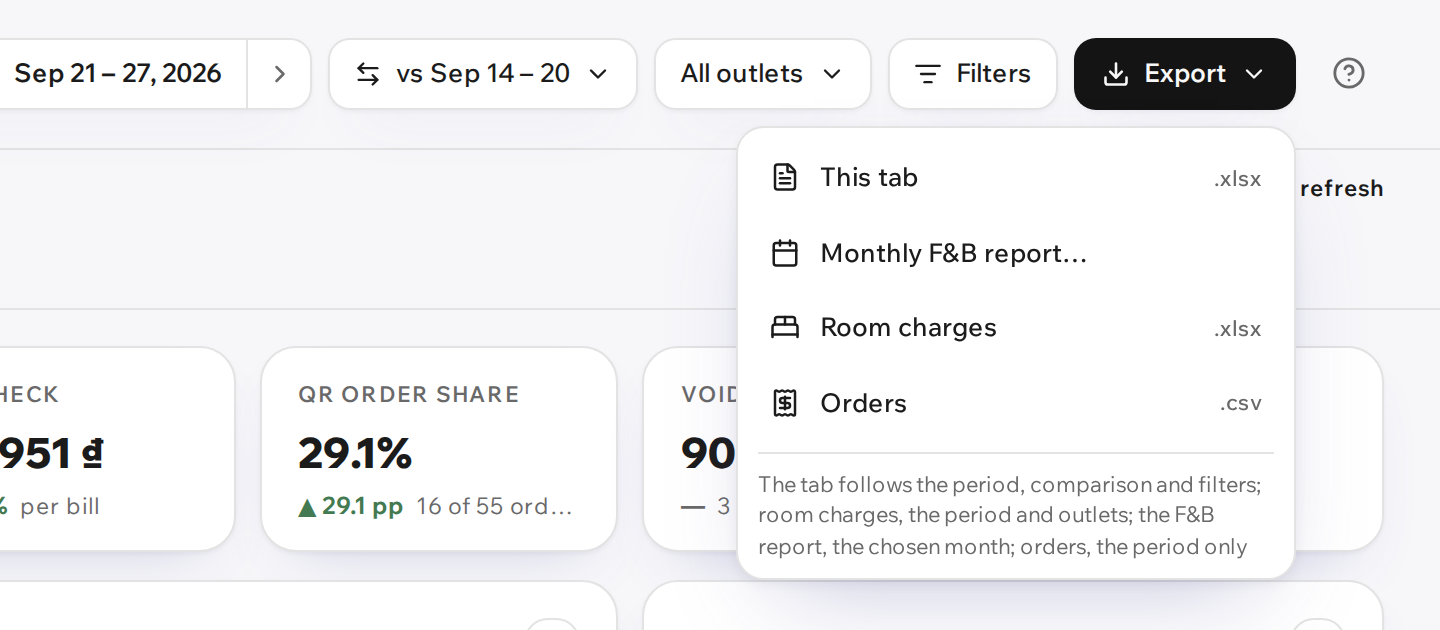
- a whole tab — Export in the header → This tab: one sheet per card;
- the month for the controller — in the same menu, Monthly F&B report…: a window opens where you pick the month and the outlets (more);
- bills charged to rooms — in the same menu, Room charges: the list to reconcile with the front desk (more);
- the list of orders — in the same menu, Orders (.csv): the period's orders for the chosen outlets and channel, as on the Orders tab;
- on a phone — in the filter sheet: Export this tab (.xlsx) (on the Orders tab, Export orders (.csv)), Monthly F&B report… and Export room charges (.xlsx). The tab and the room charges hold what is picked in the sheet, and the report on screen switches to the same. Where the phone supports it, the file goes straight to Zalo or email through Share; if the phone asks for one more tap, a "File … is ready" hint with Share appears, and if you don't tap it the file simply downloads.
The note under the menu items says what each one takes from the page. The tab takes the period, the comparison and every filter. Room charges take the period and the outlets: the dish-kind and channel filters don't apply to bills. The F&B report takes only what is picked in its window. The orders .csv takes the period, the outlets and the channel: the dish kind doesn't apply to orders. On the Orders tab there is no This tab item — that tab's file is the orders .csv.
What the workbook holds:
- the cards' sheets — the same tables, with "Total" at the bottom. Numbers are stored as numbers — money, percentages, durations — so you can add them up and chart them;
- Data — sales row by row: date, outlet, kind, at menu prices, adjustment, discounts, revenue, quantity. This sheet is the one to build a pivot table from in Excel or Google Sheets. It has no checks or orders: they don't split by kind. There is a row for every day, outlet and kind; when that would take the workbook past its limit, the rows are folded by week, or by month if that is still too many (the column reads "Week from" or "Month from", and Parameters says so);
- Parameters — the venue, period, time zone, currency, filters, comparison, when it was computed, and the definitions: what revenue, a check, the avg check and an outlet are.
Room charges have no Data sheet: the file holds only the list of bills and Parameters.
The workbook's language is the interface language. The file name carries the
report, the venue and the dates, for example
analytics-sales-lotus-hotel-2026-09-14_2026-09-20.xlsx.
{warning} When the cards' own sheets are too large — it can happen to the dish table for a year with a very long menu — the workbook won't be built; the app asks you to shorten the period or export a single card; for the monthly F&B report, to pick fewer outlets; for room charges, to shorten the period. Exports in a row are limited too (limits). The Data sheet never causes a refusal: it folds by week or by month instead.
Monthly F&B report
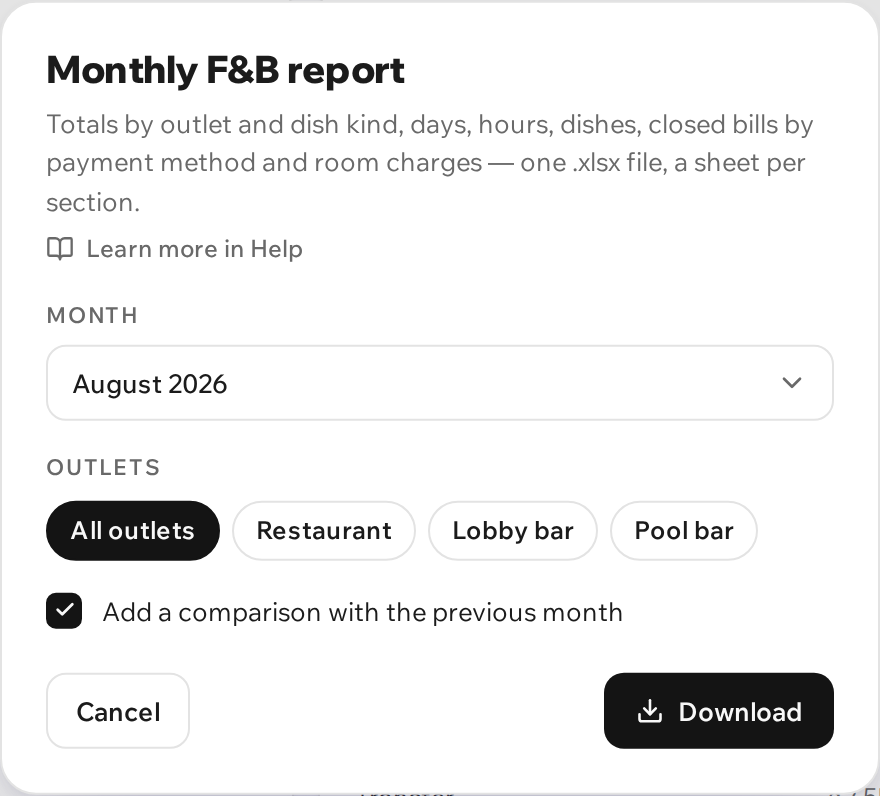
A month's workbook for the hotel's controller — everything an F&B month is closed with, in one .xlsx file: totals by outlet and dish kind, days, hours, dishes, closed bills by payment method and room charges.
Export → Monthly F&B report… (on a phone, the same row in the filter sheet). In the window:
- Month — the current one or one of the twelve before it. Last month is picked by default: that is the one being closed. The current month says "to date" — the days ahead are still zero.
- Outlets — All outlets or several of them. The row shows when there is more than one outlet.
- Add a comparison with the previous month — on by default.
Download, and the file is ready. The page's period, dish kind and channel don't reach the report: it has its own month, and only outlets narrow it.
The workbook's sheets:
- Summary — three tables. By outlet: each outlet's revenue by dish kind (food, soft drinks, alcohol, other), share of venue, checks, visits, avg check, discounts, voids and, with the comparison, the previous month and the change in per cent. USALI by outlet: each outlet's Food, Beverage and Other. Reconciliation: what revenue is made of (at menu prices + adjustment − discounts; on closed + on open bills), what is outside revenue (voids and cancellations — they are not subtracted) and the closed bills' totals, which agree with the "Closed bills by day" and "Room charges" sheets.
- By day, By hour, Dishes — like the sheets of the cards of the same name, for this month.
- Closed bills by day — every day of the month: how many bills were closed and for how much by each payment method, In money (the till) and Total closed.
- Room charges — every room-charged bill of the month (below).
- Data and Parameters — as in any workbook; Parameters also explain how to read this report.
The previous month is the whole previous calendar month: for October, all of September; for the current month, up to the same moment as now (comparison). On "By day" the comparison pairs day with day, so its total says "same days", and a separate row below it gives "The whole previous month".
The summary lists every outlet in service, and hidden or archived ones if they had sales or voids this month, or sales in the previous month. With only some outlets picked, it lists just those, and the share is of the whole venue. Visits and checks don't add up across outlets: a sitting that ordered in two outlets (a merged bill) is a visit of each. That is why the checks, visits and avg check on the "Total" row are counted afresh, not added up from the rows.
{warning} The workbook has two axes, and their totals honestly differ. "Summary", "By day", "By hour", "Dishes" and "Data" count orders — by the outlet where the order was taken and the time it was placed, like all of analytics. "Closed bills by day" and "Room charges" count bills — by the outlet where the bill was opened and the time it was settled. A table that ordered on the 31st at 23:00 and paid on the 1st lands in one month's revenue and in the next month's closed bills.
{info} Prices in the report are as on the menu, with VAT and service charge not broken out. There are no guests (covers) and no average per guest: the app doesn't know how many people sat at the table. If the file comes out too large, pick fewer outlets (limits).
Room charges
The list of bills guests charged to their rooms — to reconcile with the folios at the front desk. Export → Room charges (on a phone, Export room charges (.xlsx) in the filter sheet) downloads an .xlsx file for the page's period and the chosen outlets. The same list is a sheet of the monthly F&B report.
One row is one bill: the Date and Time it was settled, the Bill's outlet, Table, Amount, Room, Closed by and Bill no. — the number printed on the receipt. Bills are numbered afresh every day ("Bill #7" is the seventh bill opened that day), so match it together with the date. At the bottom — "Total · postings: N" and the sum. The room stays as written on the bill, leading zero included ("0345"). Closed by shows the staff member, the shared device's label (the till), "Qreaty support" if support closed the bill, or "—".
Which bills are listed:
- closed with the payment method Room charge — as it stands now: change it to cash after settling and the bill is gone from the list. A room number alone decides nothing: of a split bill, only the part recorded as a room charge is a posting;
- by the time of settling and the outlet where the bill was opened — like the Closed bills and till card (settlement methods): the list's total equals that card's "Room charge" row;
- a room charge for a zero amount is a posting too.
A bill closed without a payment method is not listed, even if the guest signed for the room: Parameters warn how many such bills the period has. Record the method afterwards (after settling) and the bill appears in the list.
There is no Data sheet here. A dish-kind or channel filter on the page doesn't apply to bills — Parameters say so. If the file comes out too large, shorten the period (limits).
{warning} The list has no guest names — the bill has none. It does have room numbers: pass the file only to those who need it.
Manager board
A separate Manager board screen — not a report but a look at the current shift: orders today, revenue, average order, table occupancy and a list of active orders, oldest first.
It opens on a different permission — Staff & roles · Manage, not the analytics one: the shift manager and the analyst are different jobs.
{info} Small discrepancies with Analytics are normal: the board counts live orders on the device, analytics counts saved totals on the server.
Why the numbers don't change after the fact
At the moment of the order the system records the dish's price and name, its kind and section, and the table's zone, as they were then. The report always takes the money from that record, not from the current price list: raise your prices tomorrow and yesterday's revenue stays put; delete a dish and its past sales remain.
Three things the report reads as they are now, on purpose:
- the dish name — while the dish is on the menu, it shows under its current name, in the interface language; a renamed dish stays one row;
- the dish's kind and section — fix the tagging and past reports are fixed too (see above);
- cost and consumption — from the current recipes and purchase prices (see above).
All periods are counted in the venue's timezone: "today" runs from midnight to midnight local time, not by the clock on your phone.
{warning} There is no such thing as a "business day until 4 a.m.": an order taken at 00:30 already belongs to the next day. That matters for late-night venues — read such shifts as two days.
Why the numbers differ from the old screen
In September 2026 the analytics screen was replaced with a new one. Revenue is counted as before — accepted orders by the time of the order, voided lines left out. But some other figures for the same period changed, because they are now counted more precisely.
- The avg check is per bill. The old "Avg order" tile divided revenue by orders, and a table adds on several times an evening, so it came out smaller. The new Avg check divides revenue by bills. The old figure is still there — it is Avg order in the totals of the Sales tab.
- Splitting a bill no longer inflates orders. An order split in two used to count as two. Now it is one order, however many bills it became, and two checks.
- Acceptance counts only guests' QR orders. "Time to confirm" used to include waiters' orders, accepted the moment they were created — at zero seconds, which made the median look better than it was.
- Cooking starts at acceptance. It used to start at the "cooking" mark, which not every kitchen sets, so there were few measurements. Now it runs from acceptance to "ready": the time is longer and there are far more measurements.
- Voids and cancellations leave out edits made before acceptance. Editing an order before it was accepted used to count as a void. Now a void is only a line taken off an accepted order with a reason; cancellations count by the time of cancelling.
- The dish list is complete. It used to hold ten items, and a renamed dish showed as two rows. Now the overview shows five, and the Dishes tab shows all of them, one row per dish.
- An outlet is where the order was placed. A zone's revenue used to follow the bill's current table: moving a table or merging bills moved the history. Now the zone is written into the order.
- Payments are two cards. The old "Payment methods" card became Closed bills and till; the new Sales by settlement method splits the period's revenue itself by method (more).