Sections & dishes
- Opening the editor
- Sections (categories)
- Dishes
- Price
- Availability, the stop list and diet
- Serving sets
- Photo, clone, delete
Opening the editor
Pick a restaurant and open the Menu section. The editor has four tabs:
- Dishes — the menu's sections and items;
- Modifiers — the shared group library (details);
- Serving — the serving-set library (see below);
- Ingredients — the product reference and dish recipes: how much of what goes into a portion and what it costs. Filling this in is optional, but without recipes the Analytics section can't show food cost or margin.
Top-right in the header: the content language switcher (Translations & languages) and the preview.
The editor always opens one particular menu. When there are several — a seasonal one, a draft, an archived one — you switch between them and activate the right one on the menu list screen.
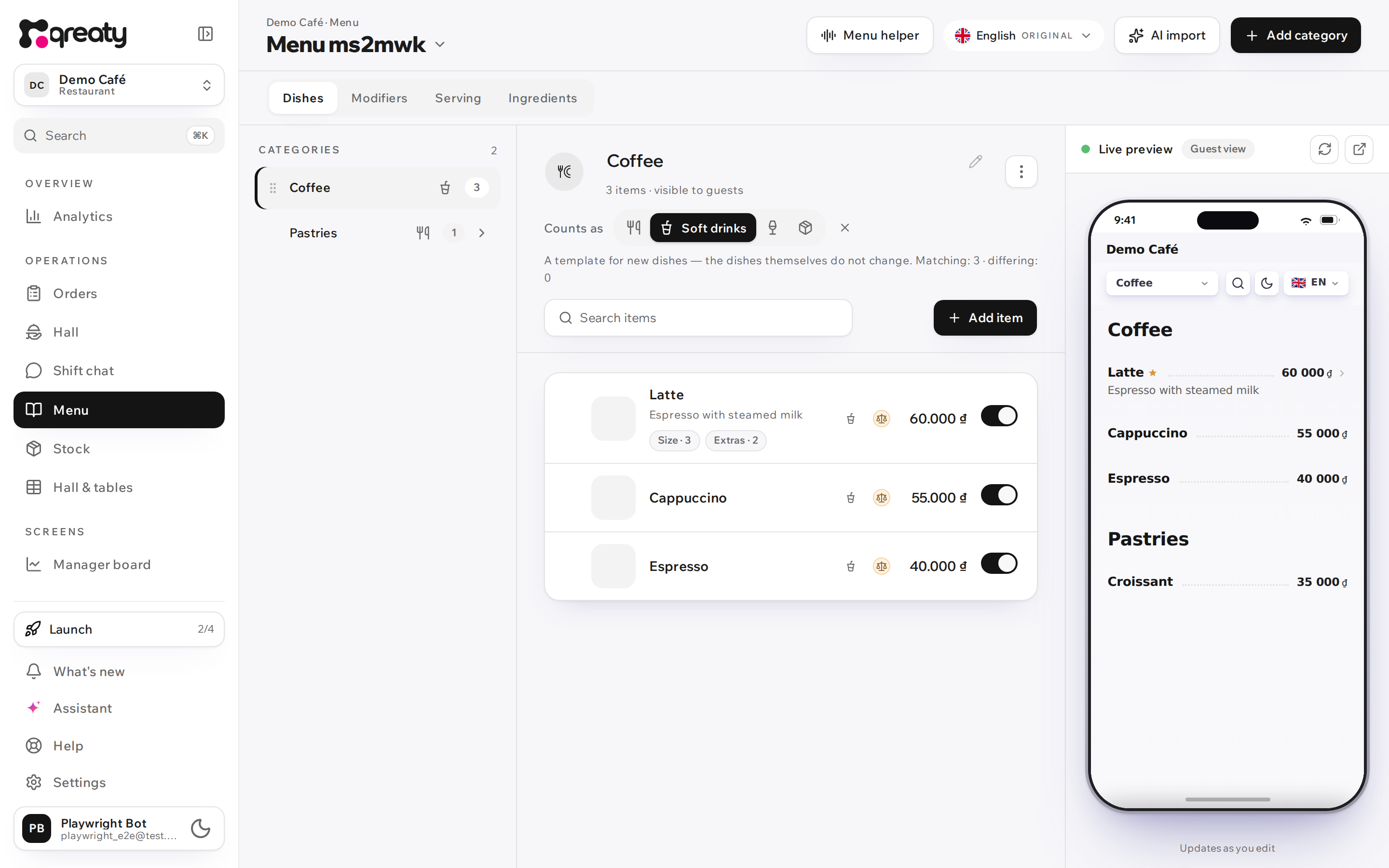
On a wide screen the editor spreads into three panes: the category rail on the left, the selected category's dishes in the middle, and a live preview of the guest menu in a phone frame on the right (changes show up immediately). Above the phone sits the look switch (Default, Minimal, Espresso, Gold, Burgundy, Rose, Lemon): the pick is saved right away and applies to every menu of the venue (menu look). On a phone it's the same tabs, with sections as expandable cards. Until the venue is launched, the setup checklist strip sits above the editor.
Sections (categories)
Sections group dishes.
- Create: the Add category button → type a name → Save.
- Rename: edit the name in the section row and save.
- Order: drag a section by its handle (the "⋮⋮" grip) — the order is applied to the guest menu immediately.
- Hide/show: the eye button (active flag). A hidden section and all its dishes disappear from the guest page; re-enable it to bring them back.
- Delete: the trash icon → confirm. Deleting cascades to the section's dishes.
{primary} A deactivated section is not sent to the guest at all (server-side filter), it isn't merely hidden visually.
Dishes
Expand a section and click Add item — the dish editor opens.
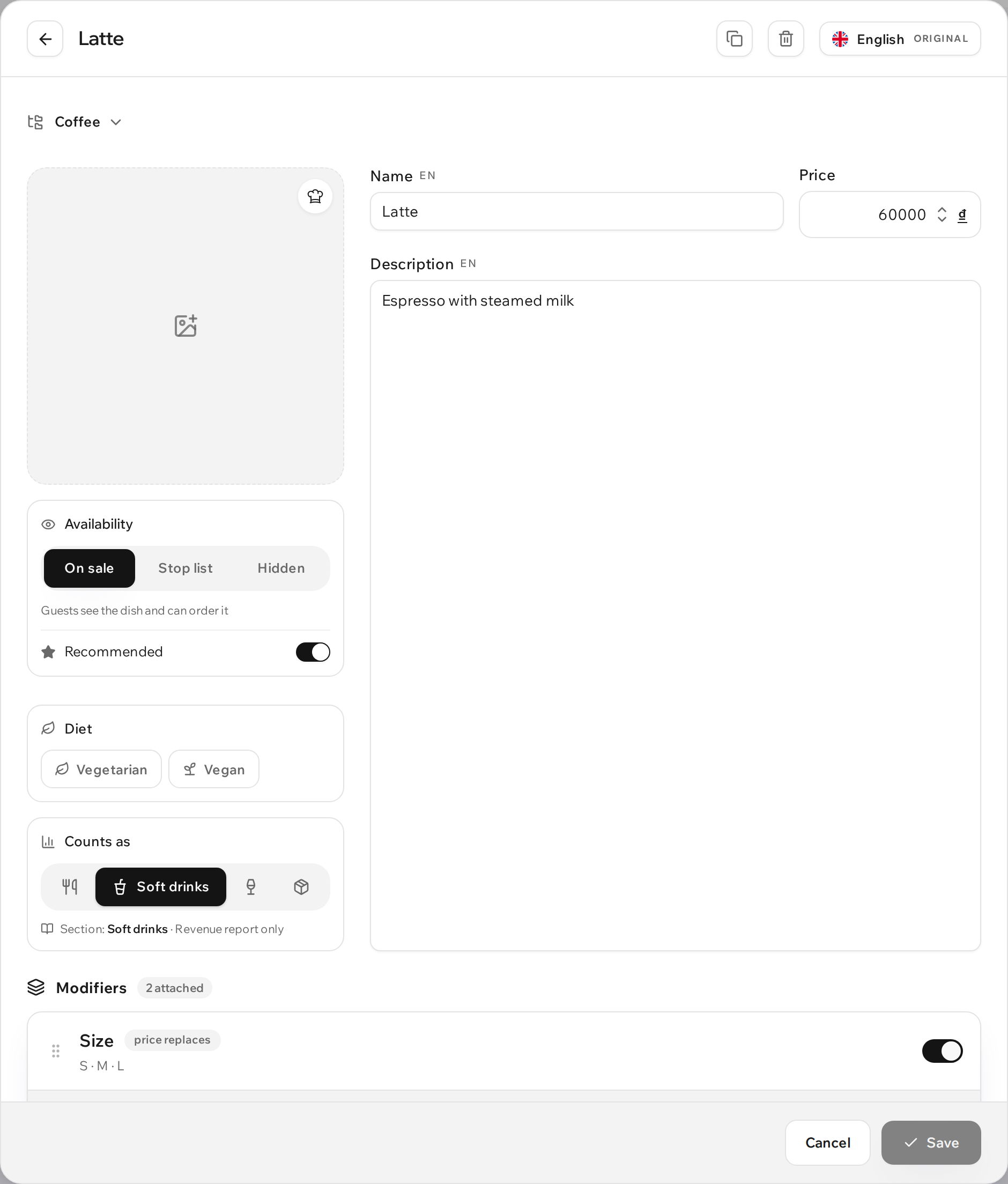
Fields:
- Name (required) and Description — in the active language.
- Price — see below.
- Photo — upload with a 1:1 crop.
- Modifiers — attach groups (see Modifiers).
- Serving sets — attach serve checklists (see below).
- Availability — on sale / stop list / hidden, plus "recommended" and diet.
{warning} Saving is blocked while the name in the active language is empty.
Price
The dish editor has a single numeric price field — it creates a fixed price
(fixed). On the guest menu it's shown as an integer with a thousands separator
and the currency symbol (e.g. 60 000 ₫).
{info} Range / "from" / variable prices (range/from/variable) come from the AI recognition of paper menus and are not created manually. Guests see them ("50–70k", "price on request"), but such an item can't be ordered — the editor marks it with an amber badge. Set an exact price, or sizes with prices, to make the item orderable.
Availability, the stop list and diet
Availability is one control with three positions. There are no other states: a dish is either on sale, or temporarily not orderable, or absent from the menu.
- On sale — guests see the dish and can order it.
- Stop list — guests see the dish but it has no Add button. On the guest card the price greys out and a "Sold out" badge appears; in the dish sheet the button stays where it is and carries the same reason. This is the state for "we ran out", "it never arrived", "off until tonight".
- Hidden — the dish is not in the guest menu at all.
There is a fourth reason, set not by a person but by the stock: if a stock item has “Take dishes off sale when it runs out” on, the dish goes off sale by itself when the stock won't cover a portion, and comes back after a receipt. Guests see the same "Sold out" badge, the till shows "Out of stock", and in the editor the control stays on "On sale" with a "Taken off sale by stock" note under it. A stop list set by hand is not lifted by a receipt.
Beside it sits a separate Recommended switch: it marks the dish with a star on the guest menu. It is off while the dish is hidden — there is nothing to recommend.
Diet is two chips, Vegetarian and Vegan. They mark the dish with a leaf on the guest menu and switch on the filter in the menu header. A vegan dish is always vegetarian, so the second chip lights up by itself.
{info} Diet survives both the stop list and hiding: it describes the dish itself, while availability is about the shelf.
{warning} Photo recognition sets the dietary flags only where the menu explicitly says "vegan", "chay", "vegetarian" or spells out its own legend. Nothing is inferred from ingredients: a wrong "vegan" label is a risk to the guest. Mark everything else by hand.
Type: food, drinks, alcohol
Every dish counts as exactly one thing: Food, Soft drinks (non-alcoholic), Liquor or Other (shisha, souvenirs, corkage). This is for you alone: Analytics splits revenue by these groups. The guest never sees the type, and it changes nothing about ordering.
The type lives on the dish. A section has one too, but it is a template: it is filled in for new dishes and rolled out by the "Apply the type to every dish" button. That button leaves alone every dish whose type is already set — your exceptions survive it.
- Section type — on a phone it lives in the section icon's popover, where the icon itself is picked; on a wide screen it is a row of its own under the section name. Saved immediately.
- Dish type — the "Counts as" field on the dish card. Under it sits what the section would have filled in, and one link puts it back.
- In the dish list every dish carries a type mark: quiet when it agrees with its section, ringed in amber when it differs — a beer inside a "Soft drinks" section stands out at once.
{info} A dashed question mark means "type not set". Right after photo recognition most sections look like that — it is a working state, nothing is broken. Revenue from those dishes lands in the "Not classified" row in Analytics.
Next to a section's type you may see "Labelled by AI · review": the type came from recognition, not from you. It is a prompt, not an error — most of the time the guess is right. To clear it, press the type that is already selected: that is you confirming it, and the section becomes yours. If the type is wrong, just pick the right one — the note goes with it.
{warning} "Soft drinks" means non-alcoholic drinks. Mark beer, wine, cocktails and spirits as "Liquor": otherwise there is no separate alcohol reporting, and hotel accounting counts only alcohol as the bar.
Serving sets
The Serving tab is the library of serving sets — short checklists for the waiter ("chopsticks and soy sauce", "warm the plate", "offer ice").
- A set is created once in the library and attached to dishes in the dish editor — just like modifiers.
- The waiter sees the set on an order as a serve checklist on the Hall screen — what to bring with the dish, nothing to keep in their head.
- Sets are single-language (they're an internal crib sheet for staff, guests never see them) and don't affect the price.
Ingredients and recipes
The Ingredients tab holds the menu's product library and the recipes.
- An ingredient is a name, a unit (g / ml / pcs) and an optional purchase price. The price is per pack — "205,000 ₫ per 250 g", the way it is bought, with no mental division by the kilogram. Piece-counted products can keep the kitchen's own word: "5 con" rather than "5 pcs".
- A recipe is lines of "ingredient + amount per portion". Cost and food cost come from them; without prices the composition still earns its place — the cook and the waiter see it.
- Seasoning & other is a menu-wide percentage. Paper cost sheets carry it as the last row of every dish; without it our cost disagrees with the kitchen's.
- Target food cost is the share of the price you aim for (usually 30–35%). Set it and the goal appears next to the computed food cost, with anything above it highlighted — both in the dish recipe and in the analytics. Until it is set, nothing extra is shown.
Importing recipes from a file
Import from Excel on the Ingredients tab brings over the cost sheet the kitchen already uses, whole.
How it goes:
- Upload.
.xlsx,.xls,.odsand.csvup to 5 MB. You do not have to explain how the file is laid out. - Reading. We work out its layout — where the dish names are, the ingredients, the amounts and the prices. Up to a minute.
- Review. We show what came out: how many dishes and lines, which matched the menu on their own, which need your choice, and which are not on the menu at all. Our total per dish sits next to the one the file states, so a disagreement is visible at once.
- Apply. Only then are ingredients created and recipes filled in.
{info} Nothing changes until you press "Apply the import". Until then the file is read but the menu is untouched.
Worth knowing:
- An unmatched dish is not imported. A row that found no dish on the menu is skipped rather than attached to something similar.
- How the match is found. By spelling first — case, diacritics and punctuation do not get in the way, and the comparison runs against every language the menu has, so a Vietnamese sheet finds a dish written in English. Whatever is left over is shown to a model once, which recognises a dish that was renamed or is simply called something else («Gà chiên karage» and «Gà rán kiểu Nhật» are one dish). Those rows are marked "by meaning" in the review and filled in ahead of you — a suggestion worth checking, not a decision.
- An existing recipe survives unless you tick "overwrite" — the box sits on each matched dish separately. Tick it deliberately: overwriting replaces the whole composition rather than adding to it, so an ingredient you added by hand and the sheet does not know about disappears. A dish with no recipe yet is filled in either way; there the box changes nothing.
- Prices are optional — untick "Import purchase prices" and only the amounts come over.
- Two prices for one product are not averaged: if the sheet has asparagus at both 50,000 and 150,000, we take the commoner one and show you both.
- The file is deleted once the import is applied or abandoned.
If the sheet is laid out in a way we cannot read, a manual mapping form opens: name the column letters and the header row, and that is enough.
Photo, clone, delete
- Photo: the upload is asynchronous — after the dish is saved it appears on the guest menu (with a cache refresh).
- Clone: the copy icon on a dish row → confirm. A copy is created with the same attributes, translations and attached modifier groups. The copy's photo is its own file: delete the copy and the original keeps its picture.
- Delete: from the dish editor (the trash icon in the header) → confirm.
- Reorder dishes: drag within the section; the order applies to the guest menu.