The till: Orders screen
- What this screen is
- Four board views
- Queues and the order card
- Confirm, reject, cancel
- The hanging-order alarm
- Guest calls and bill requests
- An order by hand
- An "already served" order
- Editing an accepted order
- Voiding a line
- Scanning the guest's QR cart
- Feed and archive
- The till without internet
What this screen is
Orders is the main board of the shift: guest orders land here, here they are confirmed, carried through to serving and settled. The screen is open to roles with the Take orders permission; if order taking is switched off for the venue, the screen is not there at all.
The board refreshes itself: new orders and status changes appear without a reload, and ticket ages are recounted as you watch.
If the venue keeps stock, the board's header on a shared tablet and on a phone has an Open / write off button (on a phone, an open-box icon): the bartender opens a can or writes off breakage without leaving the orders. Who sees it is in the stock help.
{info} Shifts aren't clocked here: the "Start shift" button lives in the account menu (the avatar) on a computer and in the shift card on the More screen on a phone (shifts). A shared device never clocks a shift at all.
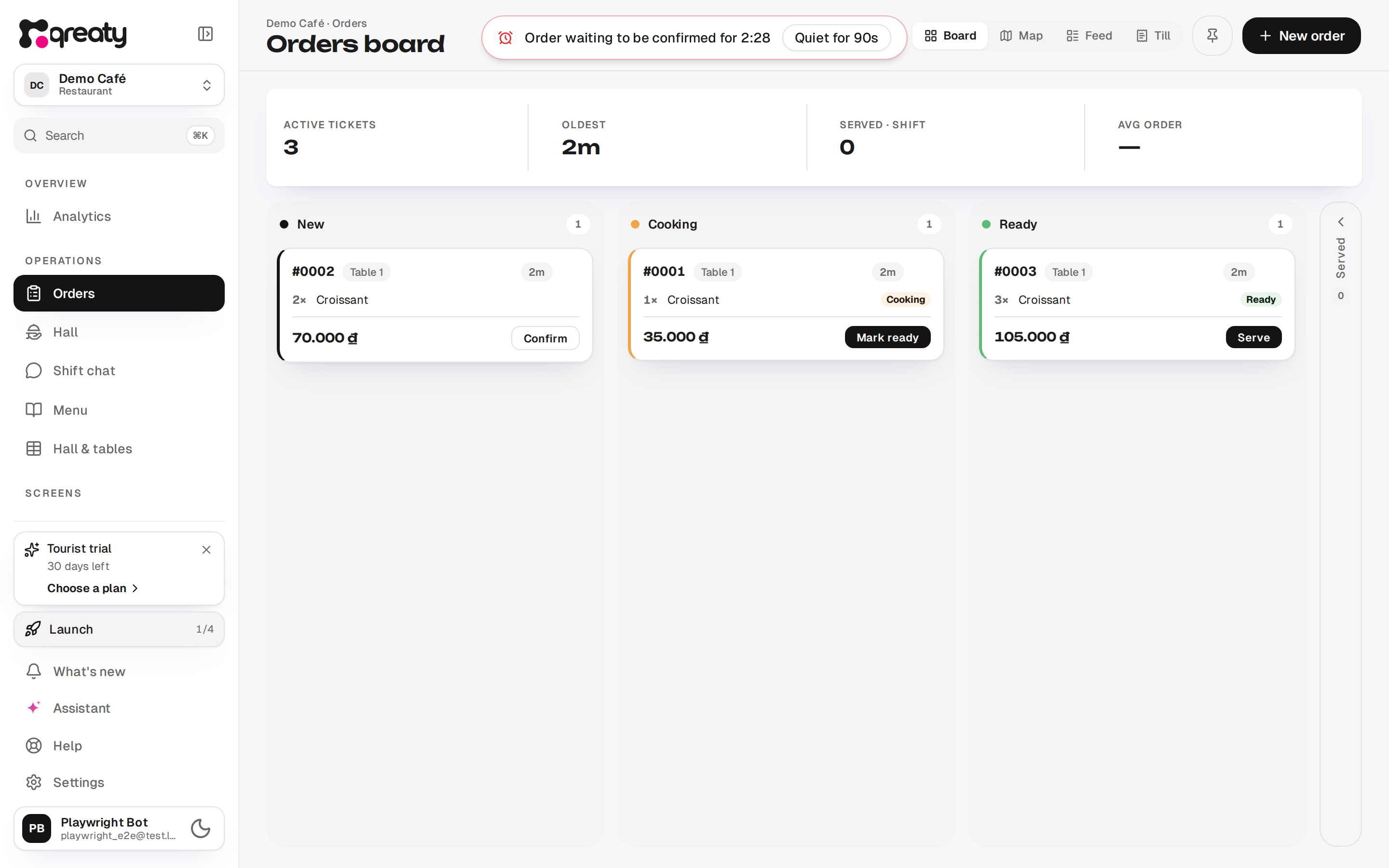
Four board views
The switch in the header gives four ways of looking at the same shift:
- Board — a kanban by stage, handy on a big till screen.
- Map — the floor plan: you can see what is happening table by table.
- Feed — the queue on the left, the order card on the right; editing opens here too.
- Till — the tables to settle: every open bill, with the tables waiting to pay on top (Waiting to pay). Tap a table to open its bill — closing, splitting and merging happen right there. Bills open since yesterday or earlier get their own warning, so a forgotten bill doesn't keep a table occupied. Below sits the Settled block: how many bills were closed today and for how much, split by payment method and followed by the bills themselves (payment method). The "Today / Yesterday" switch is for shifts that end after midnight; a bill from the list opens so the method can be recorded or corrected. The "In money" total adds up only cash, transfer, card and e-wallet — what should be in the drawer and reach the bank. Room charge, voucher and "Not recorded" show on their own rows but stay out of it.
Closing, splitting and merging a bill from the Till needs the "Settle bills" permission; without it the bill opens for viewing and, if the venue prints them, for printing the pre-bill (who can do what).
The pin button next to it opens the Default view menu: tick "Open “Board” by default" (or whichever view you are on) and the device will open on it. Simply switching tabs does not change the default view — that is a deliberate action. While the pinned view is on screen, the pin is filled in.
{info} On a phone, and on a tablet held upright, there are three views: Feed, Map and Till. There is no kanban board here — the columns have no width to live in, so a pinned “Board” opens on the Feed. The map works exactly as it does on the big screen: tapping a table opens its card from the bottom, and the counter next to the tab shows how many guest calls are still waiting for an answer.
Queues and the order card
Orders are laid out by stage: New (not confirmed yet) → In progress → Ready (everything is cooked, time to carry it) → Served (a narrow rail on the side, a log of the dishes served last).
A red pill with a clock appears in the board's header once the oldest active ticket is overdue. While everything is on time, there is none.
The card shows the order number, the table, the items, the guest's comments, the total and one main button for the current stage: Confirm → Mark ready → Serve. Clicking the card opens the full order card with the table bill, printing and editing.
The guest's comments stand out — a warm block with an icon instead of small grey italics: this is an instruction, not a detail. The block holds both the note on the whole order and the ones the guest left on single dishes; on a phone the latter used to disappear and were visible only inside the ticket.
The moment an order offers a "Serve" button, its card also grows a "Take to the table" block — the serving sets of the dishes on it (the serve checklist), with a "ticked / total" counter. Nothing to configure: with no serving sets on the dishes there is no block. If the kitchen stage is switched off at the venue, both the button and the block appear as soon as the order is confirmed — there is no waiting for a "ready" that such a venue never reaches (the Ready stage).
The order number is the same one the guest sees on their status screen and the one printed on the ticket and the receipt: "order 12" at the table and at the till is one and the same order. The number is the venue's own and starts from 1 every day (order numbers). If the venue asks guests for a name and a room number, a "Room 214 · Anna" line sits next to the table (guest details).
Ticket age changes colour: calm, then a warning, then "overdue" — so a forgotten order can be spotted from across the room.
{info} The "Mark ready" button is visible only to those allowed to mark dishes ready. If the kitchen stage is switched off at the venue, a cooking order shows "Serve" straight away (the Ready stage).
{success} If a colleague got there first, you'll see "Someone got there first — list refreshed": the board pulls in the real state itself, nothing breaks.
The "Paid" mark. Closing a bill does not take an order off the board while a dish is still to go out: the card stays in In progress or Ready, marked "Paid", and "Serve" works as usual. The table on the map is freed all the same (closing a bill).
Confirm, reject, cancel
What you can do with an order depends on where it is now:
| Order | What you can do | Reason | Permission |
|---|---|---|---|
| New — the guest's request, not confirmed yet | Confirm — the order goes to the kitchen; Reject — the request is turned down | Optional | Take orders |
| Accepted — cooking or already ready | Cancel order | Required: the button won't work while the field is empty | Void orders |
| Served | Can't be cancelled | — | — |
"Reject" and "Cancel order" are on the order card. A waiter without the Void orders permission simply doesn't see "Cancel order" and will call a manager, but can still reject a new request.
The guest sees the reason. A reject or cancel reason shows up on the guest's screen straight away as a large "Reason from the venue" card — in the language the guest opened the menu in: it is translated automatically within a few seconds, and the guest sees the original smaller underneath. Once the venue has used up its daily ceiling on automatic AI operations, the reason stays untranslated — the guest reads it as you typed it. An order staff entered has no guest screen — the reason stays in the order history only. So keep it short and human: "Out of stock", "The kitchen has closed". Without a reason the guest only sees that the order was declined and nothing was charged (how it looks for the guest). If the reason was translated, the order details in the archive show the text the guest got.
A served order can't be cancelled: the food is already on the table and on the bill. If a dish came back or the guest is unhappy, correct the table bill — with a dish discount, up to 100 % (editing the bill). Until the order is fully served, an extra item can be voided.
{info} Orders can't be deleted in the app — neither at the till nor on the waiter's phone. Rejecting and cancelling don't erase an order: it stays in the archive as "Rejected" or "Cancelled" and doesn't count towards revenue. Deleting an order together with its history exists only in the platform panel, for its administrators — for technical clean-up, on request to support.
{success} If the order was served or the bill closed while you were cancelling, you'll see "This order is already served or its bill is closed — it can't be cancelled. List refreshed.", and the card comes back.
The hanging-order alarm
If a new order waits a long time for confirmation, a banner appears over the screen — "Order waiting to be confirmed for 3:20" — along with a sound. The longer it waits, the more insistent the alarm.
The Quiet for 90s button mutes the sound and the banner for a minute and a half, but it doesn't cheat: the order keeps ageing, and the alarm comes back at the level the real wait deserves. The banner disappears on its own once no unconfirmed orders are left.
Guest calls and bill requests
When a guest taps "Call the waiter" or "Ask for the bill", the call shows up on Orders — on every board view. On a wide screen it is a pill in the header, next to the view switch; on a phone it is a card at the bottom, above the navigation bar. Either way the board itself does not move. The Hall screen gets the same card; the kitchen never sees calls.
- Got it clears the card on every device at once and tells the guest someone is on the way. Whoever taps first has taken the call.
- With several calls at once the pill shows the oldest and counts the rest; tapping it opens the list, where each table's wait is spelled out.
- A bill request also carries Open the bill: it opens the table's bill right here, ready to print (if the venue prints pre-bills) or to close if you hold the "Settle bills" right (bill permissions).
- Once the table's bill is closed, split or merged, the card clears itself — settling IS the answer to the request.
- On the Map the calling table pulses, and in the Till view a table that asked for the bill moves to the top, marked "Asks for the bill".
While a call waits, the glow under it breathes and changes colour: green for the first minutes, then amber, then red at three. At three minutes a persistent alert starts — not for the call itself, but for nobody having taken it; the crossed-out bell quiets it for 90 seconds and touches neither the card nor its timer (persistent alerts).
A call sounds like a new order and is audible anywhere in the app — even while you are editing the menu. The sound and its volume are set per device (notifications and sound).
{info} For a venue whose waiters work without the app this is enough: the Orders tablet sees and takes every call by itself. It receives no push — it is a shared device, not a person (who gets a push).
An order by hand
The New order button opens the composer — it is used for a spoken order, an order by phone or an order at the counter.
- Table. Tiles show how busy it is: "free · 4 seats" or "occupied · 2 orders · total". A table assigned to you carries a "mine" badge.
- Dishes. Search and categories; a dish with variants shows "from …", a dish on the stop list carries a Stop list label, a dish that ran out in stock — Out of stock; neither can be added. The dishes the venue sold most over the last 30 days come first, dishes on the stop list come last; dishes with no sales keep the menu order.
- Configurator. For a dish with sizes and add-ons a picker sheet opens; the note for that line goes there too ("no onion").
- Cart. Quantity, a note for the whole order, "Clear" and "Add more". Then you place the order.
{info} Without a chosen table the order can't be placed — that guards against "floating" orders nobody can deliver.
An "already served" order
The cart has an Already served — skip kitchen switch: the order is recorded as served straight away and goes on the table's bill; the kitchen never sees a ticket. As with any order, the receipt prints at settlement (the table bill).
This is for the bar and the counter display: the coffee is poured, the croissant is served — you just need the sale on the table bill. The switch is remembered on this device.
{warning} The kitchen will not see such an order at all. If the dish does need cooking — turn the switch off.
Editing an accepted order
Edit opens editing in the Feed: you can add a dish, duplicate a line or fix the quantity on an order that hasn't been confirmed yet. After Save changes or Cancel the screen goes back to the view the edit was started from.
Changes pile up and reach the kitchen in one batch, on the Save changes button — until that moment the kitchen sees nothing. At the bottom you see the new total with the difference from the previous one.
{info} A line the kitchen has already picked up can't be changed — it is marked "in the kitchen". Such a line can only be voided.
Voiding a line
A void is "take a line out of an accepted order": the guest changed their mind, it was entered wrong, the dish ran out. In the line's menu there is Void — remove line, then a reason is required (ready-made ones: "Guest changed mind", "Wrong entry", "Out of stock", "Defective").
A voided line does not disappear: it stays in the order struck through, with the reason, and is subtracted from the total. That keeps an honest history of the shift — you can see what happened, not just the result.
If the venue keeps stock and the dish hasn't been served, the void dialog asks "Did the ingredients go back to stock?". "Yes" is preselected while the kitchen hasn't started the dish, "No" once it is cooking or ready; the "Defective" reason sets "No" with no choice. "Yes" puts the ingredients back on the balance. "No" writes them off as spoiled: the stock ledger gets "Write-off · spoiled" noted "Voided from order: …". While editing the order, the line shows what will happen next to the reason: "back to stock" or "written off as spoiled". Cancelling a whole accepted order decides the same way without asking: what wasn't started comes back, what was started is written off (stock and sales).
{info} Voided lines don't reach the guest receipt and aren't counted in revenue. The void permission is granted separately from order taking (roles).
Scanning the guest's QR cart
In lightweight mode the guest shows a QR with their cart and a staff member presses Scan. The button exists only in this mode and only if the device has a camera.
The scanned cart opens as a "Guest's order" draft — with the table number, if it was in the code. The staff member checks the items and confirms.
In the scanner settings: torch, camera choice, continuous scanning, sound and vibration. The scanner explains errors plainly: the code has expired ("ask the guest to reopen their cart"), this is a table QR rather than an order, or the QR belongs to another venue.
{info} If there is no camera or it isn't available, the honest route is "Create order manually": an order code can't be typed in by hand.
Feed and archive
In the Feed the queue by stage is on the left, and at the bottom sits a collapsed Served section for today.
The Shift / Archive scope switch opens past days: search by order number, table and dish, filters by period, status and waiter, a CSV export and a link into analytics. The archive is available only with the Analytics · View permission.
Order numbers start from 1 every day, so "12" over a week finds order #12 of every day — tell the right one by its date and table; "/docs/en/pos#12" is searched the same way, and an order the till took without internet by its own number, "1-7". The same list for an analytics period is on the Orders tab.
{info} The CSV export honours both the filters and the search box — exactly what you see on screen is what leaves. The order number is the first column, "Order #", followed by the date; the bill number is the "Bill #" column next to the bill's status. The name and room a guest gave travel in it as separate columns, next to the room the till charged the bill to ("Folio room"). Dates and times are the venue's clock, and struck-off lines are left out of an order's items. The scope always opens on "Shift": a device reloaded in the middle of service comes back to live orders.
The till without internet
If the venue has orders without internet on, the till on a hall device doesn't stop when the connection drops: new orders, additions, voids, cancellations, "Ready" and "Served", closing a table with the payment method — all of it shows on the board at once and goes to the server by itself when the connection is back.
- In the header next to the connection badge — "· N waiting": this many actions haven't reached the server yet.
- On the card of an order not sent yet — the mark "not sent"; "not accepted" means the server keeps answering with an error.
- At the bottom of the screen — the "Needs attention" panel: server refusals, tickets the kitchen didn't get, a long outage. Each card has one main action (what each card means).
- Without a connection the till numbers orders itself: "1-42" — till 1, its 42nd order of the day (the number on paper).
{warning} While the till holds unsent actions you can't sign out — don't clear site data either: those orders live only on this computer (the till won't let me sign out).