Inviting & managing staff
- How to invite someone
- Personal link or shareable
- What the invitee sees
- The staff list
- Change a role, reset a password, remove
- Devices are a different story
How to invite someone
- Open Settings → Staff.
- Click "Invite member" in the top-right corner.
- Fill in a first and last name, and optionally a phone and birthday (these land straight on the member's profile — nothing to re-enter later).
- Pick a role — it decides what the person will see and be able to do (more on roles).
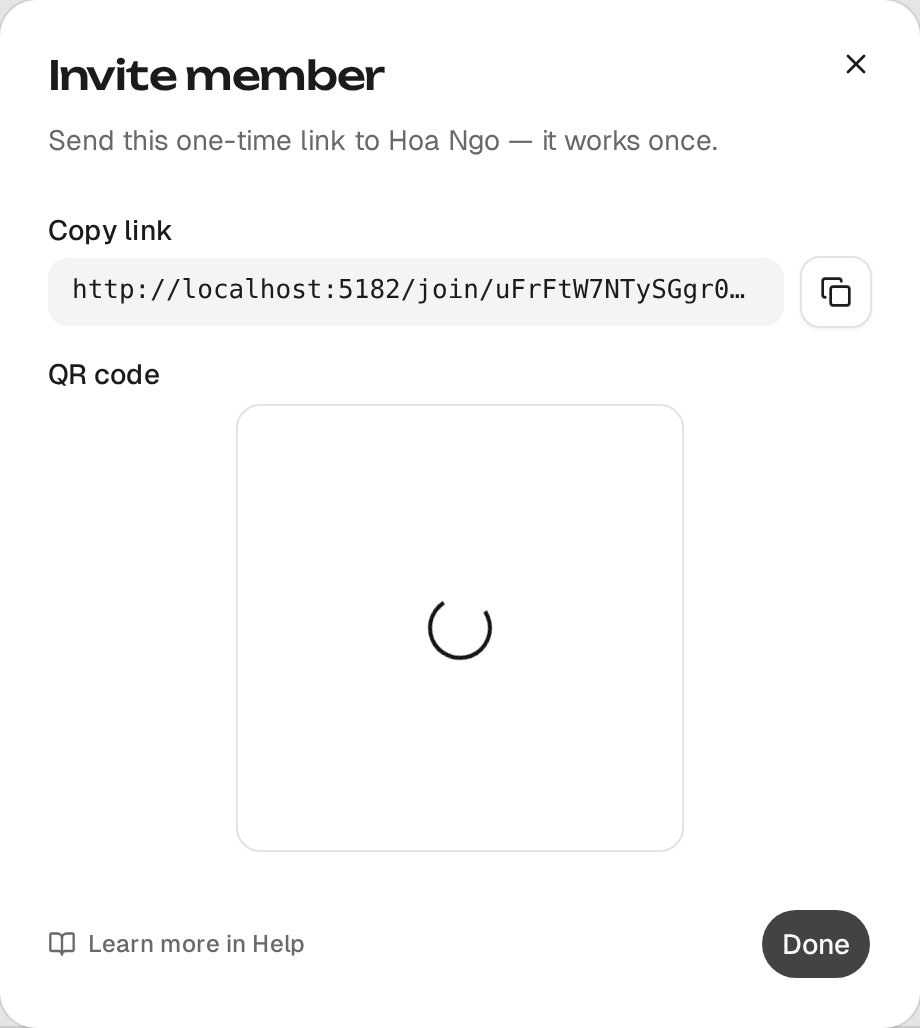
- Click "Generate link" — a link and a QR code appear, ready to copy or show for scanning.
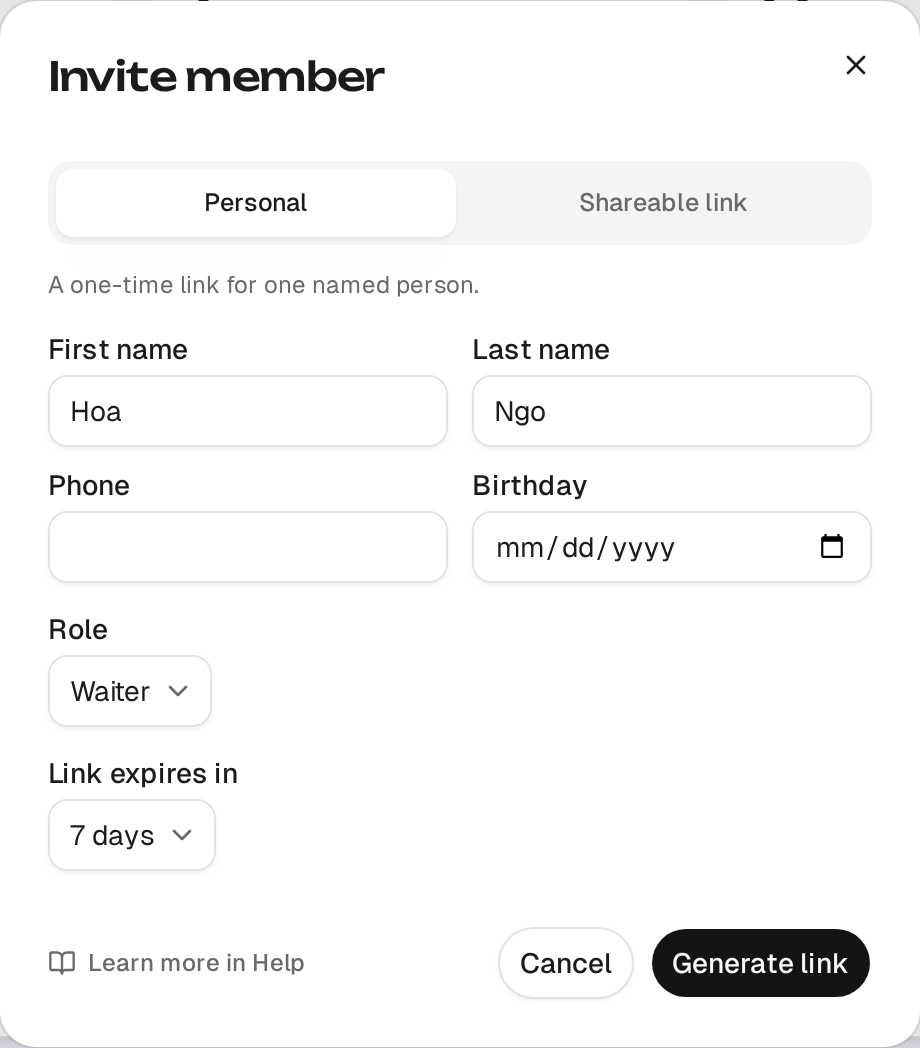
Send the link however's convenient — chat, email, or just show the QR on screen. The person opens it themselves from there (what they see).
Personal link or shareable
A toggle at the top of the dialog switches the mode:
- Personal (the default) — a link for one named person: it works once, and the moment the invitee accepts it, the row on the Invited tab flips from "Invited" to "Accepted" — no duplicate ever shows up in the staff list.
- Shareable link — reusable: useful when you need several people on the same role at once (say, a QR on the kitchen wall for every new cook). Name, phone and birthday aren't collected — the person fills those in themselves when they sign up.
Both modes let you set the link's lifetime — 1, 7, 30 or 90 days (7 by
default). An expired or revoked /join/... link stops working immediately.
Every link on the "Invited" tab has a ⋮ menu — copy it again, show the QR, or revoke it.
{warning} Revoking a link takes effect instantly: it stops opening even if someone already has it copied or sitting in a chat.
What the invitee sees
The link opens a public /join/... page — no sign-in required to see it
— that shows which restaurant and role they're being invited to right away.
From there, two paths:
- Already has an account — "Log in", enter their email/password (or a social login), and return to the invite page — it's accepted automatically, no separate "Accept" click needed.
- No account yet — "Sign up"; for a personal link their name is already filled in and locked (the owner assigned it), so they just add an email and password. After confirming their email they land straight inside the restaurant — never on the "create your own restaurant" screen.
If someone who's already a member opens the link again, that's not an error — the invite simply closes as fulfilled, and it doesn't consume a use.
The staff list
Settings → Staff shows the whole team: summary cards (total people, devices, who's on shift right now, how many invites are pending, how many roles exist) and the table below them.
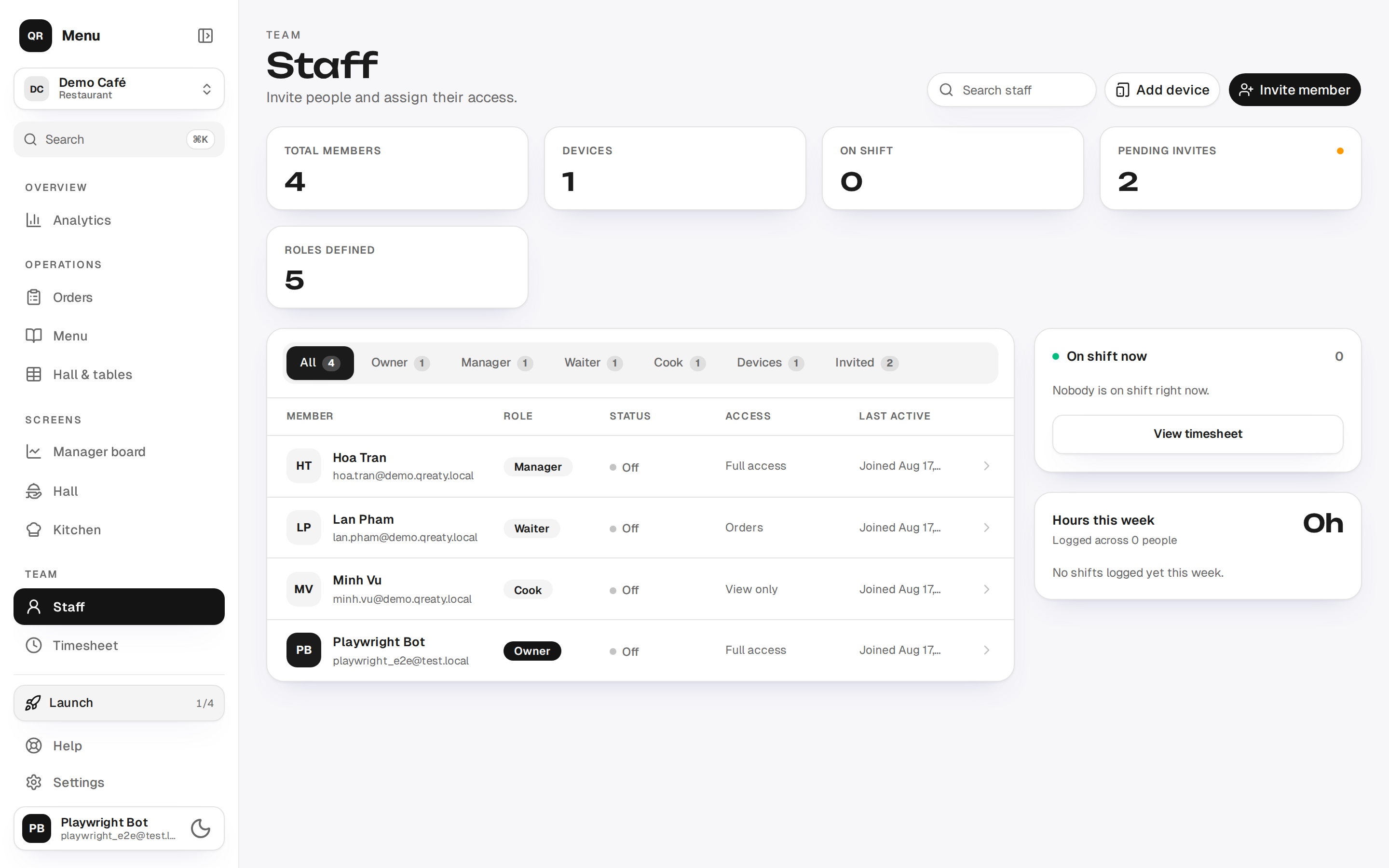
The tabs above the list are "All", one per role that has members, "Devices" (once at least one exists) and "Invited". Search matches by name and email.
Change a role, reset a password, remove
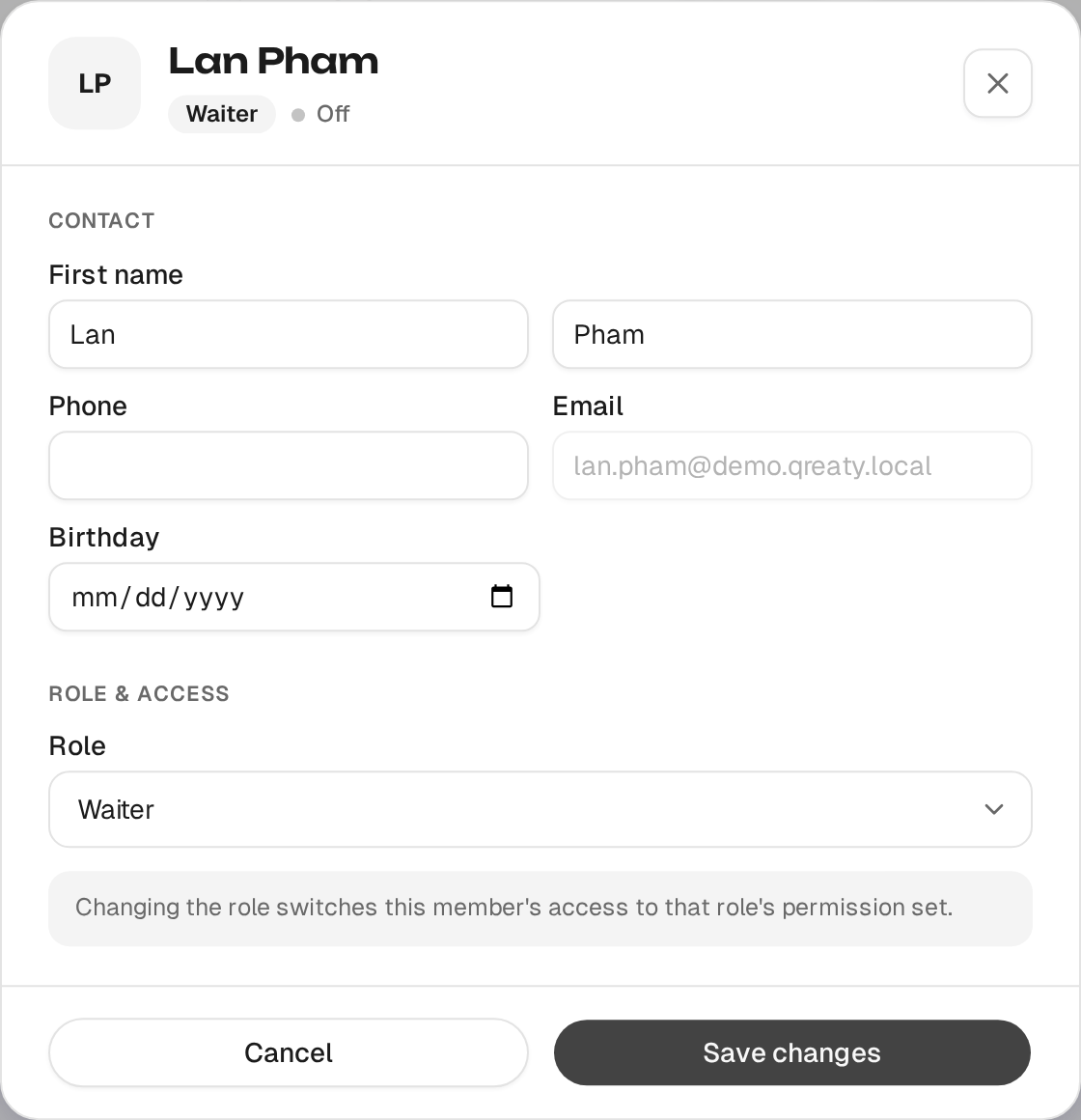
Clicking a staff row opens a card with their contact details, role, access and hire date — with three actions on it:
-
"Edit profile" — name, phone, birthday, and the role via a single picker; access is recalculated immediately, to match the new role.
-
"Reset password" — after a confirmation, issues a new one-time password; the old one stops working right away. The password is shown once — copy it immediately and pass it to the member. This is offered only for someone who works here and nowhere else: a password belongs to the whole account, and one account can serve several restaurants.
-
"Send reset link" — takes the previous item's place when a one-time password cannot be issued (the person also works elsewhere, or they are an owner). The email goes to the member, they choose the new password themselves, and you never see it.
-
"Deactivate" — removes the person from the team; access to the restaurant is revoked immediately.
An account signed in via a social provider (no password) has no reset option — only sign-in through that same provider.
Devices are a different story
A shared tablet at the counter or in the kitchen is not a person: it has no invite and no shift. It does have a role, and its screen sets it: Cashier for an Orders tablet, Cook for a kitchen one. The device's card (the "Devices" tab) shows the role along with the "Access" line and notes, and the "Set up role rights" link opens that role in Roles. That is where the till's rights change — and with them the rights of staff members with the same role (what the device's role decides).
A device doesn't join through a link but through a QR code or a code shown on the tablet itself. The "Add device" button on this screen reminds you of the steps; they're covered in full in Kiosk setup.