Venue settings
- Where to find it and who sees it
- Venue profile
- Menu look
- Opening hours
- Currency and time zone
- Guest session
- The guest's name and room number
- What is set up in other sections
- This device
- How changes are saved
- Several venues
- Danger zone
Where to find it and who sees it
Settings is the venue's back-office screen: on a phone it lives under "More", on desktop at the bottom of the side menu. Settings always apply to the venue you currently have selected.
Full access belongs to the owner and to roles with the "Restaurant settings" permission. A shared device (the till tablet) never opens Settings at all — it has its own short set of options, see This device.
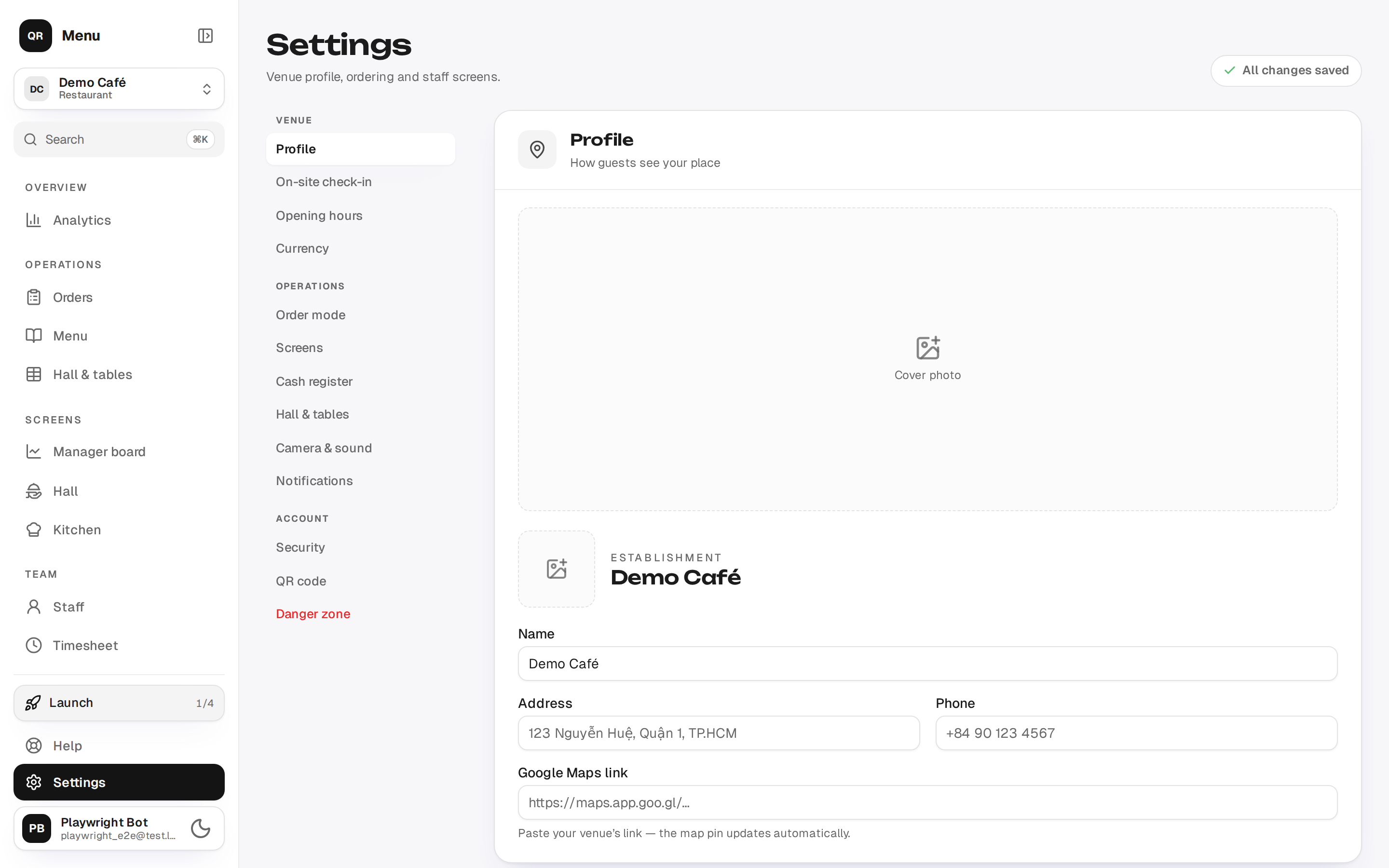
Venue profile
The name, address and phone are what a guest sees at the top of the menu and what lands on the printed receipt. The logo and the cover photo live here too: the logo shows in the header of the guest page, the cover sits as a background above the menu.
You can paste a Google Maps link so the name and address fill themselves in — the same trick as when you created the venue (more).
Links — Instagram, Facebook, Zalo, TikTok, Telegram, WhatsApp, YouTube, a booking page: paste the address and, if you like, a caption. Guests see them as buttons under the address and phone; the icon is picked from the link itself, and an unknown site gets a globe and its domain. Up to 12 links.
{info} Name and address are one of the steps in the setup checklist: without them the menu looks nameless.
Menu look
How the guest page looks is picked here from ready-made options: Default (Qreaty's own look), Minimal (white, black, hairlines, logo and name centred), Espresso (dark brown, a caramel accent, monospace headings), Gold (black and gold, serifs), Burgundy (deep red, cream text, serif italics), Rose (a pink panel instead of a photo, all round) and Lemon (a yellow panel, black buttons, red prices). It is one and the same layout with different colours, heading face and corner radii, so the menu, ordering and status work the same on every option.
The venue's cover photo tints the top of the page by itself — a blurred copy of it sits behind the header, so the page gets "its own colour" without a setting. Guests keep the light/dark switch only on Default: every other look is drawn in one scheme and opens in it.
{info} The choice applies to every menu of the venue and takes effect right after saving — a guest only needs to refresh the page.
The guest page ends with a "Powered by Qreaty" line. On the Tourist plan it can be switched off in this same section; on the other plans the switch is shown but locked and the line stays. When the plan lapses the line comes back by itself, and your choice is kept until you renew.
Opening hours
Hours for each day of the week; a switch turned off means a day off. The copy button spreads one day's hours across the whole week. Today is highlighted, and when the card is collapsed it is today that you see.
Right below the week grid sit two order-taking switches: "Only take orders during opening hours" and "Stop taking orders before closing" (how many minutes before closing new orders stop being accepted).
{info} The schedule on its own hides nothing: the guest page opens at any hour, and the guest never sees the hours on the menu page. But with "Only take orders during opening hours" switched on, a guest can't place an order outside them — they are told the venue is closed, or that ordering has stopped for today (ordering by opening hours). Staff are not held to it: a member can take an order at any time. And while the schedule is empty, orders are always accepted.
Currency and time zone
Currency is chosen when the venue is created and changed here. It decides how prices are shown to the guest and on the receipt.
Time zone sets where the day boundary falls: shifts, the timesheet and analytics are cut along it. Thanks to that, a "today" report is the same for the owner at home and for the manager on a trip — there is one starting point.
{warning} The time zone is not on this page: it is set when the venue is created (Vietnamese by default) and is only changed through platform support. If your venue works outside Vietnam, ask us to fix the zone — otherwise the "day" in reports will be shifted.
Guest session: how long the menu stays open after a scan
A guest scans the QR code on the table and uses the menu in the tab that opens. The "Menu stays open after a scan" setting in the Orders section decides how long that tab keeps working: from 1 to 24 hours. The default is 24 hours.
When the time runs out, the guest's menu gives way to a calm "Scan the QR code again" screen with a short scanning animation. One sentence there explains that the menu stays open for a limited time for the guest's security. That way yesterday's tab cannot send an order to a table the guest has already left.
- Reloading does not extend it. The countdown starts at the scan and is kept in the tab.
- A new scan starts it over. The phone camera opens the menu in a new tab.
- A guest who has already ordered keeps their order at hand. While their bill is open, the screen has a "My order" button: the order status, calling the waiter and asking for the bill all work without a scan. Ordering more needs a new scan. Once staff close the bill, the screen locks completely.
- The cart is kept. After a new scan the guest finds it where they left it.
- Another table's QR code is a new session. The countdown starts from zero.
- A new duration reaches tabs that are already open when the guest reloads them.
- The preview in the menu editor never locks.
{info} The QR code on the table is printed once and never changes, so the server cannot tell a new scan from a reload. The browser can: a scan opens a new tab. A guest who opens the link in a new tab on purpose also starts a new session. The setting protects against forgotten tabs, not against deliberate workarounds. Table QR codes are covered in QR codes.
The guest's name and room number
You can ask a guest to introduce themselves before the order goes out. In the Orders section, the "Guest details" card holds two lists — "Guest name" and "Room number" — each with three positions:
- Don't ask (the default) — the cart has no such field.
- Optional — the field is there, but the order goes out without it too.
- Required — while the field is empty the order won't send: the guest sees the hint "Your name is needed to submit" (or the room number), and the cursor lands in that field.
Why bother. At a hotel a guest orders a cocktail from a sun lounger by the pool and ten minutes later moves into the shade: the table number no longer says anything, "room 214, Anna" does. At a restaurant a name helps call the guest when the order is brought out. A sensible pick for a hotel is room required, name optional; for a restaurant, just the name, optional: every required field is one more step on every order.
{warning} The room number is the guest's word, not a check. It makes the person easy to find, but it doesn't prove the guest is staying in that room. Don't charge an order to a room on this field alone: it is what the guest claims, not the room the bill is booked to.
Where staff see the name and room. Whatever the guest typed travels with the order to every place the order shows up:
- the order card on the Orders, Hall and Kitchen screens — next to the table number, as "Room 214 · Anna";
- the order details and the archive;
- the archive CSV export — as separate columns;
- the guest receipt and the kitchen ticket when printed; a receipt for a whole bill lists each guest who gave their details on its orders once. If the bill itself carries a room number — the room staff booked the bill to — the bill receipt prints only that room, and just the guests' names: two different rooms on one receipt would only confuse;
- the new-order push — next to the table number;
- an order handed over to your till (KiotViet, CukCuk) — in the order comment; here too the bill's room takes the place of the room the guest typed;
- the order card in the platform panel — Qreaty support sees it when looking into an order at your request.
The next order. The guest's phone remembers what was typed for 30 days: the next time the fields are already filled in, and the guest only corrects them if needed. How it looks for the guest — in The cart & sending an order.
{info} The fields only appear in the full order-taking mode. In the lightweight mode (QR to waiter) the guest taps "Show order to staff" and types nothing, and the staff member accepting that QR is not held up by required fields (modes). The preview in the menu editor shows the fields as configured.
{warning} A name is personal data. That is why collecting it is off by default and only switched on by the venue's own decision. The assistant will show you where the setting is, but it cannot propose switching it on. The name is stored in the order together with its history and is visible to everyone who can see the order — see the list above.
What is set up in other sections
The settings page also gathers things that are described in detail elsewhere:
| Card | What it is about | More |
|---|---|---|
| Order mode | Menu only, QR to the waiter, or full order taking | Order intake modes |
| Screens | Which work screens are on; the kitchen's "ready" stage; "waiters claim their own tables"; kitchen card colour thresholds and confirming ready from the till; "Kitchen sees dish prices" (who sees the money) | Screens and roles |
| Hall and tables | Zones, tables, the floor map and QR printing | Hall, zones & tables |
| Staff & roles | Invites, devices, the permission matrix | Staff |
| On-site check-in | The venue pin, its radius, and what a check-in outside it means | Location-checked check-in |
| Notifications | Push and sound by stage, volume | Sound and notifications |
| QR code | The venue code for sign-in and the menu page | QR codes |
| Security | Password and two-factor authentication for your account | — |
The Printing section (the "What and where we print" part) also holds the "Pre-bill" switch — the bill carried to the guest before paying. It is off by default; switch it on if you bring guests a paper bill before they pay. While it is off, an open bill has no print button, and "Print receipt" on a settled bill stays (printing a receipt).
This device
This card is about one particular tablet or phone, not about the venue. The settings apply straight away and live in this browser:
- Camera — turn it off on a till laptop with no camera: instead of the QR scanner, Orders shows a field for typing the number from the table.
- This device opens on — the starting screen: Orders, Hall or Kitchen. That way the kitchen tablet, the waiter's phone and the cashier's laptop each work on a different screen.
- This device works in the hall as a till — turn it on for a till or a tablet that stays in the hall. Where the venue works without internet, such a device keeps orders until the connection is back; on the shared till account it is always on (hall device).
{info} The choice is hidden if the person has only one work screen available, and it is absent on a shared device — there the starting screen is pinned on the server (Kiosk setup).
How changes are saved
Venue settings (profile, hours, currency, order mode, screens) are collected into one batch and applied with the Save button. Device settings, notifications and security save themselves.
On desktop there is a table of contents on the left, changed sections light up with a dot, and an "Unsaved changes" bar rises from the bottom with the "Discard" and "Save" buttons (⌘S / Ctrl+S works too).
{warning} The logo and the cover photo upload immediately — the "Discard" button will not bring them back.
Several venues
The venue switcher sits in the header on a phone and at the top of the side menu on desktop. Next to it are "All restaurants" (the full picker screen) and "Add restaurant" — a new location, a branch or a second concept.
Each venue has its own menus, its own QR, its own hall, its own staff and its own settings. The only shared thing is your account.
{info} You cannot hand a venue over to another owner from the app — that is a request to platform support. A way around it: invite the person to the team and give them the owner role (Staff).
Danger zone
At the bottom of the page is venue deletion. It erases menus, sections, dishes and all related data with no way to recover, so it asks you to confirm who you are (password or code).
{warning} Only the owner can delete a venue, and there is no undo. If the goal is simply to "put it out of sight", turn order taking off or move the menu to the archive: the data stays where it is.