From sign-up to a menu
- Signing in & picking who you are
- Creating the venue
- Two roads to a menu: by hand or AI scan
- The success screen
- The setup checklist
- The interactive guide
Signing in & picking who you are
Sign up with email or a social account. The first question after signing in is who you are:
- "Set up my restaurant" — the owner's road, described below.
- "I'm joining a team" — if an owner sent you an invite link; you land straight on your work screen, no venue to create.
Creating the venue
The creation form is deliberately short:
- Google Maps link (optional) — paste your venue's link and the name and address fill themselves in.
- Name — can stay empty if you gave a link.
- Currency and menu language — VND and Vietnamese by default; pick your own.
Order taking is off for a new venue: the menu comes first — switch orders on when you're ready (Order intake modes).
A menu: scan it from photos or build it by hand
After the venue is created you land on the menu list. The "Create menu" button opens a window: the menu's name (filled in for you, replace it if you like) and a choice of what to fill it with.
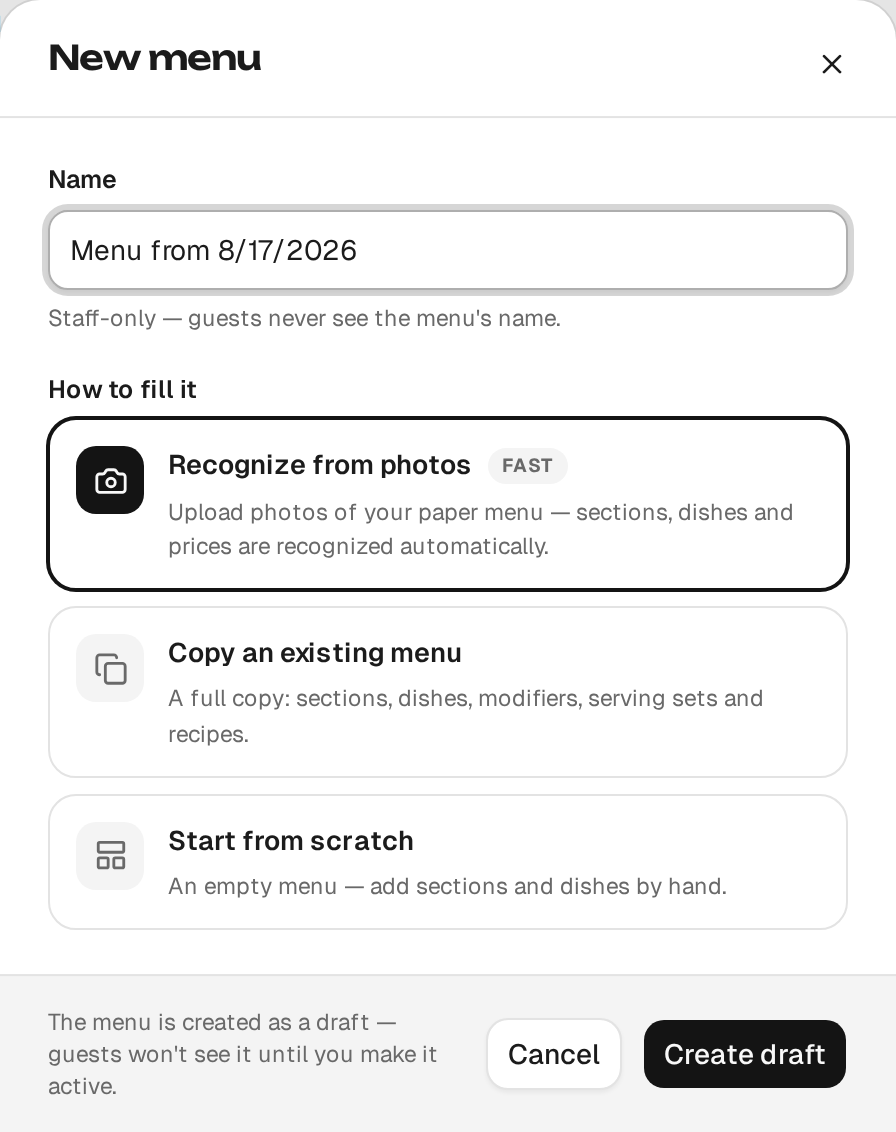
- Start from scratch — the menu editor opens right away: add sections and dishes.
- Copy an existing one — if the venue already has a menu, the new one can start as its copy (menu list).
- AI scan (recommended, ~2 minutes) — photograph your paper menu:
- Upload the photos (JPEG/PNG/WebP, up to 10 MB each); on a phone, tapping the upload area offers a choice — take a photo with the camera or pick from the gallery. How many photos fit into one run depends on the plan (limits).
- Recognition runs through its stages with a progress view. The work happens on the server: you can close the page and come back later — the progress won't be lost.
- The finished menu opens on a success screen, and the sections, dishes, prices and modifiers are already in the editor — adjust whatever you need (repeating modifier groups are merged automatically).
{info} A venue's first menu goes live right away — guests see it through the QR code. A repeat scan, when a menu already exists, is saved as a draft next to the current one: guests keep seeing the old menu until you activate the new one.
{warning} Price ranges ("50–70k") and "price on request" are recognised and shown to guests, but such an item can't be ordered until you set an exact price — the editor marks them with an amber badge.
The success screen
Once the menu is created you'll see: the venue's QR code, the guest link (open it — see the menu through a guest's eyes) and tourist-language chips — translate the menu in one tap (how translations work). Nothing is translated automatically — you add the languages.
If the menu was saved as a draft (the venue already had an active one), the screen says so — instead of the QR code it offers to open the menu list, so you can activate the new menu when you're ready.
The success screen has an address of its own: reload the page or come back to it with the browser's Back button — the QR code and the languages are still there.
The setup checklist
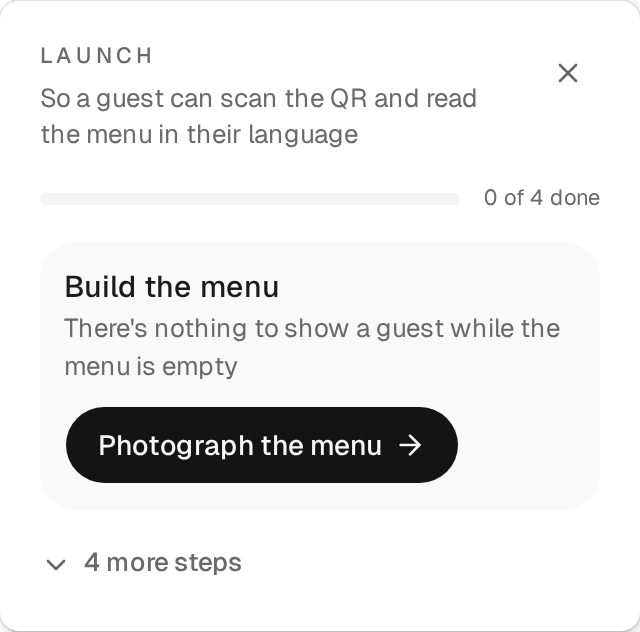
A setup checklist of five rungs leads up to a full launch:
- Build the menu — there's at least one menu with dishes.
- Add tourist languages — the menu is translated into at least one language.
- Fill in venue details — name and address (Settings → Profile).
- Print the QR for tables — download/print the QRs (details).
- Enable order taking — an optional rung; the menu works without it.
The checklist lives as a strip in the menu editor, a card in the More section on the phone, and a badge in the desktop sidebar. Once the required rungs are done, it congratulates you and tucks itself away; you can bring it back from More.
The interactive guide
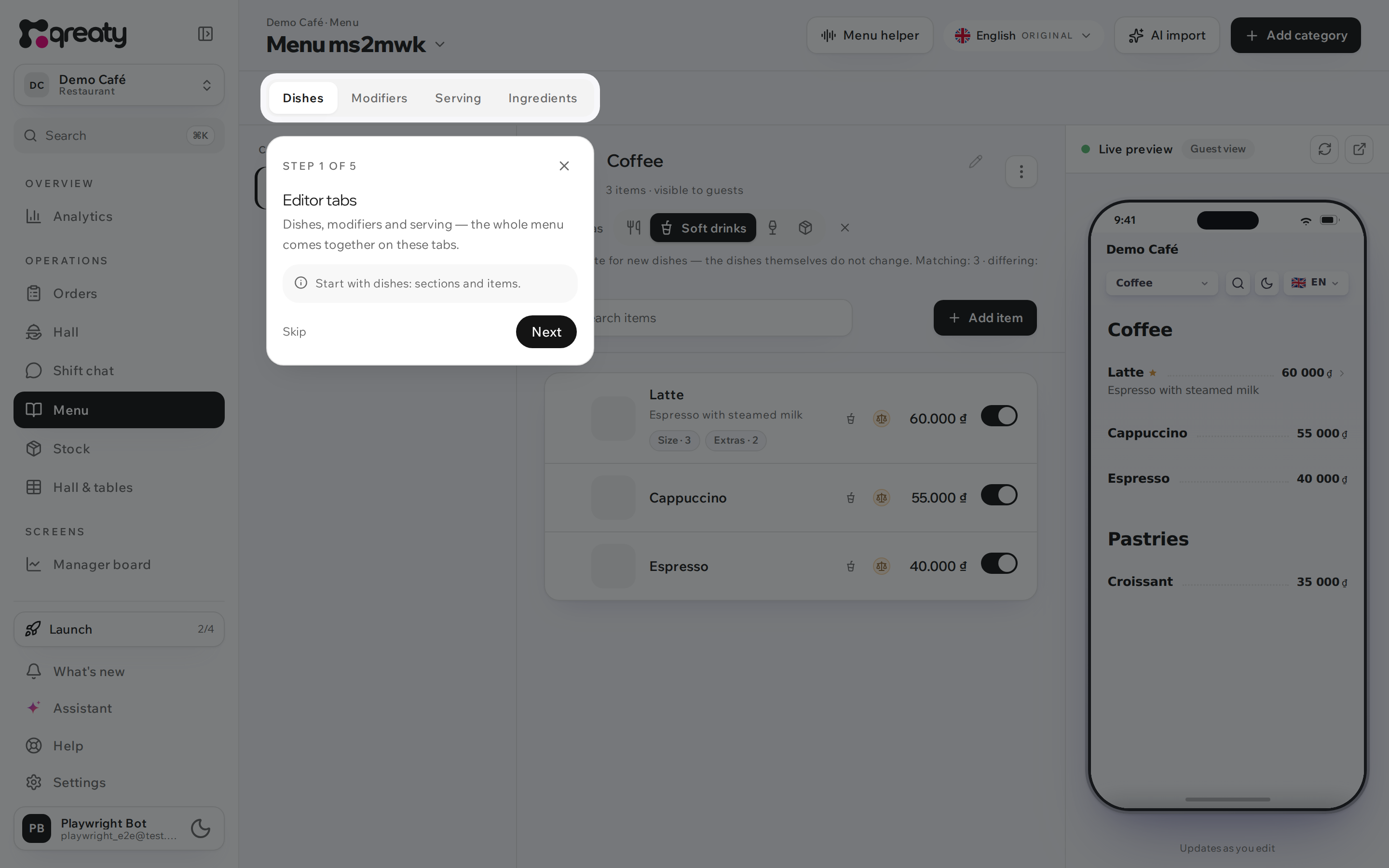
The first time the menu editor opens, a short interactive guide starts: it highlights the key controls — the editor tabs, the buttons for adding sections and dishes, the language switcher, the preview and the checklist — with a brief note on each, including the important caveats (say, that new items are created only in the original language, and that order taking is off for now).
- The guide can be skipped at any point — it won't come back on its own.
- Restart it from the checklist's menu ("More" → "Show guide").
The same short hints greet a staff member the first time they open a work screen: on the till — where guest orders land and how to take one by hand; in the hall — what to run right now and how to take a guest's call.
{info} The guide is remembered per device, not per person: a waiter sees it once on their own phone, and a shared till tablet never starts it — mid-shift hints would only get in the way.